> ## Documentation Index
> Fetch the complete documentation index at: https://devzone.nayax.com/llms.txt
> Use this file to discover all available pages before exploring further.
# Extension Types
> Reference for the four Core Extension display types: Screen, Fullscreen, Button with Popup, and Tab.
Your Core Extension appears in Nayax Core as one of four display types. The display type controls the layout, where your app sits in the UI, whether it receives element context, and how Nayax delivers the authentication token. Choose the type that fits your use case before you register your app with Nayax.
## Display types at a glance
| Display type | Menu type | Layout | Receives context | Token delivery |
| ----------------- | ---------- | ----------------------------- | ---------------- | -------------- |
| Screen | App | Full page, Nayax menu visible | No | postMessage |
| Fullscreen | App | Full page, no Nayax menu | No | See note |
| Button with Popup | App Plugin | Modal over current screen | Yes | postMessage |
| Tab | App Plugin | Tab within current screen | Yes | postMessage |
Fullscreen extensions cannot receive the token via postMessage. Contact Nayax to confirm the token delivery method for your Fullscreen extension.
## Screen
**Menu type:** App
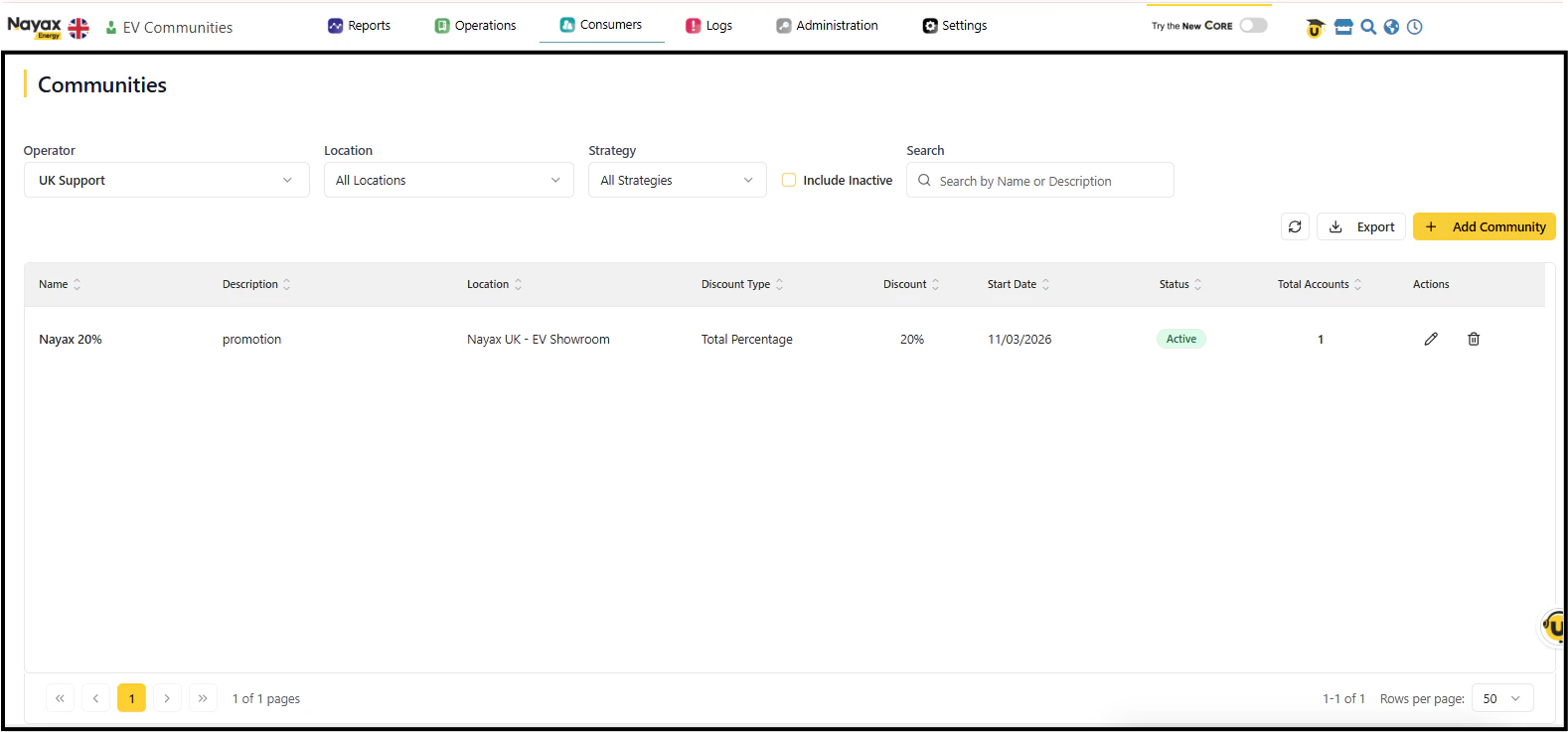
A Screen extension loads as a full page inside Nayax Core with the platform's navigation menu still visible. Users reach it by selecting it from the menu.
**When to use:** Your app is a standalone tool or dashboard that does not need to react to a specific element selected in another screen.
**Token delivery:** postMessage from the parent frame. Your app receives `token` and `cortexUrl`. No `selection` context is passed.
 ## Fullscreen
**Menu type:** App
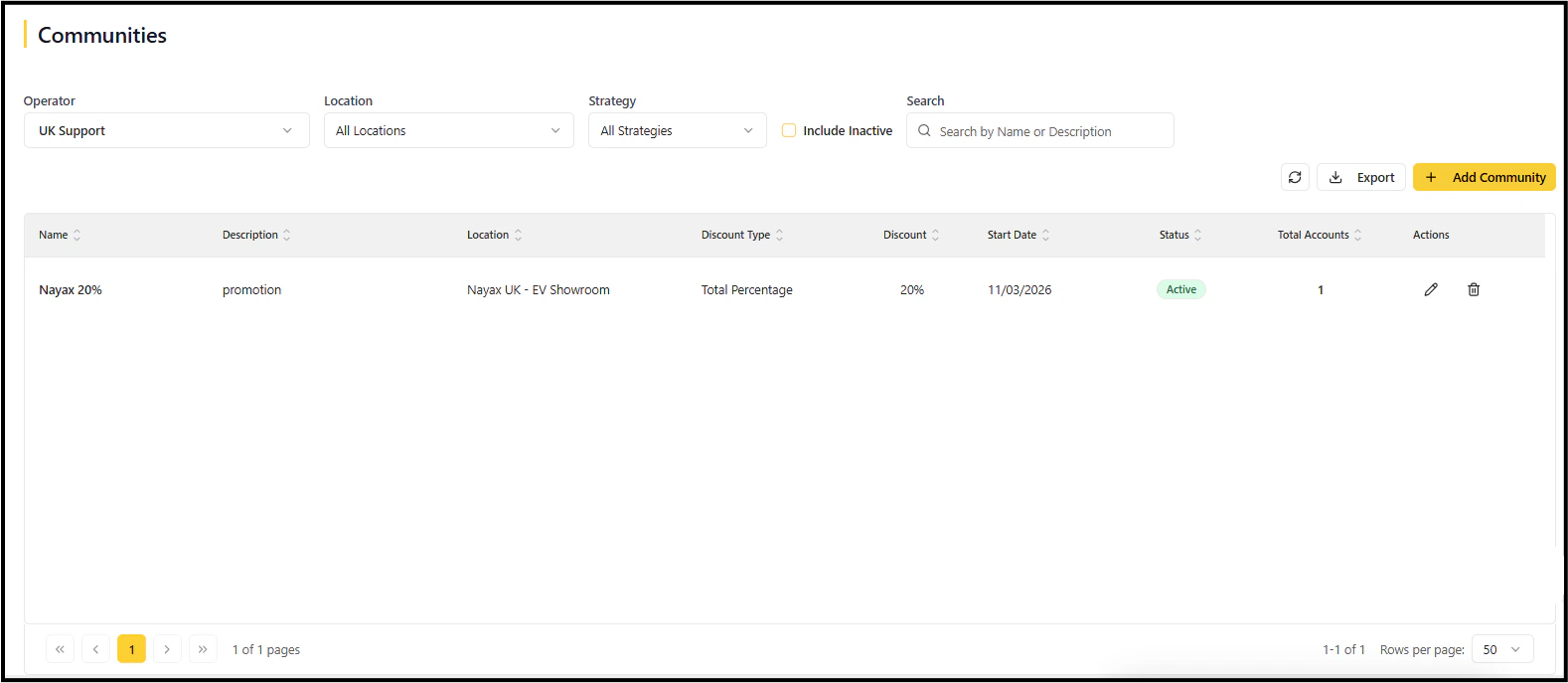
A Fullscreen extension loads as a full page and replaces the Nayax Core navigation entirely. Your app provides its own navigation.
**When to use:** Your app has its own navigation structure and needs to own the full viewport.
**Token delivery:** The Fullscreen type cannot use postMessage. Contact Nayax to confirm the token delivery method for your Fullscreen extension before building.
## Fullscreen
**Menu type:** App
A Fullscreen extension loads as a full page and replaces the Nayax Core navigation entirely. Your app provides its own navigation.
**When to use:** Your app has its own navigation structure and needs to own the full viewport.
**Token delivery:** The Fullscreen type cannot use postMessage. Contact Nayax to confirm the token delivery method for your Fullscreen extension before building.
 ## Button with Popup
**Menu type:** App Plugin
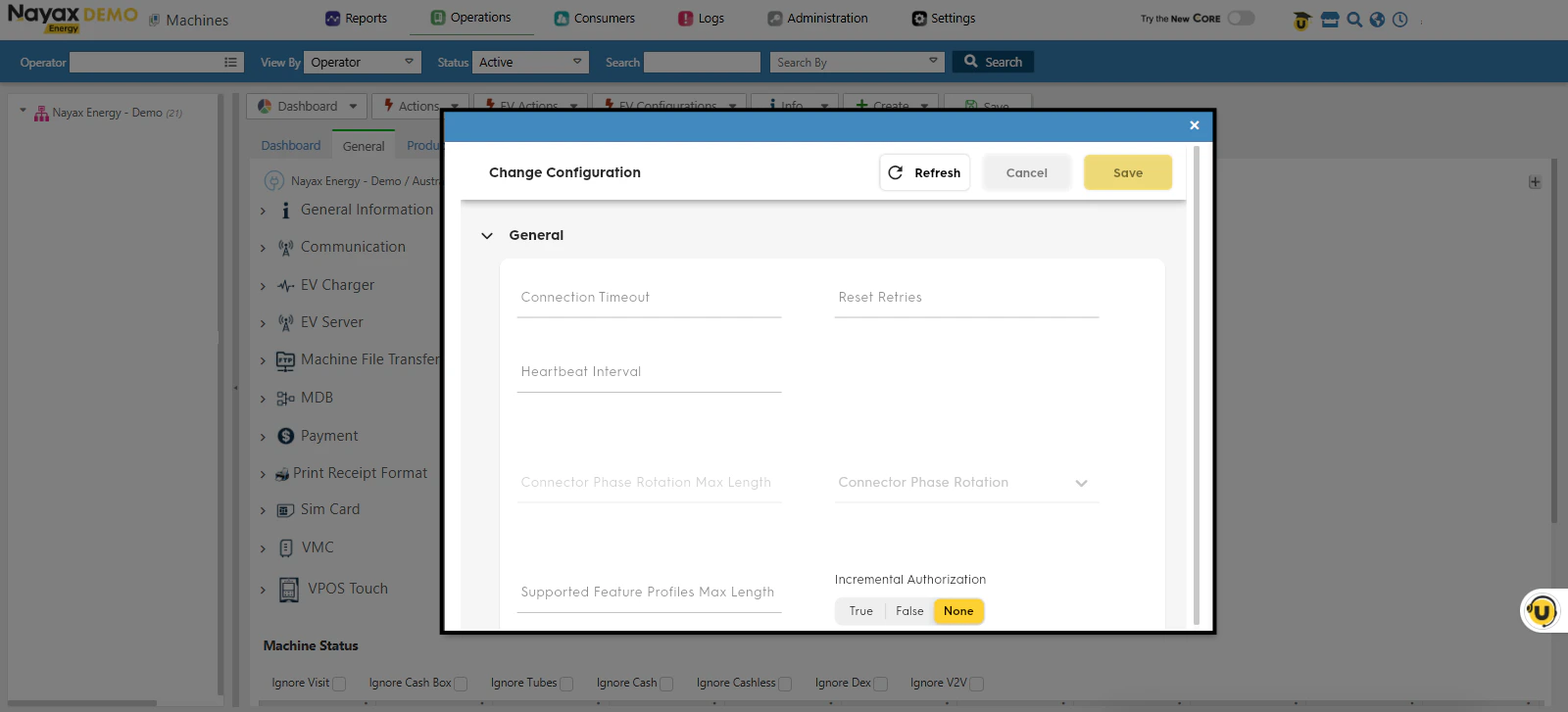
A Button with Popup extension adds a button to an existing Nayax Core screen. Clicking the button opens your app in a modal overlay.
**When to use:** Your app is a contextual action or tool that works on the element currently in focus (for example, a machine-specific diagnostic tool accessible from the Machines screen).
**Token delivery:** postMessage from the parent frame. Your app receives `token`, `cortexUrl`, and a `selection` object containing context about the focused element.
## Button with Popup
**Menu type:** App Plugin
A Button with Popup extension adds a button to an existing Nayax Core screen. Clicking the button opens your app in a modal overlay.
**When to use:** Your app is a contextual action or tool that works on the element currently in focus (for example, a machine-specific diagnostic tool accessible from the Machines screen).
**Token delivery:** postMessage from the parent frame. Your app receives `token`, `cortexUrl`, and a `selection` object containing context about the focused element.
 **Container required:** You must specify a container ID to position the button on the parent screen. See [Available containers](#available-containers) below.
## Tab
**Menu type:** App Plugin
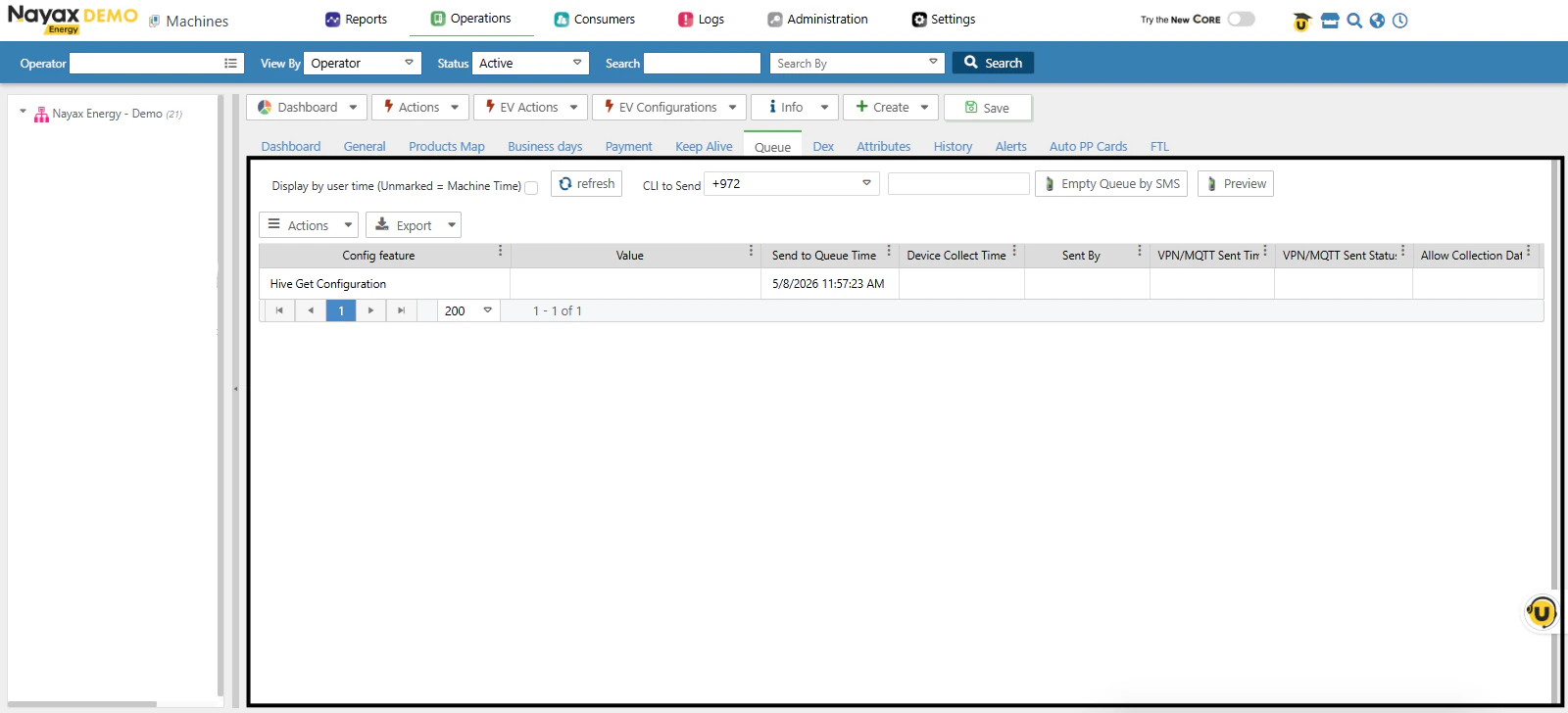
A Tab extension adds a tab to an existing Nayax Core screen. Your app loads inside that tab as an iframe.
**When to use:** Your app is a view or panel that logically belongs alongside existing tabs on a screen (for example, a custom report tab on the machine detail screen).
**Token delivery:** postMessage from the parent frame. Your app receives `token`, `cortexUrl`, and a `selection` object containing context about the focused element.
**Container required:** You must specify a container ID to position the button on the parent screen. See [Available containers](#available-containers) below.
## Tab
**Menu type:** App Plugin
A Tab extension adds a tab to an existing Nayax Core screen. Your app loads inside that tab as an iframe.
**When to use:** Your app is a view or panel that logically belongs alongside existing tabs on a screen (for example, a custom report tab on the machine detail screen).
**Token delivery:** postMessage from the parent frame. Your app receives `token`, `cortexUrl`, and a `selection` object containing context about the focused element.
 ## Configuration fields
When you provide your app details to Nayax for registration, use these fields:
| Field | Required | Description |
| --------------- | ----------- | -------------------------------------------------------------------------------------------------------------------------- |
| **Title** | Yes | Display name shown in the Nayax Core menu or as the button/tab label |
| **Menu Type** | Yes | `App` for Screen or Fullscreen. `App Plugin` for Button with Popup or Tab. |
| **Parent Menu** | Conditional | The menu item or screen where your app appears. Required for App Plugin types. |
| **Model** | No | The permission model identifier for your app. Used for scopes and role management. |
| **Icon** | No | Icon file displayed in the menu or on the button |
| **URL** | Yes | The hosted URL of your application |
| **Type** | Yes | The display type: `Screen`, `Fullscreen`, `Button with Popup`, or `Tab` |
| **Container** | Conditional | Required for App Plugin types. Specifies where the button appears on the parent screen. Leave empty for App types. |
| **Scopes** | No | Limits or overrides the user's permissions for your app. See [Authentication](/docs/core-extension/authentication#scopes). |
### Configuration example: Screen (external app)
A full-page external app with the Nayax Core menu visible:
| Field | Value |
| --------------- | -------------------------------------------------------------------- |
| **Title** | FuelPoint |
| **Menu Type** | App |
| **Parent Menu** | Operations |
| **Model** | app/fuelpoint |
| **URL** | [https://fuelpoint.roseman.co.il/](https://fuelpoint.roseman.co.il/) |
| **Type** | Screen |
| **Container** | (empty) |
## Available containers
App Plugin extensions (Button with Popup and Tab) require a container ID that positions the button on the parent screen. The following containers are available:
| Container ID | Location |
| ------------- | ---------------------- |
| `btn_info` | Info section buttons |
| `btn_actions` | Action section buttons |
## Quick reference
| I want to... | Menu type | Display type |
| ------------------------------------------ | ---------- | ----------------- |
| Add a full-page app with the Nayax menu | App | Screen |
| Add a full-page app with my own navigation | App | Fullscreen |
| Add a button that opens my app in a popup | App Plugin | Button with Popup |
| Add my app as a tab on an existing screen | App Plugin | Tab |
## Next steps
Learn how Nayax delivers the token for each display type.
Walk through registering and testing your extension end to end.
## Configuration fields
When you provide your app details to Nayax for registration, use these fields:
| Field | Required | Description |
| --------------- | ----------- | -------------------------------------------------------------------------------------------------------------------------- |
| **Title** | Yes | Display name shown in the Nayax Core menu or as the button/tab label |
| **Menu Type** | Yes | `App` for Screen or Fullscreen. `App Plugin` for Button with Popup or Tab. |
| **Parent Menu** | Conditional | The menu item or screen where your app appears. Required for App Plugin types. |
| **Model** | No | The permission model identifier for your app. Used for scopes and role management. |
| **Icon** | No | Icon file displayed in the menu or on the button |
| **URL** | Yes | The hosted URL of your application |
| **Type** | Yes | The display type: `Screen`, `Fullscreen`, `Button with Popup`, or `Tab` |
| **Container** | Conditional | Required for App Plugin types. Specifies where the button appears on the parent screen. Leave empty for App types. |
| **Scopes** | No | Limits or overrides the user's permissions for your app. See [Authentication](/docs/core-extension/authentication#scopes). |
### Configuration example: Screen (external app)
A full-page external app with the Nayax Core menu visible:
| Field | Value |
| --------------- | -------------------------------------------------------------------- |
| **Title** | FuelPoint |
| **Menu Type** | App |
| **Parent Menu** | Operations |
| **Model** | app/fuelpoint |
| **URL** | [https://fuelpoint.roseman.co.il/](https://fuelpoint.roseman.co.il/) |
| **Type** | Screen |
| **Container** | (empty) |
## Available containers
App Plugin extensions (Button with Popup and Tab) require a container ID that positions the button on the parent screen. The following containers are available:
| Container ID | Location |
| ------------- | ---------------------- |
| `btn_info` | Info section buttons |
| `btn_actions` | Action section buttons |
## Quick reference
| I want to... | Menu type | Display type |
| ------------------------------------------ | ---------- | ----------------- |
| Add a full-page app with the Nayax menu | App | Screen |
| Add a full-page app with my own navigation | App | Fullscreen |
| Add a button that opens my app in a popup | App Plugin | Button with Popup |
| Add my app as a tab on an existing screen | App Plugin | Tab |
## Next steps
Learn how Nayax delivers the token for each display type.
Walk through registering and testing your extension end to end.