> ## Documentation Index
> Fetch the complete documentation index at: https://devzone.nayax.com/llms.txt
> Use this file to discover all available pages before exploring further.
# Prepaid Card
Find quick answers and step-by-step guides for the most common questions about **Nayax API integration**, device configuration, transaction tracking, and deployment processes. Navigate the categories below to find solutions and best practices.
### Are all of the calls directed to the same TCP port?
Yes, that is the most common and standard setup for this type of integration.
All communication calls discussed (e.g., StartSession, Sale, Authorization, etc.) are typically directed to the same TCP port on your server, as specified in the base URL provided to Nayax.
### How can we direct the calls to a particular port?
You direct the calls to a specific port by appending the port number, preceded by a colon (`:`), to the customer's base URL.
| Component | Example |
| :----------------- | :----------------- |
| **Customer URL** | `XXX.com` |
| **Desired Port** | `1234` |
| **Full URL Setup** | **`XXX.com:1234`** |
This format ensures all calls (e.g., `StartSession`, `SaleEndNotification`, etc.) are directed to that specific port on the customer's server.
### How can we track a transaction?
Your primary identifier for tracking a transaction on your system is the **Transaction ID** field.
You can send us any Transaction ID you desire, provided it meets the following criteria:
* It must be made up of **36 numeric characters**.
* It must be included and encrypted in the `StartSession` response body. (For full details, please refer to the [Start Session authentication process](/docs/cortina/start-session/cortina-auth#/)).
To see which Nayax internal ID matches your Transaction ID, refer to the subsequent requests, such as the `Sale` request.
> **Example:** In the `Sale` request, you will find:
>
> * Your Transaction ID (in your system's context).
> * Nayax's matching Transaction ID.
 ### How do I identify which of my machines the transaction is coming from?
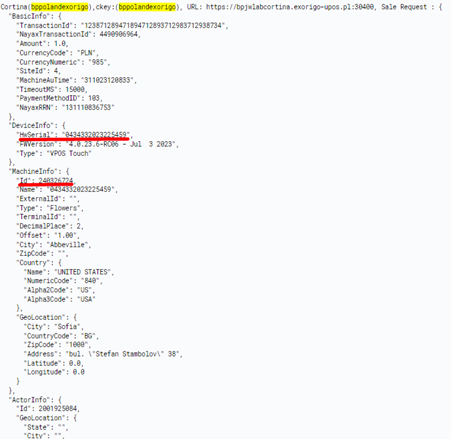
You can identify the machine from which the transaction originated by checking the **`Sale` request** data.
### 1. Recommended Method: `MachineInfo`
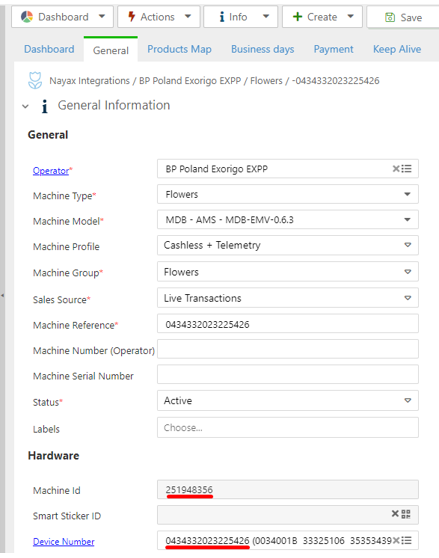
The best method is to use the **`Id` field** found within the **`MachineInfo`** object in the request.
* This `Id` represents your **virtual machine's ID**.
* **Recommendation:** We suggest matching by the virtual machine ID because it is less likely to change than the physical device (e.g., if you swap a payment terminal).
> **Action Item:** We recommend adding a column to your internal tracking table that correlates the `MachineInfo.Id` with the physical location of the device.
### 2. Alternative Method: `DeviceInfo`
You can also identify the source using the physical device's serial number, which is sent within the **`DeviceInfo`** object. This is a less reliable long-term key if device swaps are common.
### How do I identify which of my machines the transaction is coming from?
You can identify the machine from which the transaction originated by checking the **`Sale` request** data.
### 1. Recommended Method: `MachineInfo`
The best method is to use the **`Id` field** found within the **`MachineInfo`** object in the request.
* This `Id` represents your **virtual machine's ID**.
* **Recommendation:** We suggest matching by the virtual machine ID because it is less likely to change than the physical device (e.g., if you swap a payment terminal).
> **Action Item:** We recommend adding a column to your internal tracking table that correlates the `MachineInfo.Id` with the physical location of the device.
### 2. Alternative Method: `DeviceInfo`
You can also identify the source using the physical device's serial number, which is sent within the **`DeviceInfo`** object. This is a less reliable long-term key if device swaps are common.
 ### What are the endpoints for each of the commands?
Each method has its own endpoint, as specified in the URL provided to Nayax.
The structure is: `(customer's URL)/Cortina/ followed by the command/integration path`.
### 1. Simple Commands (Session & Notification)
These commands use a direct path structure:
| Command | Endpoint Example |
| :---------------------- | :--------------------------------------------- |
| **StartSession** | `(customer's URL)/Cortina/StartSession` |
| **SaleEndNotification** | `(customer's URL)/Cortina/SaleEndNotification` |
***
### 2. PrePaid Integration Commands
These commands include the integration type (`PrePaid`) in the path:
| Command | Endpoint Example |
| :---------------- | :----------------------------------------------- |
| **Authorization** | `(customer's URL)/Cortina/PrePaid/Authorization` |
| **Settlement** | `(customer's URL)/Cortina/PrePaid/Settlement` |
| **Cancel** | `(customer's URL)/Cortina/PrePaid/Cancel` |
| **Sale** | `(customer's URL)/Cortina/PrePaid/Sale` |
| **Void** | `(customer's URL)/Cortina/PrePaid/Void` |
### Where do I get the consumer's card details?
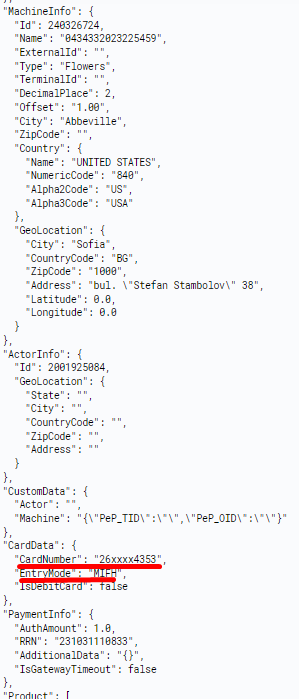
The consumer's card details are found within the **`CardData`** object, which is included in the **`Sale` request**.
### What are the endpoints for each of the commands?
Each method has its own endpoint, as specified in the URL provided to Nayax.
The structure is: `(customer's URL)/Cortina/ followed by the command/integration path`.
### 1. Simple Commands (Session & Notification)
These commands use a direct path structure:
| Command | Endpoint Example |
| :---------------------- | :--------------------------------------------- |
| **StartSession** | `(customer's URL)/Cortina/StartSession` |
| **SaleEndNotification** | `(customer's URL)/Cortina/SaleEndNotification` |
***
### 2. PrePaid Integration Commands
These commands include the integration type (`PrePaid`) in the path:
| Command | Endpoint Example |
| :---------------- | :----------------------------------------------- |
| **Authorization** | `(customer's URL)/Cortina/PrePaid/Authorization` |
| **Settlement** | `(customer's URL)/Cortina/PrePaid/Settlement` |
| **Cancel** | `(customer's URL)/Cortina/PrePaid/Cancel` |
| **Sale** | `(customer's URL)/Cortina/PrePaid/Sale` |
| **Void** | `(customer's URL)/Cortina/PrePaid/Void` |
### Where do I get the consumer's card details?
The consumer's card details are found within the **`CardData`** object, which is included in the **`Sale` request**.