> ## Documentation Index
> Fetch the complete documentation index at: https://devzone.nayax.com/llms.txt
> Use this file to discover all available pages before exploring further.
# DynamicQR
DynamicQR codes enable customers to complete payments by scanning the code with their mobile device, but with an added layer of security generating a unique code for each transaction, ensuring the QR code cannot be reused, making it ideal for high-value or secure transactions.
## How it works
The image below describes the typical usage flow of DynamicQR.
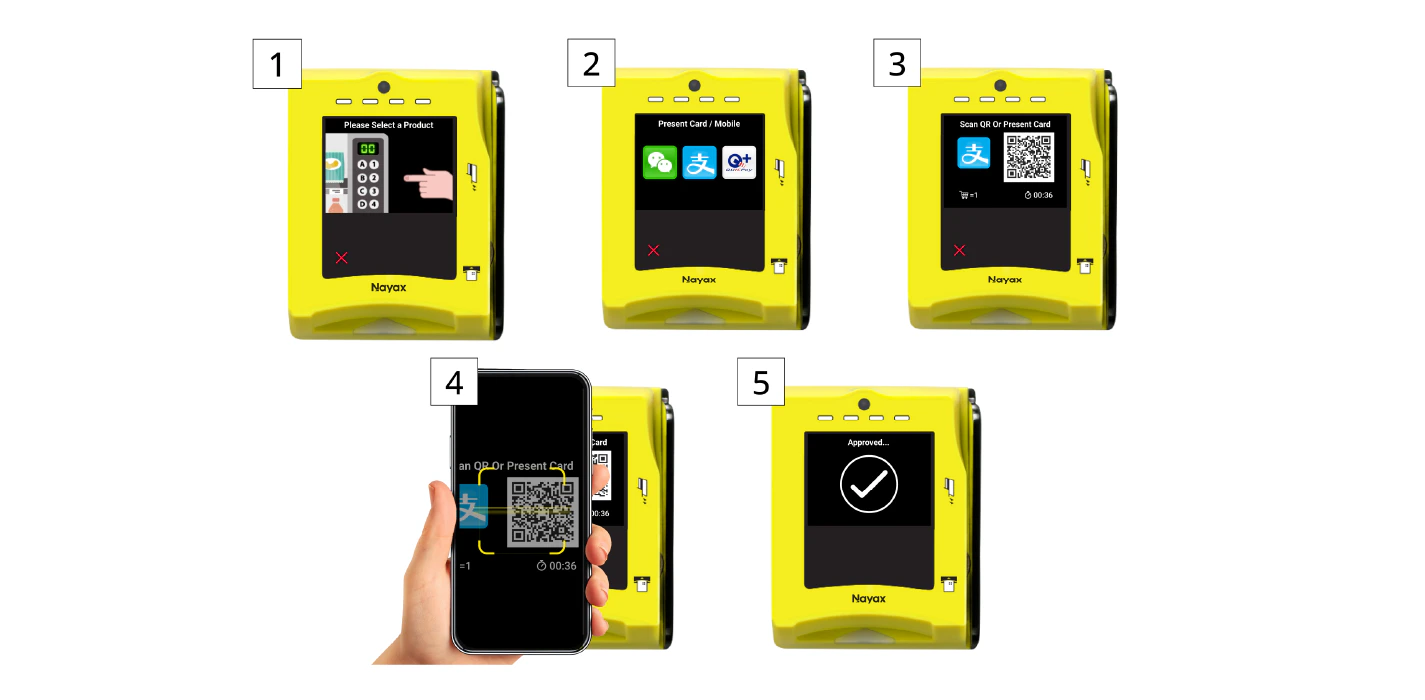 Where:
1. The customer starts by selecting a product.
2. The customer chooses the QR payment option.
3. The device presents the generated QR code.
4. The customer scans this code to initiate the payment.
5. The payment is processed and approved.
**Pre-Selection Only**
Cortina Dynamic QR currently only supports Pre-Selection transaction types.
## Pre-Selection Flow
The Pre-selection flow simplifies the payment process by merging the steps of product/service selection and authorization into a single transaction. This flow is typically used for low-value or quick transactions, where the customer’s selection and payment authorization are handled together in one step.
See the diagram below (the numbers inside the brackets relate to the different sources of timeout):
Where:
1. The customer starts by selecting a product.
2. The customer chooses the QR payment option.
3. The device presents the generated QR code.
4. The customer scans this code to initiate the payment.
5. The payment is processed and approved.
**Pre-Selection Only**
Cortina Dynamic QR currently only supports Pre-Selection transaction types.
## Pre-Selection Flow
The Pre-selection flow simplifies the payment process by merging the steps of product/service selection and authorization into a single transaction. This flow is typically used for low-value or quick transactions, where the customer’s selection and payment authorization are handled together in one step.
See the diagram below (the numbers inside the brackets relate to the different sources of timeout):
 The steps in this process are as follows:
1. The user selects a product and payment method on the Vending Machine.
2. The Vending Machine sends a QR Command Request to the Nayax Server.
3. The Nayax Server sends a GenerateQR (Amount, Channel) request to the Integrator using the [DynamicQR GenerateQR](/reference/cortina/dynamicqr/cortina-dynamicqr-generateqr) endpoint.
4. The Integrator returns a Response including the QR code data to the Nayax Server.
5. The Nayax Server sends the QR Command Response back to the Vending Machine, which then shows the QR code.
6. Once the user scans the QR and confirms via mobile, the Vending Machine sends a QR Payment Command Request to the Nayax Server.
7. The Nayax Server sends an Inquiry (Transaction ID) to the Integrator using the [DynamicQR Inquiry](/reference/cortina/dynamicqr/cortina-dynamicqr-inquiry) endpoint.
8. The Integrator returns the Response Status (Approved/Pending) to the Nayax Server.
9. The Nayax Server sends the QR Payment Command Response to the Vending Machine.
10. The Vending Machine dispenses the product and sends the Settlement Command to the Nayax Server.
The steps in this process are as follows:
1. The user selects a product and payment method on the Vending Machine.
2. The Vending Machine sends a QR Command Request to the Nayax Server.
3. The Nayax Server sends a GenerateQR (Amount, Channel) request to the Integrator using the [DynamicQR GenerateQR](/reference/cortina/dynamicqr/cortina-dynamicqr-generateqr) endpoint.
4. The Integrator returns a Response including the QR code data to the Nayax Server.
5. The Nayax Server sends the QR Command Response back to the Vending Machine, which then shows the QR code.
6. Once the user scans the QR and confirms via mobile, the Vending Machine sends a QR Payment Command Request to the Nayax Server.
7. The Nayax Server sends an Inquiry (Transaction ID) to the Integrator using the [DynamicQR Inquiry](/reference/cortina/dynamicqr/cortina-dynamicqr-inquiry) endpoint.
8. The Integrator returns the Response Status (Approved/Pending) to the Nayax Server.
9. The Nayax Server sends the QR Payment Command Response to the Vending Machine.
10. The Vending Machine dispenses the product and sends the Settlement Command to the Nayax Server.