> ## Documentation Index
> Fetch the complete documentation index at: https://devzone.nayax.com/llms.txt
> Use this file to discover all available pages before exploring further.
# Drop-in UI
The Drop-in UI component allows you to easily display a complete, pre-configured list of available Payment Methods anywhere on your website, minimizing development time for integration.
Other features of the UI include:
* Payment method additions are instantly available with no development required.
* Complete styling control over the payment method list.
* Native 3D Secure 2 support is included.
**Implement Drop-in UI**
The `startPayment` method automatically handles the implementation of the Drop-in UI.
## How it Works
The Drop-in usage flow is as follows:
1. The consumer goes to the checkout page.
2. This creates an instance of Drop-in using the session data from the server.
3. The Drop-in shows the available payment methods and collects the consumer's payment details.
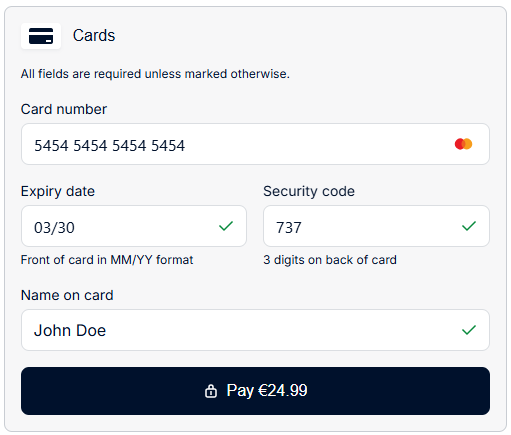 4. Once the payment is performed, the UI will present the payment result to the consumer.
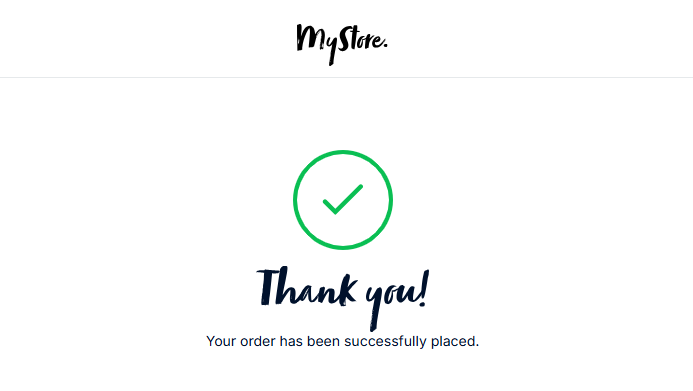 **Webhook Notification**
Your webhook server simultaneously receives the event containing the payment outcome. See [Webhook Notifications](/docs/ecom-sdk/back-end-integration/webhook-notifications) for more details.
### Field Validation
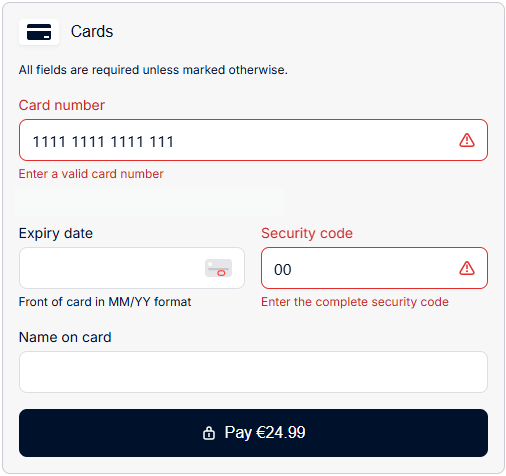
If the consumer enters incorrect information in the fields, the drop-in UI performs a validation check and informs them of the errors. See the example below:
**Webhook Notification**
Your webhook server simultaneously receives the event containing the payment outcome. See [Webhook Notifications](/docs/ecom-sdk/back-end-integration/webhook-notifications) for more details.
### Field Validation
If the consumer enters incorrect information in the fields, the drop-in UI performs a validation check and informs them of the errors. See the example below:
 ## See Also
Call startPayment to launch a payment flow with the Nayax eCom SDK.
Handle the SDK's payment result callbacks for Android and iOS.
## See Also
Call startPayment to launch a payment flow with the Nayax eCom SDK.
Handle the SDK's payment result callbacks for Android and iOS.