> ## Documentation Index
> Fetch the complete documentation index at: https://devzone.nayax.com/llms.txt
> Use this file to discover all available pages before exploring further.
# Firmware & Configuration Updates
You can update the cashless reader firmware and configuration:
* **Remotely:** via Nayax Core or OTI Terminal Management System (TMS)
* **Locally:** from a Windows PC using the UNO-8 Manager
## Remote Update from Nayax Core
### Update Reader (POS) Firmware
Select **EMV Core v1.x**.
Select the required firmware:
* **For UNO-mini:**
* RTOS SDK firmware starts with `EMVSC_` (e.g., `EMVSC_v07652`)
* The first RTOS SDK version is named `EMVS_v071558_ec`
* Linux or Android SDK firmware starts with `EMVS_`
* If more than one firmware is available for your device, take the latest one.
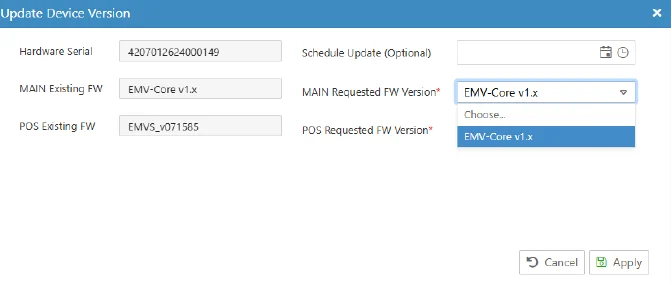 This adds the action to the Queue.
### Reader (POS) Kernel Configuration
The kernel configuration is automatically selected by Nayax Core based on Country, Billing Provider, and Device type. Follow these steps to trigger the update:
1. Ensure the correct **Country** is set in the machine's General settings.
2. Ensure the correct **Billing Provider** is set in the machine's Payment settings.
3. Select **Actions | Reboot device** to initiate a device power-up.
4. Wait 5–10 minutes for the device to receive its kernel configuration, then verify in the **Embedded Advanced** section under **POS Configuration Version Name**.
Expected configuration names:
| Country | Billing Provider | POS Config Version Prefix | Example |
| :-------------- | :------------------------ | :------------------------ | :------ |
| USA | Heartland Nayax EMV | `HTL_` | HTL\_25 |
| Canada | CityCardPayment (Nuvei) | `NUV_` | NUV\_12 |
| Europe, UK | Credorax (Finaro/Shift4) | `FIN_` | FIN\_14 |
| Other countries | Stubb billing (test only) | `FIN_` | FIN\_14 |
### Machine Configuration
To push a new configuration to the device:
Open the **Embedded** or **Embedded Advanced** section and update the relevant attribute.
This adds the action to the Queue.
### Reader (POS) Kernel Configuration
The kernel configuration is automatically selected by Nayax Core based on Country, Billing Provider, and Device type. Follow these steps to trigger the update:
1. Ensure the correct **Country** is set in the machine's General settings.
2. Ensure the correct **Billing Provider** is set in the machine's Payment settings.
3. Select **Actions | Reboot device** to initiate a device power-up.
4. Wait 5–10 minutes for the device to receive its kernel configuration, then verify in the **Embedded Advanced** section under **POS Configuration Version Name**.
Expected configuration names:
| Country | Billing Provider | POS Config Version Prefix | Example |
| :-------------- | :------------------------ | :------------------------ | :------ |
| USA | Heartland Nayax EMV | `HTL_` | HTL\_25 |
| Canada | CityCardPayment (Nuvei) | `NUV_` | NUV\_12 |
| Europe, UK | Credorax (Finaro/Shift4) | `FIN_` | FIN\_14 |
| Other countries | Stubb billing (test only) | `FIN_` | FIN\_14 |
### Machine Configuration
To push a new configuration to the device:
Open the **Embedded** or **Embedded Advanced** section and update the relevant attribute.
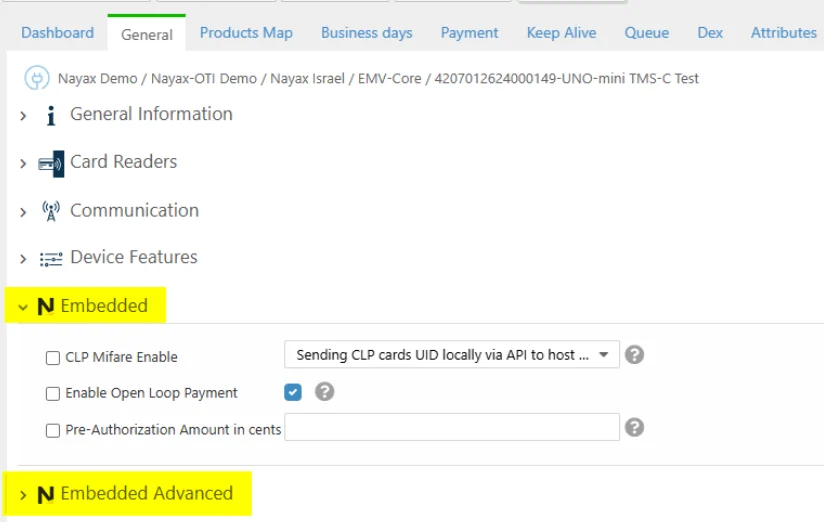 This adds the changed attributes to the Queue.
Any attribute change causes a complete update of all machine attributes.
***
## Remote Update from the TMS
### Update Reader Firmware
1. Log in to OTI TMS and select the **Terminals** tab.
2. Select the terminals you wish to update.
3. Open the **Command builder**.
4. Select the **SAT\_PROG** command.
5. Select the firmware file (`*.Oef`), found in `.\Firmware and Configuration`.
6. Press **Send** and wait for the process to complete, or use **Add Command to batch** for additional commands.
This adds the changed attributes to the Queue.
Any attribute change causes a complete update of all machine attributes.
***
## Remote Update from the TMS
### Update Reader Firmware
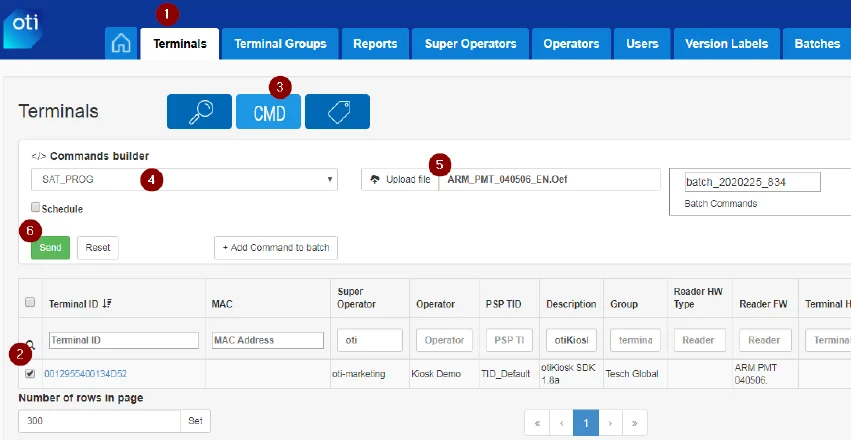
1. Log in to OTI TMS and select the **Terminals** tab.
2. Select the terminals you wish to update.
3. Open the **Command builder**.
4. Select the **SAT\_PROG** command.
5. Select the firmware file (`*.Oef`), found in `.\Firmware and Configuration`.
6. Press **Send** and wait for the process to complete, or use **Add Command to batch** for additional commands.
 ### Update Reader Configuration
Follow the process above, but use:
* Command: **SAT\_CONFIG**
* Configuration file: For UNO-8/PLUS, use a `*.zip` configuration pack (e.g., `EVO_UNO8_135.zip`).
* SDK configuration files are in `.\Firmware and Configuration`.
After updates are complete, send the **GET\_VERSIONS** command so all changes are reflected in the TMS.
***
## Local Update from a Windows PC
### UNO-8 and UNO-mini
1. Install **UNO-8 Manager v4.0** or above from the SDK: `.\Utilities\UNO-8 Manager` folder.
2. Connect your reader to the PC.
### Update Firmware
1. Open UNO-8 Manager and select the **Upgrade FW** tab.
2. Select the firmware file (`.\Firmware and Configuration`).
3. Press **Upgrade** and wait for the process to complete.
### Update Configuration
Select the **File System** tab.
### Update Reader Configuration
Follow the process above, but use:
* Command: **SAT\_CONFIG**
* Configuration file: For UNO-8/PLUS, use a `*.zip` configuration pack (e.g., `EVO_UNO8_135.zip`).
* SDK configuration files are in `.\Firmware and Configuration`.
After updates are complete, send the **GET\_VERSIONS** command so all changes are reflected in the TMS.
***
## Local Update from a Windows PC
### UNO-8 and UNO-mini
1. Install **UNO-8 Manager v4.0** or above from the SDK: `.\Utilities\UNO-8 Manager` folder.
2. Connect your reader to the PC.
### Update Firmware
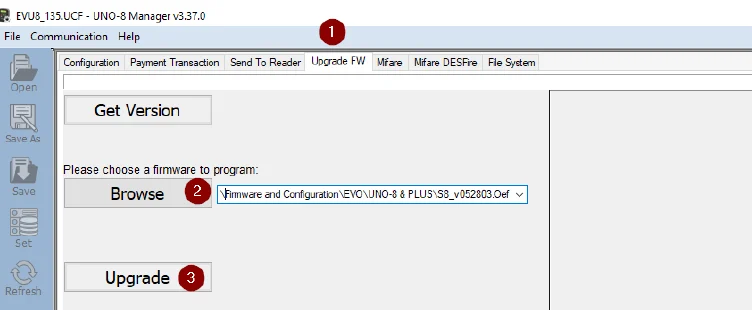
1. Open UNO-8 Manager and select the **Upgrade FW** tab.
2. Select the firmware file (`.\Firmware and Configuration`).
3. Press **Upgrade** and wait for the process to complete.
### Update Configuration
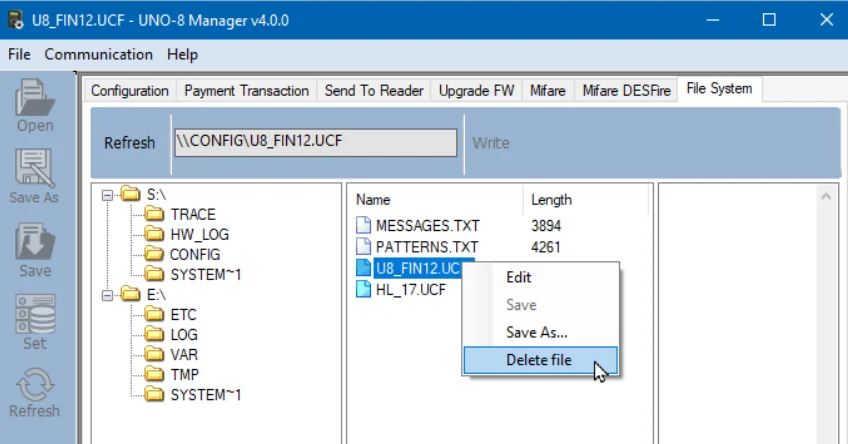
Select the **File System** tab.
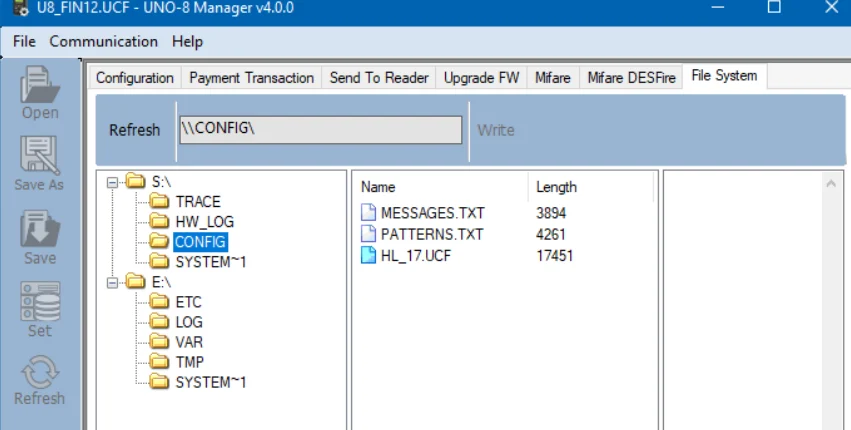
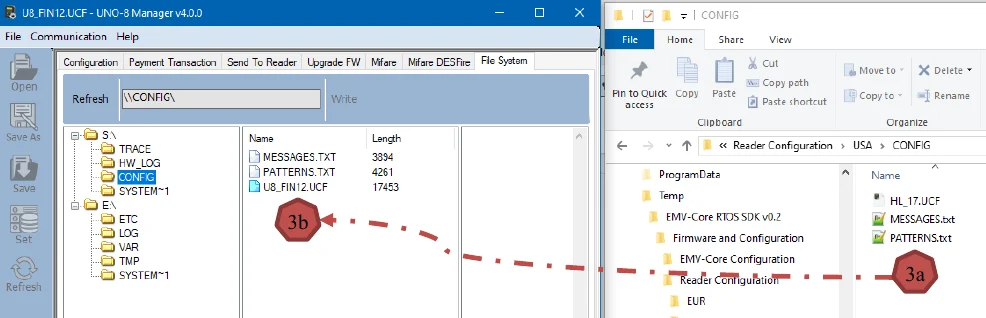
 Open Windows File Explorer and navigate to the Reader `CONFIG` folder (e.g., `.\Firmware and Configuration\Reader Configuration\USA\CONFIG`).
Drag the 3 configuration files from File Explorer into the `S:\CONFIG` folder in UNO-8 Manager.
Open Windows File Explorer and navigate to the Reader `CONFIG` folder (e.g., `.\Firmware and Configuration\Reader Configuration\USA\CONFIG`).
Drag the 3 configuration files from File Explorer into the `S:\CONFIG` folder in UNO-8 Manager.
 Right-click the old file and select **Delete file**.