> ## Documentation Index
> Fetch the complete documentation index at: https://devzone.nayax.com/llms.txt
> Use this file to discover all available pages before exploring further.
# Error Handling & Troubleshooting
This page covers system-level issues: terminal registration, configuration, and log collection. For SDK-level integration issues (serial setup, threading, callbacks, memory), see [Integration Guide](/docs/integrate-pos-device/emv-core/rtos/rtos-integration-guide#integration-troubleshooting).
When encountering errors or unexpected behavior, provide the following to Nayax support:
1. **Device ID** (Reader Serial Number)
2. **EMV Core FW version** in use
3. **EMV Core configuration file**
4. **EMV Core log files**
5. **Transaction data** (if applicable): date/time, amount, transaction ID, error received
6. **Reader configuration** (retrievable with the Saturn Management Utility)
## Log Files
The EMV Core saves information in log files for debugging purposes.
Log files can be obtained by:
1. **Nayax Core**: Use the **Request Gtrace** action.
2. **TMS**: Send the `UPLOAD_LOGS` command.
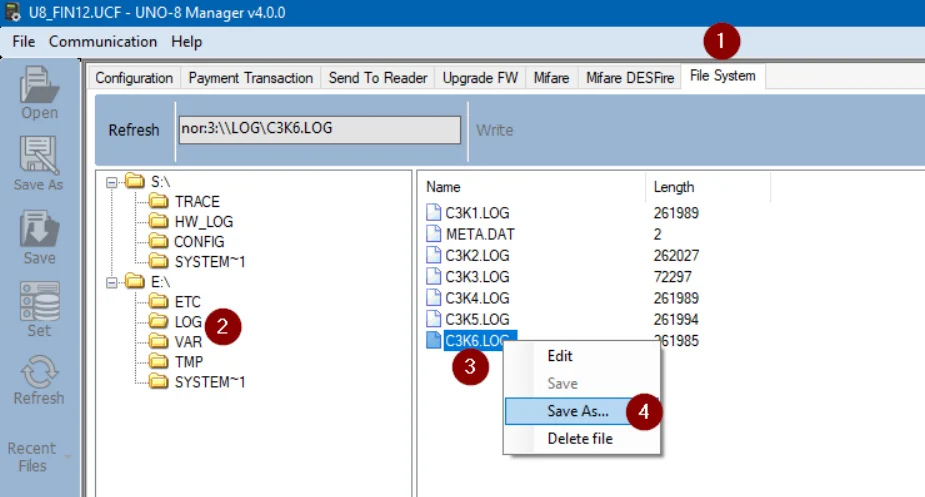
3. **Locally via UNO-8 Manager**:
* Select the **File System** tab.
* Navigate to the `E:\LOG` folder.
* Right-click the `*.log` files and select **Save As...** to save to your PC.
 ## Troubleshooting Sequence
When encountering an issue, work through these steps in order:
1. **Check SDK version**: Uninstall old versions and install the latest.
2. **Check and update configuration**:
* EMV Core configuration
* Reader configuration
3. **Verify correct registration**:
* OTI TMS
* Nayax Core
* Note: Test terminals and live terminals require different registration.
4. **Try a transaction with a valid test card.**
5. **Ensure communication is not blocked by a firewall** or similar mechanism.
## Common Problems
### Error Code Overview
Error codes fall into two categories depending on their source:
* **Positive error codes** (e.g., `99`): From the PSP system.
* **Negative error codes** (e.g., `-997`): From the OTI system.
Note: Negative error codes such as `-995 declined by reader` can also indicate an online decline from the PSP.
***
### Terminal Registration Issues
**Symptom 1:**
* Status = `Not ready` (visible in the test application "Get Status" button)
* Error: `"Failed getting terminal operator …code: -997"`
**Possible cause:** Terminal is not registered properly in TMS.
**Suggested steps:**
* Confirm your terminal ID appears in TMS under the correct operator; consult Nayax support if needed.
* Check the EMV Core configuration file for:
* `TMS_SVC_URL=tms.otiglobal.com` (for management from TMS)
* `TMS_SVC_URL=tms-c.otiglobal.com` (for management from Nayax Core)
***
**Symptom 2:**
* Transaction ends with error:
```
Method TransactionComplete arrived with parameters: Declined '1' Invalid Device' {...}
```
**Suggested steps:**
* Check the kiosk configuration file. Most common settings:
```
PAYMENT_SVC_URL=payment-nayax-p.otiglobal.com
```
* Verify the terminal ID is properly registered at Nayax backend; consult the Nayax support team.
## Troubleshooting Sequence
When encountering an issue, work through these steps in order:
1. **Check SDK version**: Uninstall old versions and install the latest.
2. **Check and update configuration**:
* EMV Core configuration
* Reader configuration
3. **Verify correct registration**:
* OTI TMS
* Nayax Core
* Note: Test terminals and live terminals require different registration.
4. **Try a transaction with a valid test card.**
5. **Ensure communication is not blocked by a firewall** or similar mechanism.
## Common Problems
### Error Code Overview
Error codes fall into two categories depending on their source:
* **Positive error codes** (e.g., `99`): From the PSP system.
* **Negative error codes** (e.g., `-997`): From the OTI system.
Note: Negative error codes such as `-995 declined by reader` can also indicate an online decline from the PSP.
***
### Terminal Registration Issues
**Symptom 1:**
* Status = `Not ready` (visible in the test application "Get Status" button)
* Error: `"Failed getting terminal operator …code: -997"`
**Possible cause:** Terminal is not registered properly in TMS.
**Suggested steps:**
* Confirm your terminal ID appears in TMS under the correct operator; consult Nayax support if needed.
* Check the EMV Core configuration file for:
* `TMS_SVC_URL=tms.otiglobal.com` (for management from TMS)
* `TMS_SVC_URL=tms-c.otiglobal.com` (for management from Nayax Core)
***
**Symptom 2:**
* Transaction ends with error:
```
Method TransactionComplete arrived with parameters: Declined '1' Invalid Device' {...}
```
**Suggested steps:**
* Check the kiosk configuration file. Most common settings:
```
PAYMENT_SVC_URL=payment-nayax-p.otiglobal.com
```
* Verify the terminal ID is properly registered at Nayax backend; consult the Nayax support team.