> ## Documentation Index
> Fetch the complete documentation index at: https://devzone.nayax.com/llms.txt
> Use this file to discover all available pages before exploring further.
# Flow & Configurations
> Answers to common questions about Marshall's flow behavior and configuration, including timeouts, status codes, and session handling.
## Vend result timeout (timeout for vend success)
This parameter sets how long the device waits for a vend response (`Vend Approved` or `Vend Failure`) from the peripheral after sending it `Vend Approved`. In Nayax Core, the parameter's maximum value is 65535 seconds (18 hours, 12 minutes, and 15 seconds). If you need a longer window, use [Multi-Session](/docs/integrate-pos-device/marshall/payment-flows/marshall-multi-session#/), where the timeout is 23 hours for credit cards and 72 hours for proprietary cards.
## Status command
Once pairing is complete, the device immediately sends a `Status` command when network communication is lost, so the machine knows. It looks something like this in the Java SDK (the C# and C logs look the same):
```text Java SDK's log theme={null}
[1760613771245+( 7476ms)] vmc_link: rx
vmc_link :rx :0d:00:01:04:00:36:01:30:0b:15:01:00:08:37:92:
[1760613771245+( 0ms)] vmc_link: tx
vmc_link :tx :0a:00:00:04:01:30:00:36:00:00:4c:6b:
[1760613771245+( 0ms)] vmc_vend_t: received status: 21
[1760613771251+( 6ms)] Main: device not available: in technician mode
[1760613771251+( 0ms)] vmc_socket_t: received status: 21
```
The status is 21 (0x15), which, as the table below shows, means the device is unavailable. The bytes that follow indicate why.
| Status ID | Description |
| --------- | ------------------------------------------------------------------------------------------------------------------------------------------------------------------------------------------------------------------------------------------------------------------------------------------------------------------------------------------------------------------- |
| 20 | Device in idle mode, available for starting a transaction.
Bitmap of extra information (set in the "Status Additional Data" field): bit 0 means an Ethernet connection is available. |
| 21 | Device not available.
Bitmap of reasons (set in the "Status Additional Data" field): bit 0 means the device has cellular issues, bit 1 means the device has no network communication, bit 2 means the device is busy (for example, a long remote software update), bit 3 means the device is in technician mode, bit 4 means the device has an internal issue. |
Once communication resumes and the device returns to idle, the device sends a `Status` command with a value of 20:
```text Java SDK's log theme={null}
[1759994336421(+7ms)] : rx:
0d:00:01:02:00:36:01:30:0b:14:01:00:00:34:16:
[1759994336424(+3ms)] marshall_t: received status
[1759994336426(+2ms)] : tx:
0a:00:00:02:01:30:00:36:00:00:69:ca:
[1759994336431(+5ms)] vmc_vend_t: received status: 20
[1759994336431(+0ms)] APP: received status: 20
[1759994336433(+2ms)] APP: device available
[1759994336434(+1ms)] vmc_socket_t: received status: 20
```
The sequence plays out as follows when the device loses communication with the outside world (for example, a SIM issue or a faulty Ethernet connection):
1. The peripheral sends keep-alive commands, and the device responds to each one.
2. The device sends a `Status` command with a value of 21 (0x15).
The sequence reverses once communication resumes:
1. The peripheral sends keep-alive commands, and the device responds to each one.
2. The device sends a `Status` command with a value of 20 (0x14).
The `Status` command can also provide information during the consumer's card presentation, unrelated to the sequences above:
| Status ID | Description |
| :-------- | :------------------------------------------------------------------------------------- |
| `54` | Call your bank |
| `56` | Card error (reader not able to read card) |
| `61` | Insert card into the contact slot |
| `62` | Card not accepted |
| `65` | Processing error (card removed before completion of the transaction in contact mode) |
| `66` | Remove card from the contact slot |
| `67` | Use contact reader |
| `68` | Use magnetic stripe reader |
| `69` | Try again |
| `71` | Present card |
| `73` | Card read OK |
| `74` | Insert card in contact mode or swipe |
| `75` | Present one card only |
| `78` | Use another card |
| `79` | Insert card in contact mode |
| `82` | Look at your mobile (the consumer is completing the transaction on their mobile phone) |
| `83` | Present card again |
| `84` | Insert or swipe another card |
If a consumer has trouble with card reading, the device prompts them to insert the card or use another card. If the card doesn't have enough credit, the device doesn't show that reason on screen or in the SDK logs, since it isn't related to communication between the VPOST and the machine, but rather between the device and the acquirer. You can generally see the reason a transaction was cancelled or a card was rejected in Nayax Core.
## Communication loss
The Marshall protocol uses ACK commands in response to each command sent: when your peripheral sends a command to the device, it receives an ACK command in return, and vice versa. The ACK is a response from the receiving side to the sender, confirming the command was received. If no ACK arrives, the command is sent again. If none of the three attempts (the original command plus two retries) receive an ACK, the SDK stops sending keep-alive commands, and the device sends a reset command to re-establish pairing.
If no ACKs arrive during a transaction, responsibility depends on timing. If none arrive after `Vend Success`, Nayax is responsible for making the settlement. If none arrive after authorization but before `Vend Success`, or before authorization at all, Nayax cancels the transaction.
## Approval by a 3rd-party server
This section covers how the machine notifies the SDK whether a card is approved.
After the `Vend Request` is sent and a consumer presents their card, the Transfer Data command is sent, and the peripheral gets the card's details and forwards them (on its own, unrelated to the SDK) to the desired 3rd-party server. Once the server approves or denies the card, the peripheral notifies the SDK, which also informs the device, by calling `client_gateway_auth(bool approved)`:
```java Java theme={null}
m_vmc.vend.client_gateway_auth(bool approved);
```
```csharp C# theme={null}
vmc_instance.vend.client_gateway_auth(bool approved);
```
```c C theme={null}
vmc_vend_client_gateway_auth(__bool approved)
```
In the SDKs' demo apps, this simulates a case where the peripheral returns `true` for approved:
```java Java theme={null}
public void onSessionBegin(int funds_avail)
{
// credit card has been detected. stop timer
session_timer_stop();
// delayed vend example: send vend request later, and not now inside onBeginSession
if (false)
vend_timer_start();
else
{
// vend request
m_vmc.vend.vend_request(m_sessions[m_active_session]);
// example: approve mifar/mag card externally (vmc authenticates)
if (vmc_config.mag_card_approved_by_vmc_support || vmc_config.mifare_approved_by_vmc_support)
m_vmc.vend.client_gateway_auth(true);
}
}
```
```csharp C# theme={null}
public override void onSessionBegin(int funds_avail)
{
logger.d(TAG, "session began. requesting product vend");
// do vend request
vmc_instance.vend.vend_request(session);
// todo: check if this is a mifare / mag card
// todo: usually you will send this to another thread for async processing
if (false)
{
// acknowledge mifare (note: only when machine is working on mifare/mag mode)
if (vmc_config.mifare_approved_by_vmc_support || vmc_config.mag_card_approved_by_vmc_support)
vmc_instance.vend.client_gateway_auth(true);
}
}
```
```c C theme={null}
static void triggered_vend_request(void)
{
.
.
.
if (config.mag_card_approved_by_vmc_support || config.mifare_approved_by_vmc_support || config.qr_approved_by_vmc_support)
{
vmc_vend_client_gateway_auth(__true);
}
}
```
## Cancel command
If you send `Vend Request` and haven't yet received `Vend Approved` or `Vend Denied`, you can send the `Cancel` command, which causes `Vend Denied` to be sent.
If you send `Cancel` before receiving `Vend Approved`, but `Vend Approved` is already on its way to your machine, you won't see `Vend Cancel` in the logs, since a cancel command can't follow `Vend Approved`. In that case, `Vend Failure` is sent from the peripheral's end instead. You can also skip `Cancel` in this situation and respond with `Vend Failure` directly, which produces the same result.
You can also cancel a transaction before sending `Vend Request`, if the consumer starts a transaction but backs out before you send it. This can happen either before the consumer presents a card, or right after you receive `Begin Session` but before you send `Vend Request`. In the first case, the SDK's logs show only `Reader Enable`.
## Begin session sent only after card authorization
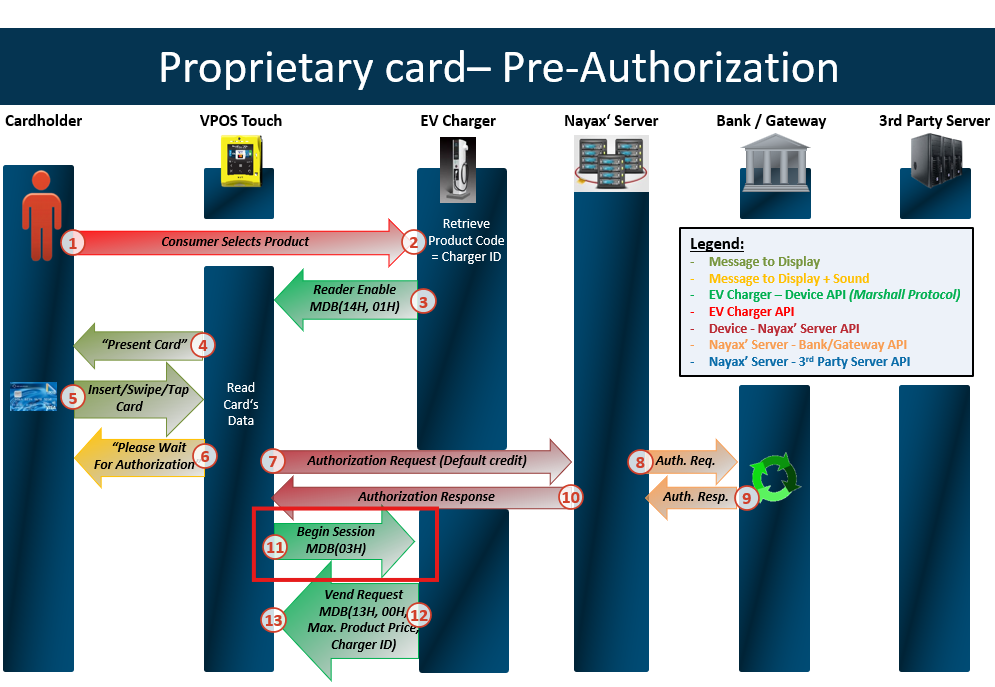
When using prepaid cards, authorization comes first, and `Begin Session` is sent afterward.
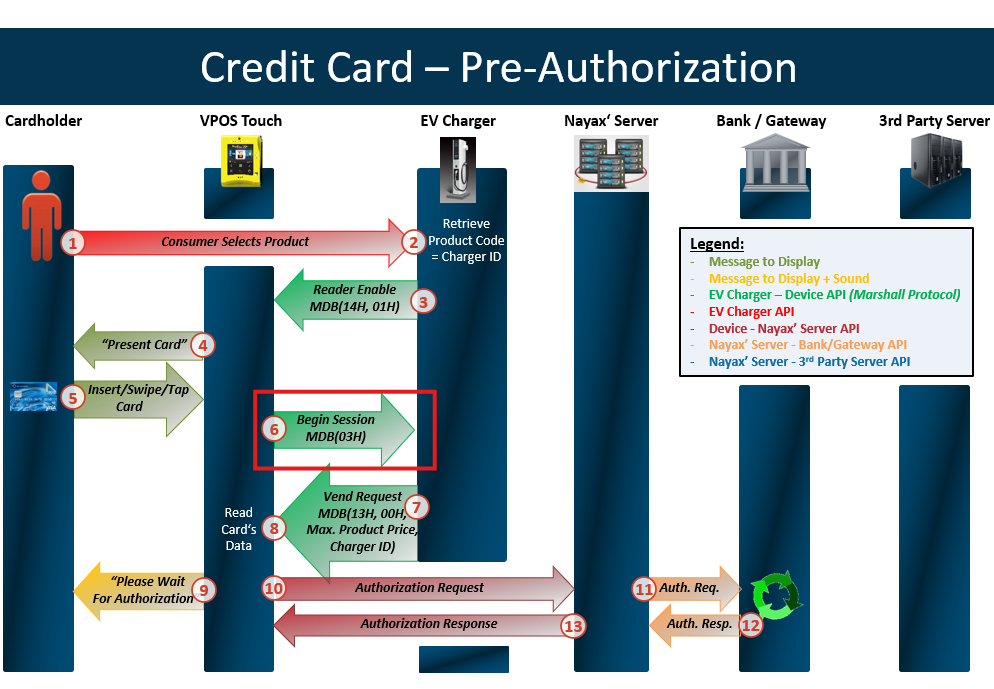
 Otherwise, `Begin Session` comes first, and authorization happens afterward.
 You must perform a close session only when the VPOST/Onyx is in idle mode, not in the middle of an active transaction.
Don't send `Close Session` while a transaction is active. The device processes `Close Session` first, which can get the active transaction stuck. Send `Close Session` only when `onReady` triggers.
## Closing a session with a price of 0
To cancel a transaction, send a close session command with a status other than `OK`, such as `Failed to Dispense`. Sending a close session with a price of 0 and a status of `OK` is treated as an error in your machine's price calculation, not as a cancellation.
Anyone looking at this device's Last Sales would otherwise assume there's an issue on Nayax's end with settling the transaction, such as a payment or configuration issue. In reality, there's no issue in the transaction process between your peripheral and the device. You didn't want to charge the consumer, for your own reasons. That's why `Vend Failure` exists, along with the close session statuses `Vend Failure` and `Cancel by User`: they indicate the product wasn't provided, so the consumer isn't charged, and the matching reason shows on Last Sales and DTM.
Once you change a session's status to anything but `OK`, the price you send becomes irrelevant, since the transaction is cancelled regardless.
The possible statuses are:
* `0`: Status OK
* `1`: User cancel
* `2`: Failed to dispense the product
* `4`: Vend denied
Then you can send the `Close Session` command.
## Multivend: partial vending example
Partial vending applies only to Multivend, and means that only some of the selected products could be vended.
For example, if the consumer selects five items:
You must perform a close session only when the VPOST/Onyx is in idle mode, not in the middle of an active transaction.
Don't send `Close Session` while a transaction is active. The device processes `Close Session` first, which can get the active transaction stuck. Send `Close Session` only when `onReady` triggers.
## Closing a session with a price of 0
To cancel a transaction, send a close session command with a status other than `OK`, such as `Failed to Dispense`. Sending a close session with a price of 0 and a status of `OK` is treated as an error in your machine's price calculation, not as a cancellation.
Anyone looking at this device's Last Sales would otherwise assume there's an issue on Nayax's end with settling the transaction, such as a payment or configuration issue. In reality, there's no issue in the transaction process between your peripheral and the device. You didn't want to charge the consumer, for your own reasons. That's why `Vend Failure` exists, along with the close session statuses `Vend Failure` and `Cancel by User`: they indicate the product wasn't provided, so the consumer isn't charged, and the matching reason shows on Last Sales and DTM.
Once you change a session's status to anything but `OK`, the price you send becomes irrelevant, since the transaction is cancelled regardless.
The possible statuses are:
* `0`: Status OK
* `1`: User cancel
* `2`: Failed to dispense the product
* `4`: Vend denied
Then you can send the `Close Session` command.
## Multivend: partial vending example
Partial vending applies only to Multivend, and means that only some of the selected products could be vended.
For example, if the consumer selects five items:
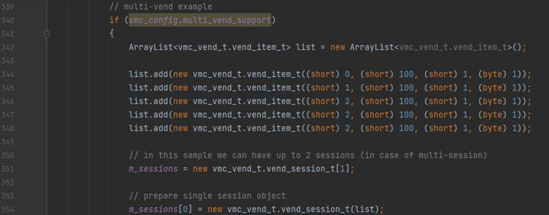 Say you want to simulate a scenario where only two items are vended. You can add the following to your demo app inside the `onVendApproved` callback:
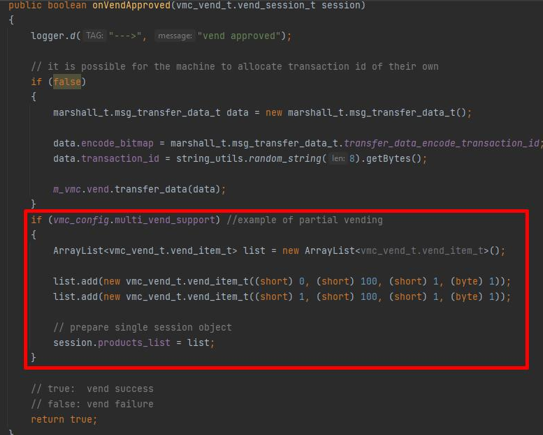 ```java Java theme={null}
if (vmc_config.multi_vend_support) //example of partial vending
{
ArrayList list = new ArrayList();
list.add(new vmc_vend_t.vend_item_t((short) 0, (short) 100, (short) 1, (byte) 1));
list.add(new vmc_vend_t.vend_item_t((short) 1, (short) 100, (short) 1, (byte) 1));
// prepare single session object
session.products_list = list;
}
```
```csharp C# theme={null}
if (vmc_config.multi_vend_support) //example of partial vending
{
List list = new List();
list.Add(new vmc_vend_t.vend_item_t((ushort)0, (ushort)10, (ushort)1, (byte)1));
list.Add(new vmc_vend_t.vend_item_t((ushort)1, (ushort)10, (ushort)1, (byte)1));
// prepare single session object
session = new vmc_vend_t.vend_session_t(list);
}
```
```c C theme={null}
session->products = &session_products[0];
session->total_products = 1;
```
## Session timeout delay
The device checks its open sessions every minute, so it may settle a transaction up to a minute after the timeout set in Nayax Core.
For example:
* A 1-minute timeout: the session expires between 1 minute and 1 minute 59 seconds after it starts.
* A 5-minute timeout: the session expires between 5 minutes and 5 minutes 59 seconds after it starts.
* A 1-hour timeout: the session expires between 1 hour and 1 hour 59 seconds after it starts.
```java Java theme={null}
if (vmc_config.multi_vend_support) //example of partial vending
{
ArrayList list = new ArrayList();
list.add(new vmc_vend_t.vend_item_t((short) 0, (short) 100, (short) 1, (byte) 1));
list.add(new vmc_vend_t.vend_item_t((short) 1, (short) 100, (short) 1, (byte) 1));
// prepare single session object
session.products_list = list;
}
```
```csharp C# theme={null}
if (vmc_config.multi_vend_support) //example of partial vending
{
List list = new List();
list.Add(new vmc_vend_t.vend_item_t((ushort)0, (ushort)10, (ushort)1, (byte)1));
list.Add(new vmc_vend_t.vend_item_t((ushort)1, (ushort)10, (ushort)1, (byte)1));
// prepare single session object
session = new vmc_vend_t.vend_session_t(list);
}
```
```c C theme={null}
session->products = &session_products[0];
session->total_products = 1;
```
## Session timeout delay
The device checks its open sessions every minute, so it may settle a transaction up to a minute after the timeout set in Nayax Core.
For example:
* A 1-minute timeout: the session expires between 1 minute and 1 minute 59 seconds after it starts.
* A 5-minute timeout: the session expires between 5 minutes and 5 minutes 59 seconds after it starts.
* A 1-hour timeout: the session expires between 1 hour and 1 hour 59 seconds after it starts.