> ## Documentation Index
> Fetch the complete documentation index at: https://devzone.nayax.com/llms.txt
> Use this file to discover all available pages before exploring further.
# TC Service
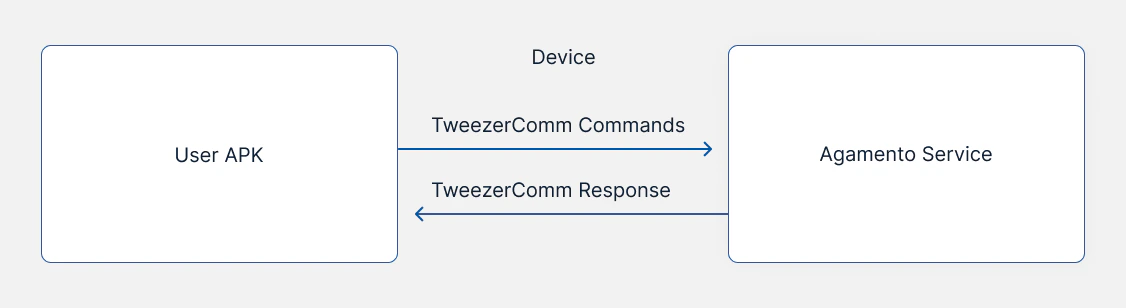
TC Service allows you to use the Agamento app as a background service. If you want to run your own Android app on the device and perform transactions using Agamento, you can configure Agamento to operate as a TC Service.
Every time your app initiates a transaction, Agamento will be triggered and come into action. The communication between the apps is based on the TweezerComm protocol.
 ## Demo APK
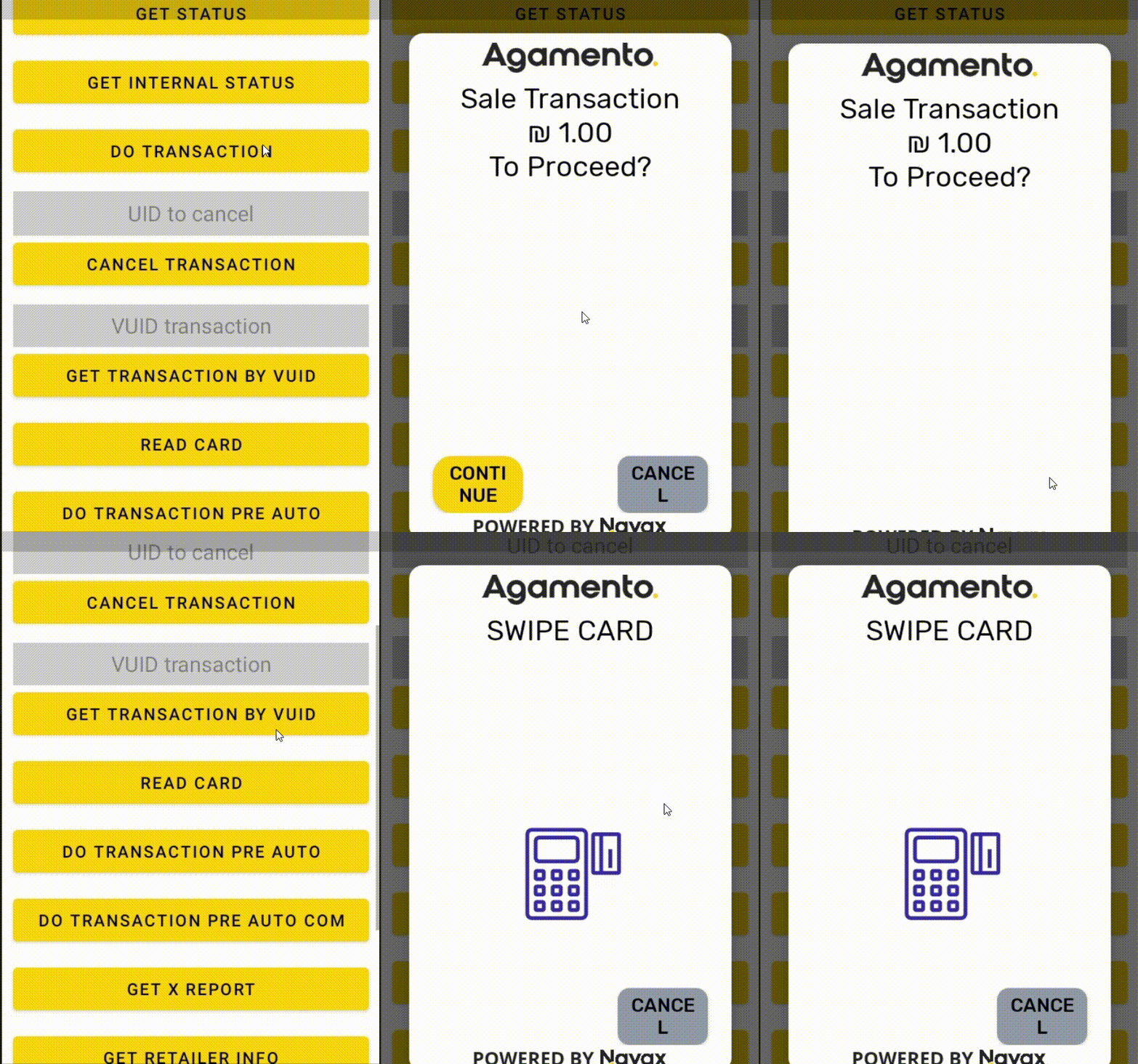
The APK is a demo tool for using the TC service. It includes a basic implementation of how to work with our Agamento app as a service and send TweezerComm requests.
* [Demo .APK file](https://docs-engine.modularity.co.il/_static/TCServiceDemo.apk)
This will help you gain a better understanding of how it works, making it easier for you to implement it.
## Sample Code
Use the code sample below to understand how to integrate with our Agamento app as a service within your APK.
* [TC Service Implementation Sample Code](https://github.com/ModularityLtd/TcsDemo)
The only part you need to adjust in the code is the JSON fields that will be sent in the requests. For example, refer to the `doTransaction` Command function (located in `AgamentoMethods.java`). In that function, you will find where the fields and values for the JSON file are set.
For instance, `put(“currency”,CURRENCY)` is set based on the configured currency at the beginning of the code: `String CURRENCY = “376”`
## Demo APK
The APK is a demo tool for using the TC service. It includes a basic implementation of how to work with our Agamento app as a service and send TweezerComm requests.
* [Demo .APK file](https://docs-engine.modularity.co.il/_static/TCServiceDemo.apk)
This will help you gain a better understanding of how it works, making it easier for you to implement it.
## Sample Code
Use the code sample below to understand how to integrate with our Agamento app as a service within your APK.
* [TC Service Implementation Sample Code](https://github.com/ModularityLtd/TcsDemo)
The only part you need to adjust in the code is the JSON fields that will be sent in the requests. For example, refer to the `doTransaction` Command function (located in `AgamentoMethods.java`). In that function, you will find where the fields and values for the JSON file are set.
For instance, `put(“currency”,CURRENCY)` is set based on the configured currency at the beginning of the code: `String CURRENCY = “376”`
 **TweezerComm Commands**
The TweezerComm commands should be based on the API and relevant to your specific payment service.
## See Also
**TweezerComm Commands**
The TweezerComm commands should be based on the API and relevant to your specific payment service.
## See Also