> ## Documentation Index
> Fetch the complete documentation index at: https://devzone.nayax.com/llms.txt
> Use this file to discover all available pages before exploring further.
# SQS Message Encryption
To set up Encryption on Delivery to Amazon SQS, you must have access to Nayax Core and
Lynx API with the appropriate user permissions. Specifically, the following roles:
* **Lynx - SQS Encryption**
To enable the encryption on the messages sent to Amazon SQS, you should mark the **Enable Encryption**
check box in the relevant configuration section as described in the previous sections.
## Access the Lynx API
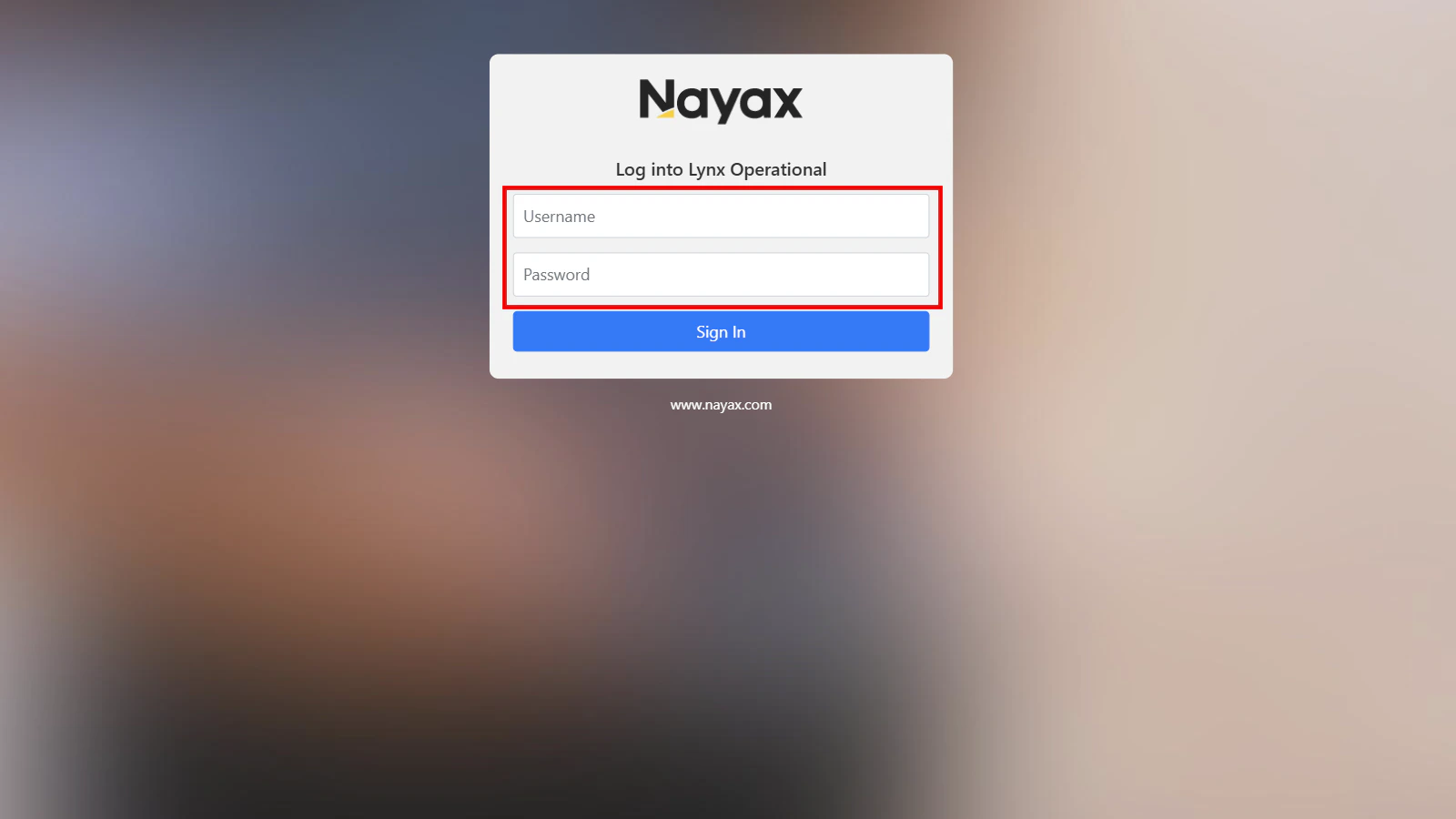
1. [**Log into Lynx Operational**](https://lynx.nayax.com/operational/signin)
2. Enter your Nayax Core credentials.
 ## Generate Encryption Keys
You will need the **Actor ID (Operator ID)** to generate encryption keys, which can be found in Nayax Core under **Administration > Operator > Details** tab.
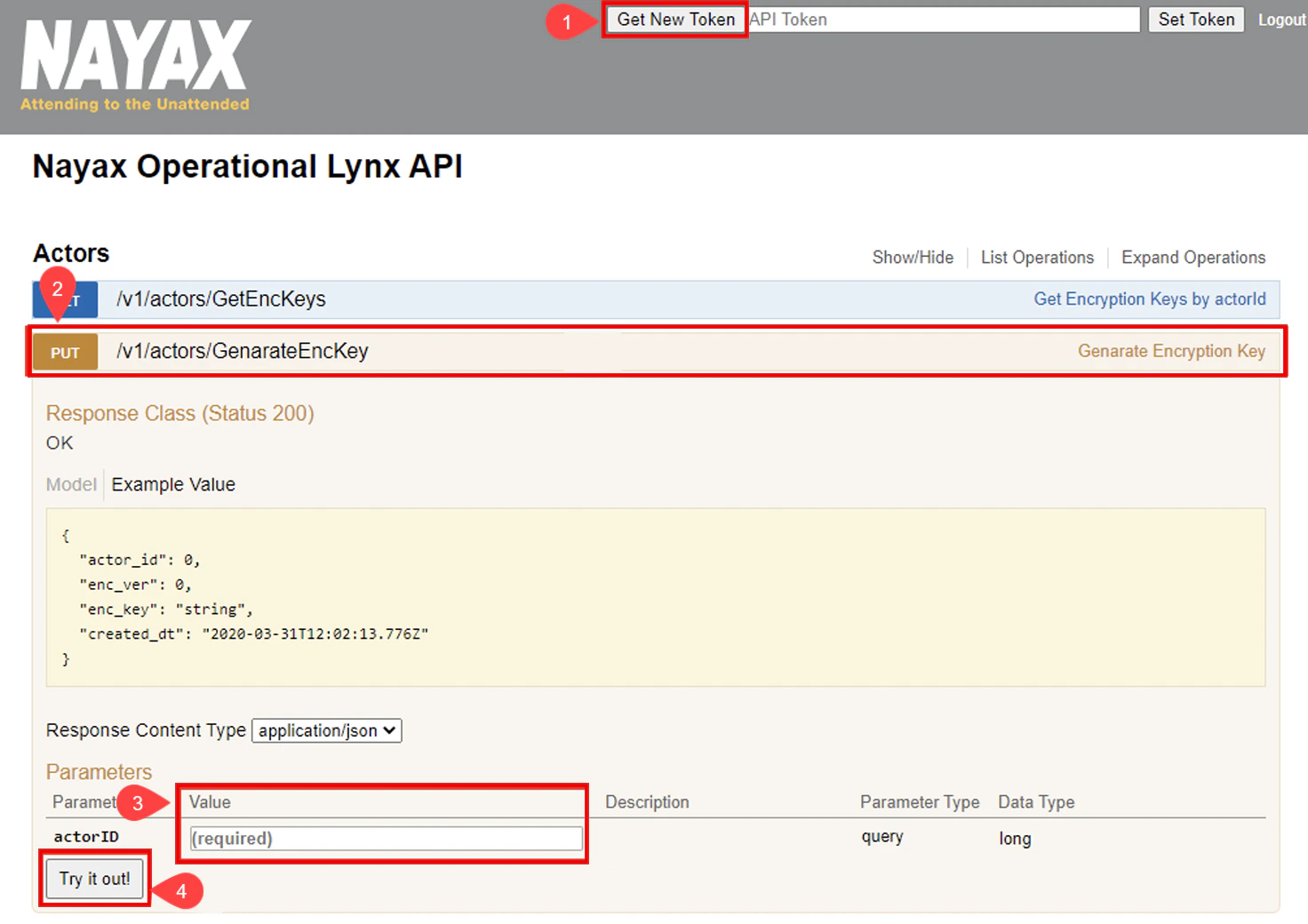
1. Click the **Generate New Token** button in the top-right corner of the Lynx API interface.
2. Select the **PUT /v1/actors/GenerateEncKey** row to reveal more details.
3. Enter the `actorID` parameter value.
4. Click the **Try it out!** button to generate a new encryption key.
**Encryption Key Usage and Refresh Guidelines**
* If the Enable Encryption checkbox is marked in any SQS message delivery configuration within Nayax Core, all messages sent to the queue will be encrypted using the generated encryption key.
* The encryption key can be refreshed by repeating the steps above. Each new key will have an incremented `enc_ver` value, indicating the key version number.
## Generate Encryption Keys
You will need the **Actor ID (Operator ID)** to generate encryption keys, which can be found in Nayax Core under **Administration > Operator > Details** tab.
1. Click the **Generate New Token** button in the top-right corner of the Lynx API interface.
2. Select the **PUT /v1/actors/GenerateEncKey** row to reveal more details.
3. Enter the `actorID` parameter value.
4. Click the **Try it out!** button to generate a new encryption key.
**Encryption Key Usage and Refresh Guidelines**
* If the Enable Encryption checkbox is marked in any SQS message delivery configuration within Nayax Core, all messages sent to the queue will be encrypted using the generated encryption key.
* The encryption key can be refreshed by repeating the steps above. Each new key will have an incremented `enc_ver` value, indicating the key version number.
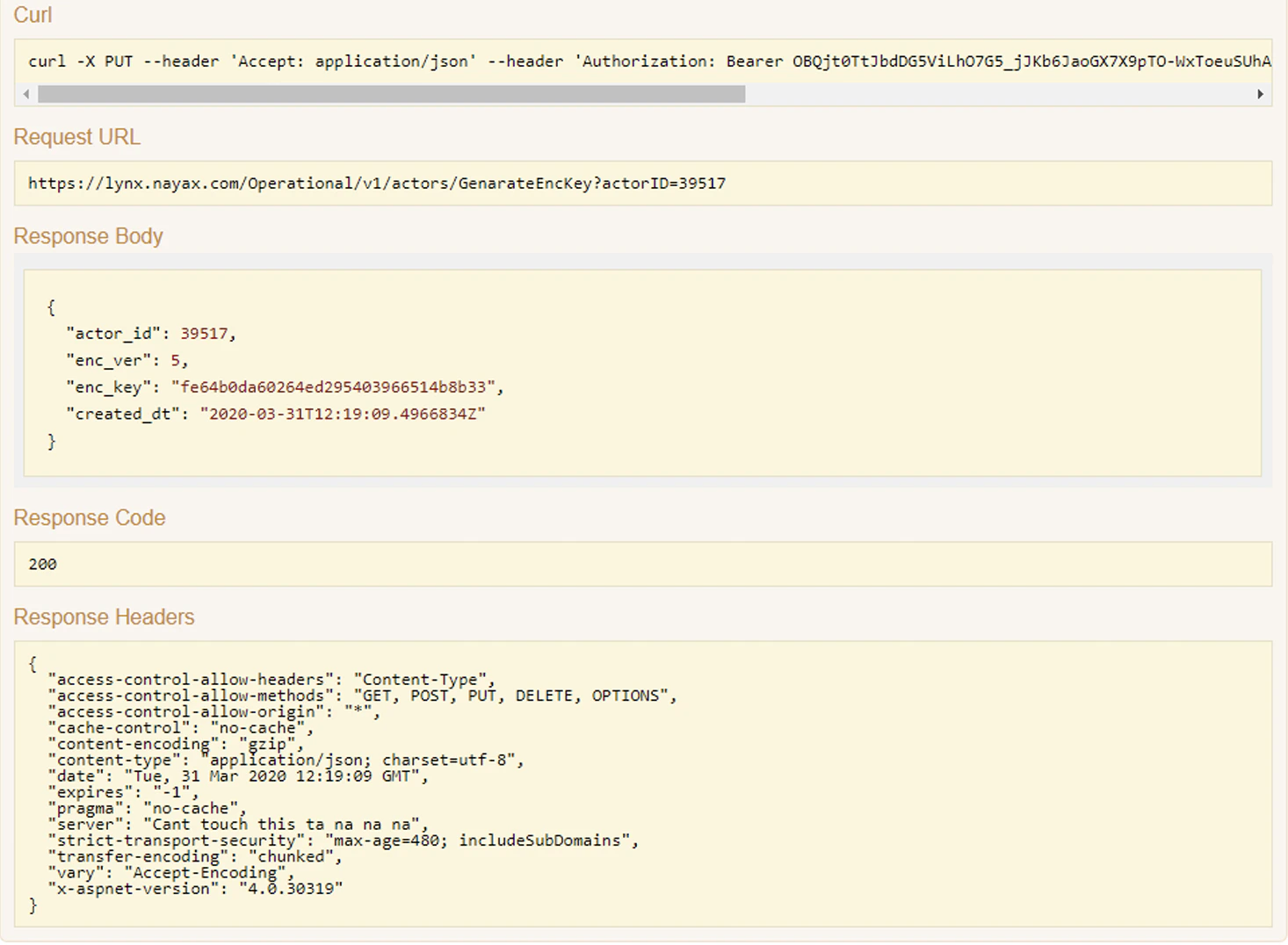
 The Response will contain the following values:
| Field Name | Description |
| --------------- | ---------------------------------------------------------------------------------- |
| **actor\_id** | Auto-generated unique id, represents the hierarchical entity in the hierarchy tree |
| **enc\_ver** | Numerator identifying Encryption Key Version |
| **enc\_key** | Encryption Key, Alphanumeric GUID used to encrypt Messages delivered to Amazon SQS |
| **created\_dt** | Encryption Key Creation Date and Time |
Example Response
The Response will contain the following values:
| Field Name | Description |
| --------------- | ---------------------------------------------------------------------------------- |
| **actor\_id** | Auto-generated unique id, represents the hierarchical entity in the hierarchy tree |
| **enc\_ver** | Numerator identifying Encryption Key Version |
| **enc\_key** | Encryption Key, Alphanumeric GUID used to encrypt Messages delivered to Amazon SQS |
| **created\_dt** | Encryption Key Creation Date and Time |
Example Response
 ## List Encryption Keys
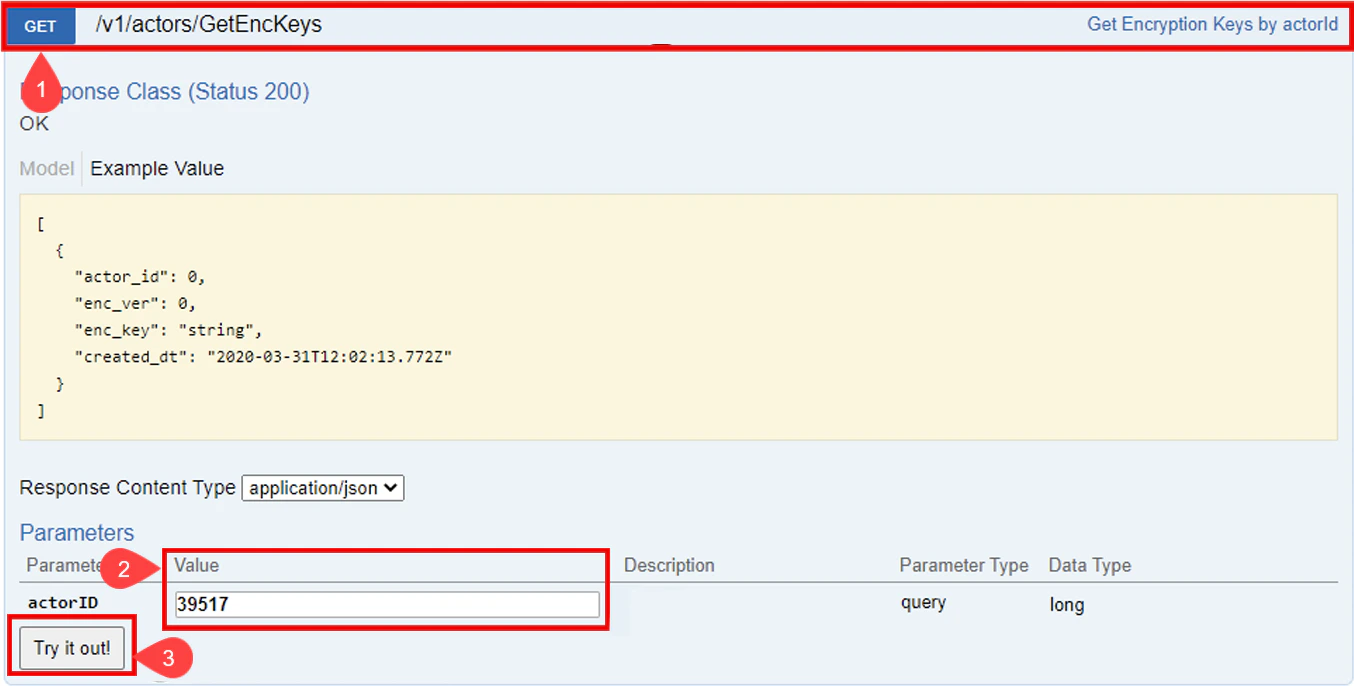
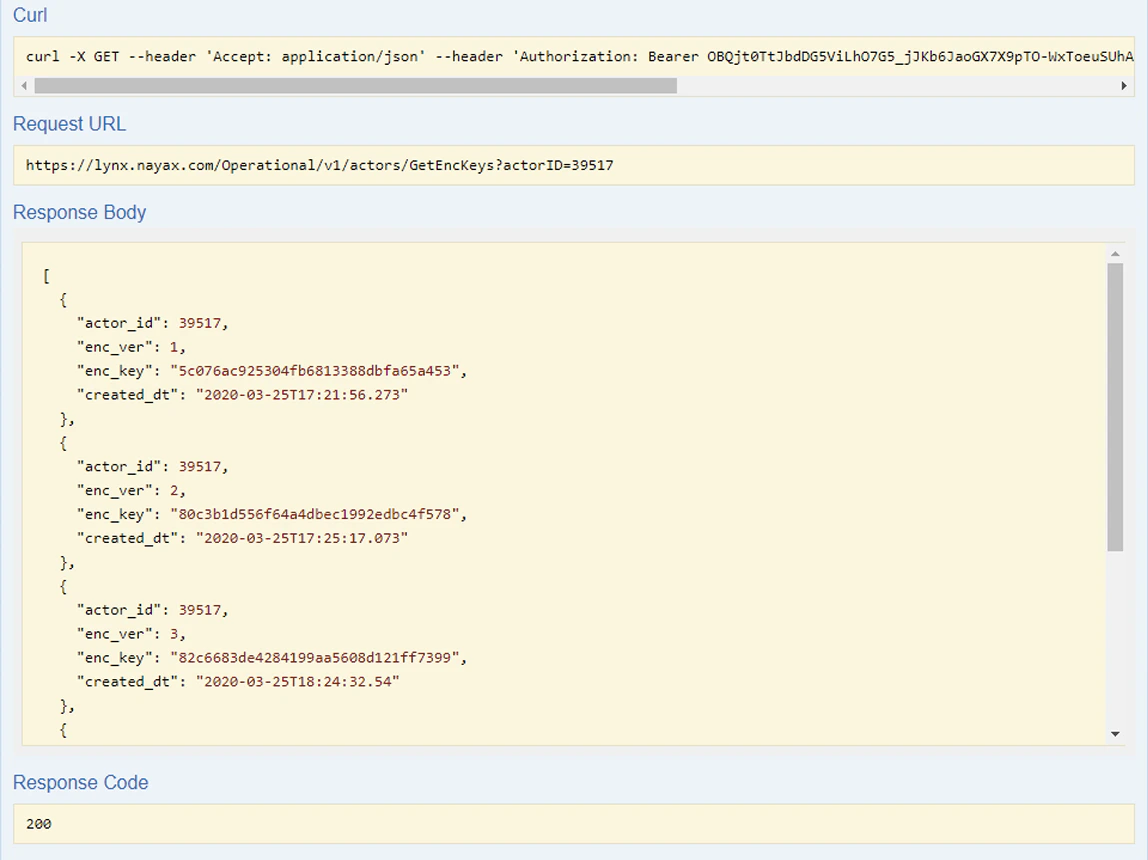
You can retrieve all previously generated keys using the Lynx API's GET Encryption Keys option:
1. Click on **GET /v1/actors/GetEncKeys** row to reveal more details
2. Enter the `actorID` parameter value.
3. Click the **Try it out!** button to view the list of generated keys.
By following these steps, you can ensure secure and encrypted message delivery to Amazon SQS.
## List Encryption Keys
You can retrieve all previously generated keys using the Lynx API's GET Encryption Keys option:
1. Click on **GET /v1/actors/GetEncKeys** row to reveal more details
2. Enter the `actorID` parameter value.
3. Click the **Try it out!** button to view the list of generated keys.
By following these steps, you can ensure secure and encrypted message delivery to Amazon SQS.
 Example Response:
 ## Decrypt Messages
You can also use the encryption key to perform the decryption of messages. See the code block below:
```cs theme={null}
public string Decrypt(string cipherText)
{
using (Aes aesAlg = Aes.Create())
{
aesAlg.Key = Key;
aesAlg.IV = IV;
ICryptoTransform decryptor = aesAlg.CreateDecryptor(aesAlg.Key, aesAlg.IV);
using (MemoryStream msDecrypt = new MemoryStream(Convert.FromBase64String(cipherText)))
{
using (CryptoStream csDecrypt = new CryptoStream(msDecrypt, decryptor, CryptoStreamMode.Read))
{
using (StreamReader srDecrypt = new StreamReader(csDecrypt))
{
return srDecrypt.ReadToEnd();
}
}
}
}
}
}
// AES Encryption Example
string key = "0123456789abcdef"; // 16 bytes key
string iv = "abcdef9876543210"; // 16 bytes IV
AesEncryption aes = new AesEncryption(key, iv);
string original = "Hello, World!";
string decrypted = aes.Decrypt(encryptedMessage);
```
Where:
1. It initializes the AES algorithm with a `key` and an initialization vector (`IV`) and then creates a `decryptor`.
2. The encrypted message, provided as a `Base64` string is converted back into bytes and read using a `MemoryStream` and `CryptoStream` with the `decryptor`.
3. The decrypted data is then read and returned as the original plaintext string.
The method essentially reverses the encryption process to retrieve the original message.
## Decrypt Messages
You can also use the encryption key to perform the decryption of messages. See the code block below:
```cs theme={null}
public string Decrypt(string cipherText)
{
using (Aes aesAlg = Aes.Create())
{
aesAlg.Key = Key;
aesAlg.IV = IV;
ICryptoTransform decryptor = aesAlg.CreateDecryptor(aesAlg.Key, aesAlg.IV);
using (MemoryStream msDecrypt = new MemoryStream(Convert.FromBase64String(cipherText)))
{
using (CryptoStream csDecrypt = new CryptoStream(msDecrypt, decryptor, CryptoStreamMode.Read))
{
using (StreamReader srDecrypt = new StreamReader(csDecrypt))
{
return srDecrypt.ReadToEnd();
}
}
}
}
}
}
// AES Encryption Example
string key = "0123456789abcdef"; // 16 bytes key
string iv = "abcdef9876543210"; // 16 bytes IV
AesEncryption aes = new AesEncryption(key, iv);
string original = "Hello, World!";
string decrypted = aes.Decrypt(encryptedMessage);
```
Where:
1. It initializes the AES algorithm with a `key` and an initialization vector (`IV`) and then creates a `decryptor`.
2. The encrypted message, provided as a `Base64` string is converted back into bytes and read using a `MemoryStream` and `CryptoStream` with the `decryptor`.
3. The decrypted data is then read and returned as the original plaintext string.
The method essentially reverses the encryption process to retrieve the original message.