> ## Documentation Index
> Fetch the complete documentation index at: https://devzone.nayax.com/llms.txt
> Use this file to discover all available pages before exploring further.
# Transaction Report Delivery
## Prerequisites
To set up Transaction Delivery to Amazon SQS, you must have access to the Nayax Core with the appropriate user permissions. Specifically, the following roles are required:
* **Transaction Dispatcher**
* **Transactions Report Subscriber**
Additionally, ensure you have the **Amazon SQS Queue URL**, **Access Key**, and **Secret Key** obtained during the queue setup process.
## Operator Level Setup
Follow these steps to configure transaction delivery at the operator level in the Nayax Core:
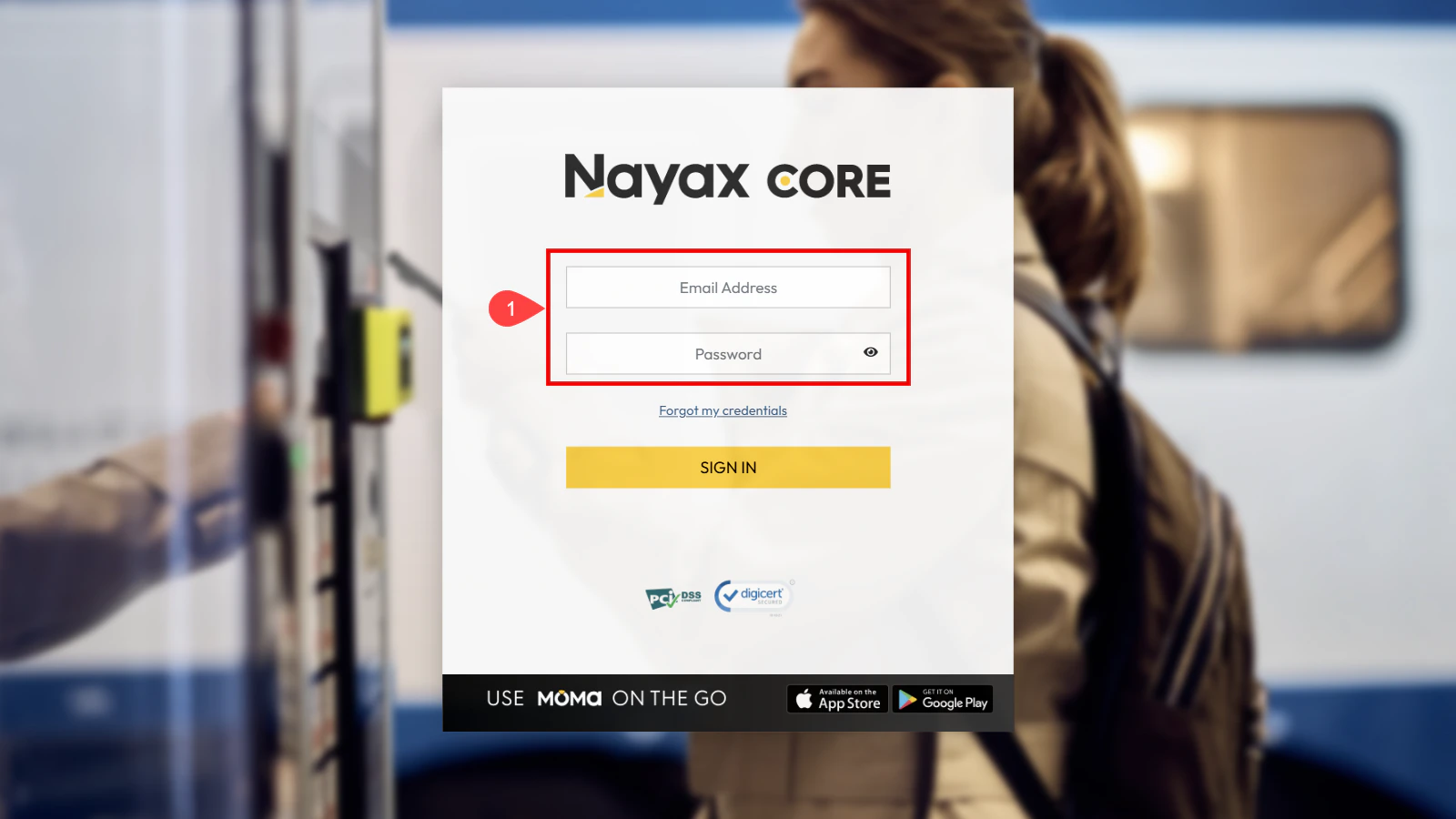
1. Log in to the **Nayax Core**.
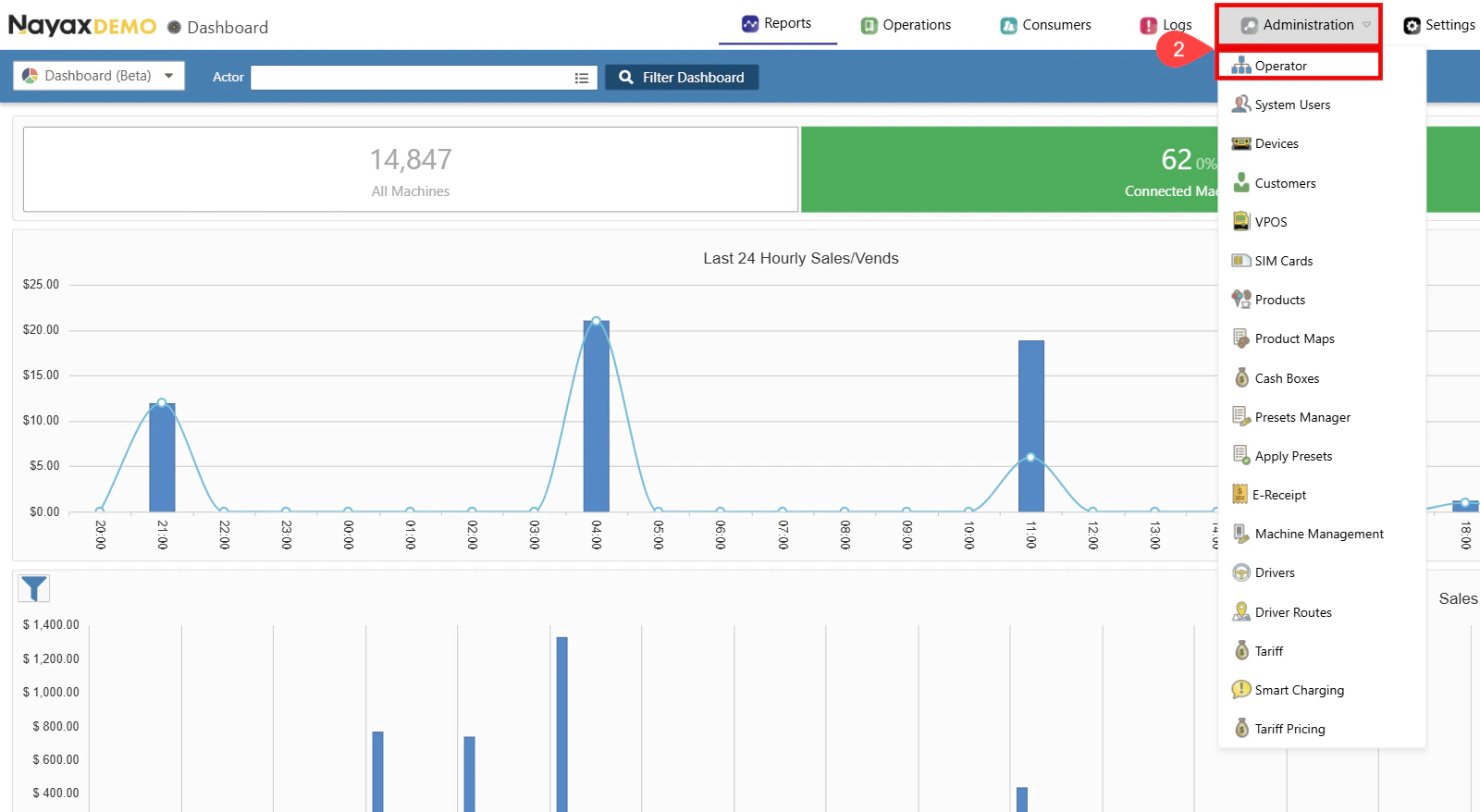
 2. Go to **Administration > Operator**.
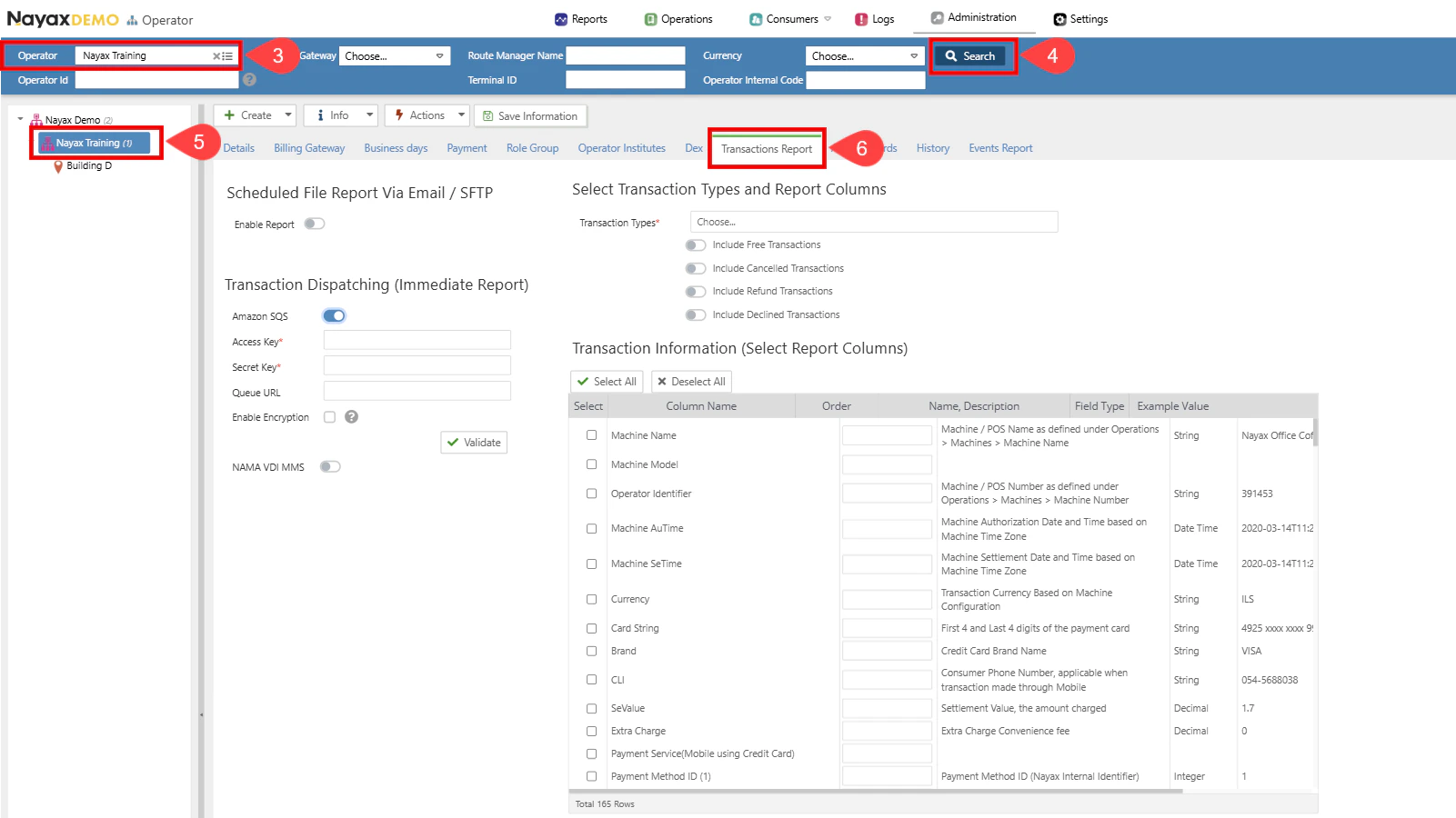
 3. Find the Operator you wish to set up.
4. Click the **Search** button.
5. Select the operator to display all tabs and details.
6. Go to the **Transactions Report** tab.
3. Find the Operator you wish to set up.
4. Click the **Search** button.
5. Select the operator to display all tabs and details.
6. Go to the **Transactions Report** tab.
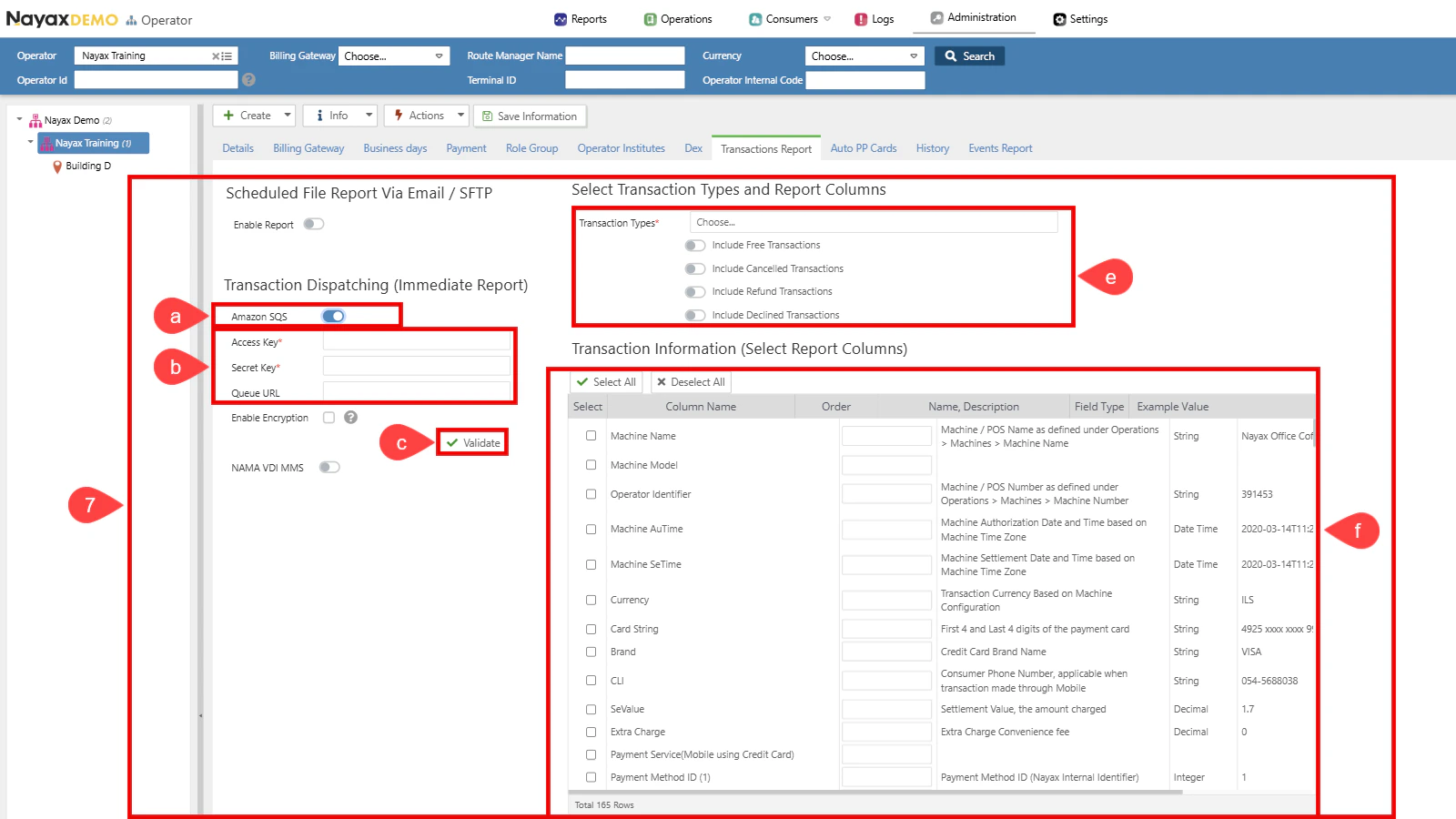
 7. Set up Transaction Dispatching by completing the following steps:
a. Select the checkbox next to **Amazon SQS** to enable this option.
b. Enter the SQS credentials (**Access Key**, **Secret Key** and **Queue URL**).
c. Click the **Validate** button to ensure the Queue credentials are correct.
d. Enable Encryption (Optional). See the [**Set Up Encryption**](/docs/manage-data-operations/amazon-sqs/set-up-nayax-core/set-up-encryption-on-amazon-sqs-delivery) section for details.
e. Choose payment methods to send. Only the selected payment methods will be dispatched to the Queue.
You can also select the transaction type:
* Free Transactions
* Cancelled Transactions
* Refund Transactions
* Declined Transactions
f. Select the Columns of information to include. See the [Transaction JSON Reference](/docs/manage-data-operations/amazon-sqs/set-up-nayax-core/transaction-json-reference) page for a description of available fields.
7. Set up Transaction Dispatching by completing the following steps:
a. Select the checkbox next to **Amazon SQS** to enable this option.
b. Enter the SQS credentials (**Access Key**, **Secret Key** and **Queue URL**).
c. Click the **Validate** button to ensure the Queue credentials are correct.
d. Enable Encryption (Optional). See the [**Set Up Encryption**](/docs/manage-data-operations/amazon-sqs/set-up-nayax-core/set-up-encryption-on-amazon-sqs-delivery) section for details.
e. Choose payment methods to send. Only the selected payment methods will be dispatched to the Queue.
You can also select the transaction type:
* Free Transactions
* Cancelled Transactions
* Refund Transactions
* Declined Transactions
f. Select the Columns of information to include. See the [Transaction JSON Reference](/docs/manage-data-operations/amazon-sqs/set-up-nayax-core/transaction-json-reference) page for a description of available fields.
 8. Click the **Save Information** button to apply the changes.
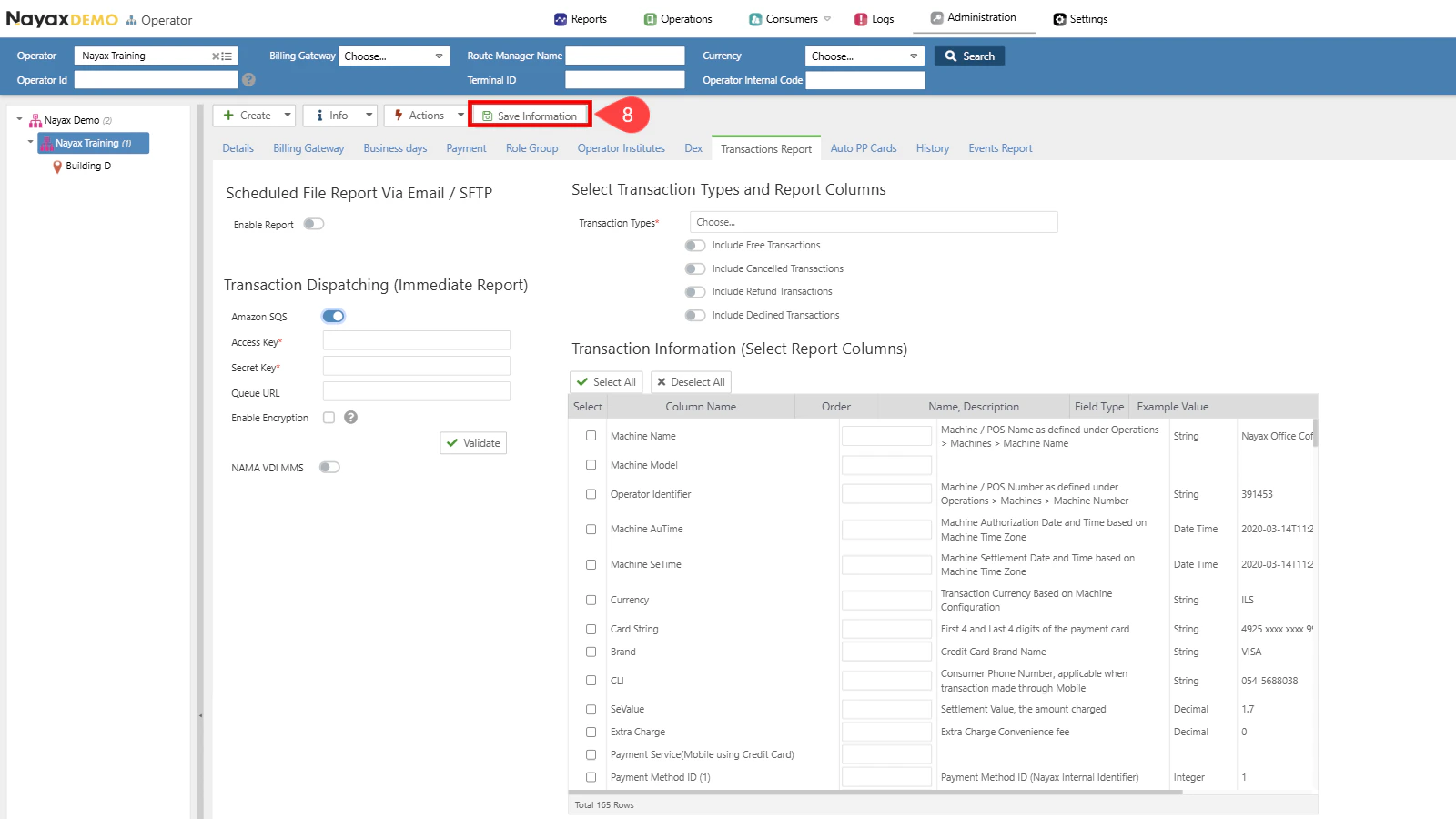 By completing these steps, your transaction data will be securely delivered to Amazon SQS based on the configuration you've set up.
## Scheduled File Report (SFTP / Email)
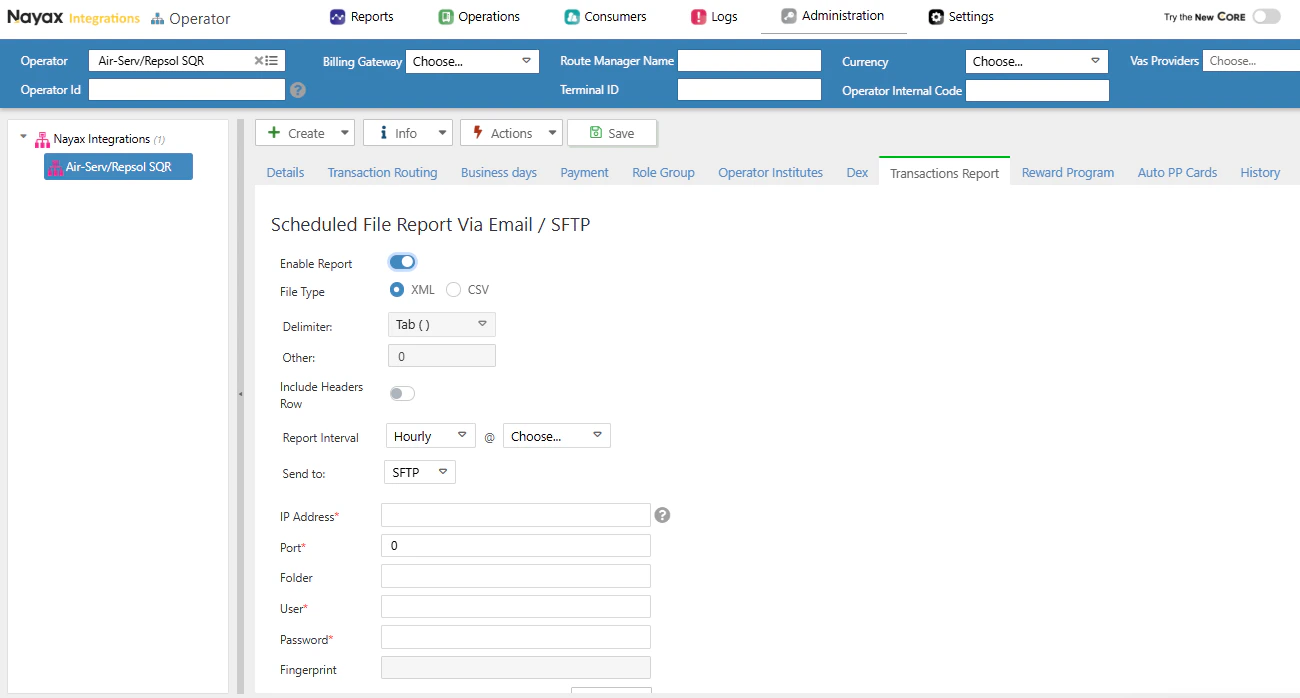
In addition to real-time Amazon SQS delivery, Nayax Core can deliver transaction reports periodically — either hourly or daily — to an SFTP server or by email. This is configured on the same **Transactions Report** tab, in the **Scheduled File Report Via Email / SFTP** section.
### Enable and configure the report
1. In the **Transactions Report** tab, scroll to the **Scheduled File Report Via Email / SFTP** section.
2. Toggle **Enable Report** to on.
3. Configure the report format:
| Field | Description |
| ----------------------- | ------------------------------------------------------------- |
| **File Type** | Select **XML** or **CSV**. |
| **Delimiter** | Choose Tab, Semicolon, Comma, Space, Pipe, or Other. |
| **Other** | Custom delimiter character (only when **Other** is selected). |
| **Include Headers Row** | Toggle on to include a column header row in the file. |
4. Set the **Report Interval**: **Hourly** (select the minute) or **Daily** (select the time of day).
### Connection details
Fill in the delivery connection details:
| Field | Required | Description |
| --------------- | -------- | ------------------------------------ |
| **IP Address** | Yes | Server hostname or IP address. |
| **Port** | Yes | Server port. |
| **Folder** | No | Remote destination folder path. |
| **User** | Yes | Username. |
| **Password** | Yes | Password. |
| **Fingerprint** | No | Server fingerprint for verification. |
Click **Validate** to test the connection, then save.
By completing these steps, your transaction data will be securely delivered to Amazon SQS based on the configuration you've set up.
## Scheduled File Report (SFTP / Email)
In addition to real-time Amazon SQS delivery, Nayax Core can deliver transaction reports periodically — either hourly or daily — to an SFTP server or by email. This is configured on the same **Transactions Report** tab, in the **Scheduled File Report Via Email / SFTP** section.
### Enable and configure the report
1. In the **Transactions Report** tab, scroll to the **Scheduled File Report Via Email / SFTP** section.
2. Toggle **Enable Report** to on.
3. Configure the report format:
| Field | Description |
| ----------------------- | ------------------------------------------------------------- |
| **File Type** | Select **XML** or **CSV**. |
| **Delimiter** | Choose Tab, Semicolon, Comma, Space, Pipe, or Other. |
| **Other** | Custom delimiter character (only when **Other** is selected). |
| **Include Headers Row** | Toggle on to include a column header row in the file. |
4. Set the **Report Interval**: **Hourly** (select the minute) or **Daily** (select the time of day).
### Connection details
Fill in the delivery connection details:
| Field | Required | Description |
| --------------- | -------- | ------------------------------------ |
| **IP Address** | Yes | Server hostname or IP address. |
| **Port** | Yes | Server port. |
| **Folder** | No | Remote destination folder path. |
| **User** | Yes | Username. |
| **Password** | Yes | Password. |
| **Fingerprint** | No | Server fingerprint for verification. |
Click **Validate** to test the connection, then save.
 View the example JSON message and full field descriptions for transactions delivered to Amazon SQS.