> ## Documentation Index
> Fetch the complete documentation index at: https://devzone.nayax.com/llms.txt
> Use this file to discover all available pages before exploring further.

# Disable a Device

export const EndpointCard = ({method = "API", title, children, href, arrow = true}) => {
  const METHOD_STYLES = {
    GET: {
      bg: "mint-bg-green-400/20 dark:mint-bg-green-400/20",
      text: "mint-text-green-700 dark:mint-text-green-400",
      border: "mint-border-green-300 dark:mint-border-green-700"
    },
    POST: {
      bg: "mint-bg-blue-400/20 dark:mint-bg-blue-400/20",
      text: "mint-text-blue-700 dark:mint-text-blue-400"
    },
    PUT: {
      bg: "mint-bg-yellow-400/20 dark:mint-bg-yellow-400/20",
      text: "mint-text-yellow-700 dark:mint-text-yellow-400"
    },
    PATCH: {
      bg: "mint-bg-orange-400/20 dark:mint-bg-orange-400/20",
      text: "mint-text-orange-700 dark:mint-text-orange-400"
    },
    DELETE: {
      bg: "mint-bg-red-400/20 dark:mint-bg-red-400/20",
      text: "mint-text-red-700 dark:mint-text-red-400"
    },
    API: {
      bg: "mint-bg-black",
      text: "mint-text-white"
    }
  };
  const MethodBadge = ({method}) => {
    const style = METHOD_STYLES[method?.toUpperCase()] ?? METHOD_STYLES.GET;
    return <span className={`
          method-pill rounded-lg font-bold px-1.5 py-0.5 text-xs leading-5 ${style.bg} ${style.text}`}>
        {method?.toUpperCase()}
      </span>;
  };
  const content = <div className="group flex items-center gap-4 border border-gray-200 dark:border-gray-700 rounded-xl p-5 bg-white dark:bg-[#1e1e1e] hover:border-gray-400 dark:hover:border-gray-500 hover:shadow-md transition-all cursor-pointer">
      {}
      <div className="flex-1 min-w-0">
        <p className="font-semibold text-gray-900 dark:text-white text-sm leading-snug">{title}</p>
        {children && <p className="mt-1 text-sm text-gray-500 dark:text-gray-400 line-clamp-2">{children}</p>}
      </div>

      {}
      <div className="shrink-0">
        <MethodBadge method={method} />
      </div>
    </div>;
  if (!href) return content;
  return <a href={href} className="block no-underline border-b-0 mb-2">
      {content}
    </a>;
};

Sometimes, you may want to disable a device associated with a Machine to stop it from processing payments and orders. This can quickly be done programmatically with Lynx API using the endpoint below.

<EndpointCard title="Update Device" href="/reference/lynx/devices/update-device" method="put" />

<Warning>
  **Authentication**

  Refer to the [Security & Token](/docs/manage-data-operations/lynx-api/security) page of this documentation to learn how to access your tokens, and how to properly use it to authenticate your API requests.
</Warning>

## Disabling the device

Use the [Update Device](/reference/lynx/devices/update-device) endpoint to update the device's status. You need to provide the `DeviceID`, `ActorID` (operator ID), and the new status flag. See an example request in the code block below:

```sh theme={null}
curl -X PUT "https://qa-lynx.nayax.com/operational/v1/devices/<DEVICE_ID>" \
-H "Authorization: Bearer <YOUR_ACCESS_TOKEN>" \
-H "Content-Type: application/json" \
-d '{
  "ActorID": "<ACTOR_ID>",
  "StatusID": 2
}'
```

<Note>
  **Path Params**

  Replace `<DEVICE_ID>` with the actual identifier of the device you want to disable.
</Note>

In the Body Parameters, you need to provide the following:

| **Body Parameter** | **Type** | **Description**                                                        |
| :----------------- | :------- | :--------------------------------------------------------------------- |
| `ActorID`          | `int64`  | The identifier of the operator associated with the device.             |
| `StatusID`         | `int32`  | The status identifier of the device: **1** = Active, **2** = Inactive. |

So, to disable the device, change the `StatusID` to 2. The response will show details about the device, confirming that the device's status has been disabled.

## Validate the updates

You can also use the [Get Device by DeviceID](/reference/lynx/devices/get-device-by-deviceid) endpoint to retrieve the device's information and validate the update's success.

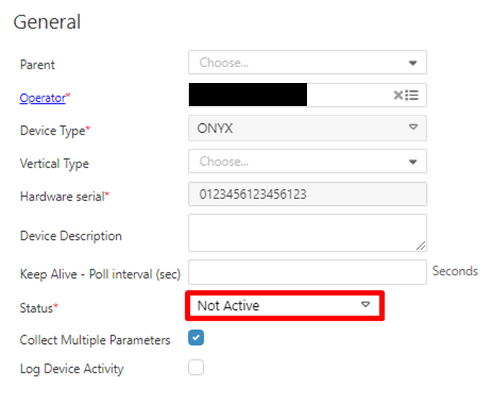
Another way to validate this is within Nayax Core, where you can check the details of each device and validate their current status. Follow the steps below to do so:

1. In your Dashboard, go to **Administration > Devices**.
2. Use the search function to filter through the list of devices.
3. Select the desired device from the list.
4. Open the **General Information** tab and see the **Status** field.

<Frame>
  <img src="https://mintcdn.com/nayax-44d6e37b/VrZ-OU46FUlkm5RA/images/docs/disabling-a-device/image1.png?fit=max&auto=format&n=VrZ-OU46FUlkm5RA&q=85&s=958e81449634f5801d27be0f636e4694" width="491" height="405" data-path="images/docs/disabling-a-device/image1.png" />
</Frame>

<br />