> ## Documentation Index
> Fetch the complete documentation index at: https://devzone.nayax.com/llms.txt
> Use this file to discover all available pages before exploring further.
# Get Machine's Last Sales
export const EndpointCard = ({method = "API", title, children, href, arrow = true}) => {
const METHOD_STYLES = {
GET: {
bg: "mint-bg-green-400/20 dark:mint-bg-green-400/20",
text: "mint-text-green-700 dark:mint-text-green-400",
border: "mint-border-green-300 dark:mint-border-green-700"
},
POST: {
bg: "mint-bg-blue-400/20 dark:mint-bg-blue-400/20",
text: "mint-text-blue-700 dark:mint-text-blue-400"
},
PUT: {
bg: "mint-bg-yellow-400/20 dark:mint-bg-yellow-400/20",
text: "mint-text-yellow-700 dark:mint-text-yellow-400"
},
PATCH: {
bg: "mint-bg-orange-400/20 dark:mint-bg-orange-400/20",
text: "mint-text-orange-700 dark:mint-text-orange-400"
},
DELETE: {
bg: "mint-bg-red-400/20 dark:mint-bg-red-400/20",
text: "mint-text-red-700 dark:mint-text-red-400"
},
API: {
bg: "mint-bg-black",
text: "mint-text-white"
}
};
const MethodBadge = ({method}) => {
const style = METHOD_STYLES[method?.toUpperCase()] ?? METHOD_STYLES.GET;
return
{method?.toUpperCase()}
;
};
const content =
{}
{title}
{children &&
{children}
}
{}
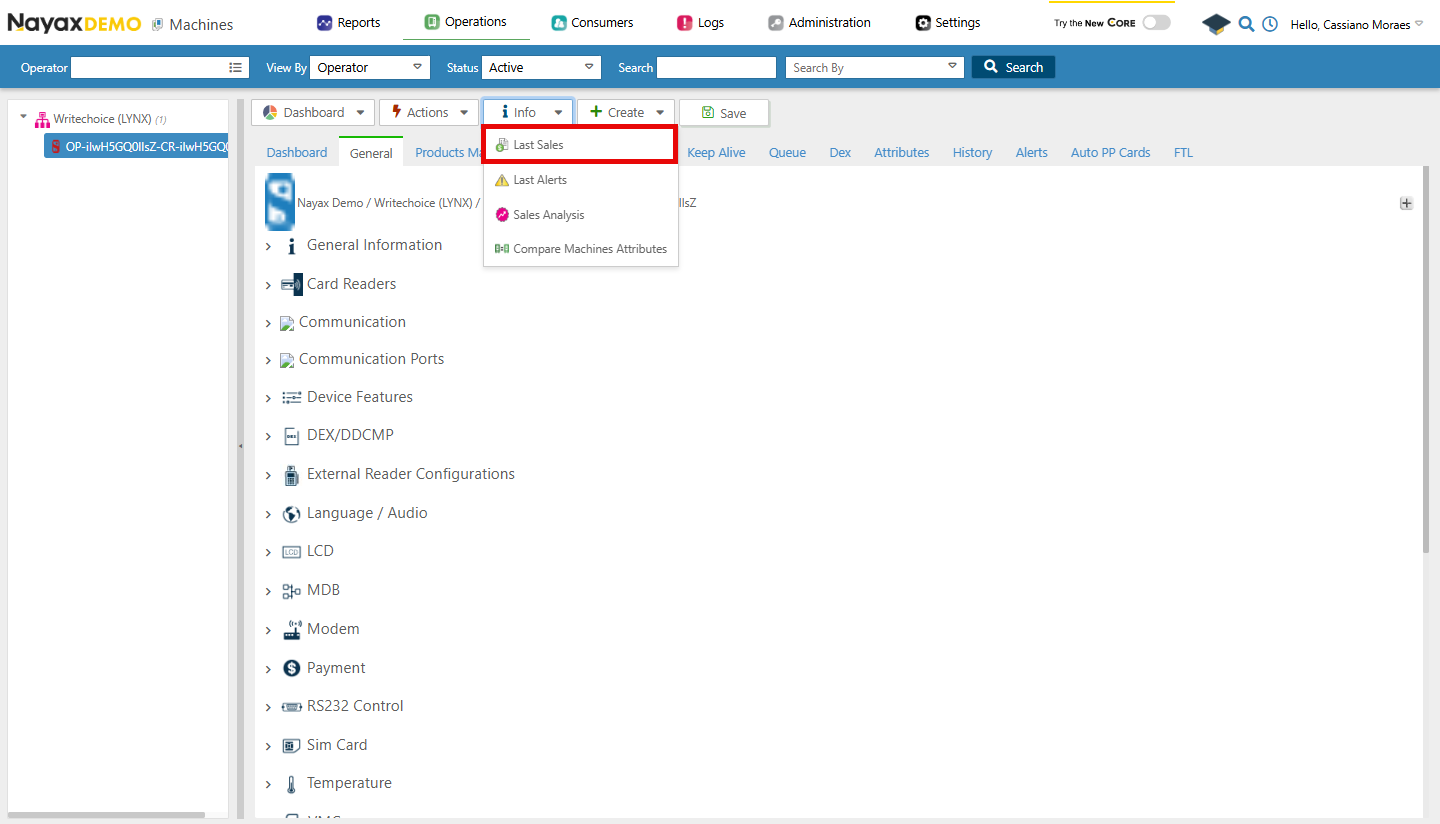 You will be presented with a list containing the latest machine transactions.
## Lynx API
Lynx API allows you to do this process programmatically through a GET request. This page will guide you on how to do so using the endpoint below.
**Authentication**
Refer to the [Security & Token](/docs/manage-data-operations/lynx-api/security) page of this documentation to learn how to access your tokens, and how to properly use it to authenticate your API requests.
### Retrieving the Last Sales
You'll use the [Get Last Sales for Machine](/reference/lynx/machines/get-last-sales-for-machine-by-machineid) endpoint, adding the machine's unique identifier as a path parameter to retrieve details about the respective machine. This lets you view the latest sales activity associated with the searched machine. See the example request in the code block below:
```sh Request theme={null}
curl -X GET "https://qa-lynx.nayax.com/operational/v1/machines//lastSales" \
-H "Authorization: Bearer "
```
**Path Params**
Replace `` with the actual machine unique identifier you want to search.
With a successful request, the endpoint will return with a list of recent sales related to the machine. This response JSON will have the following format:
```json Response theme={null}
[
{
"TransactionID": 2108816976,
"PaymentServiceTransactionID": "PS123456789",
"PaymentServiceProviderName": "Stripe",
"MachineID": 942488501,
"MachineName": "Marshall Vending",
"MachineNumber": "MV001",
"InstituteLocationName": "New York Warehouse",
"AuthorizationValue": 10.00,
"SettlementValue": 9.50,
"CurrencyCode": "USD",
"PaymentMethod": "Credit Card",
"RecognitionMethod": "Chip",
"CardNumber": "************1234",
"CardBrand": "Visa",
"CLI": "+1234567890",
"ProductName": "Bottled Water",
"MultivendTransactionBit": true,
"MultivendNumverOfProducts": 2,
"UnitOfMeasurement": "Item",
"Quantity": 2,
"EnergyConsumed": 0,
"AuthorizationDateTimeGMT": "2024-10-09T16:53:51.225Z",
"MachineAuthorizationTime": "2024-10-09T16:53:51.225Z",
"SettlementDateTimeGMT": "2024-10-09T16:54:51.225Z",
"SiteID": 2,
"SiteName": "IL1"
}
]
```
The table below describes the parameters on the response:
| **Field** | **Description** |
| ----------------------------- | --------------------------------------------------------- |
| `TransactionID` | `2108816976`, identifying the transaction. |
| `PaymentServiceTransactionID` | Provides details about the payment processor transaction. |
| `PaymentServiceProviderName` | Indicates the name of the payment processor. |
| `MachineID` | Refers to the machine where the transaction took place. |
| `MachineName` | Name of the machine where the transaction occurred. |
| `AuthorizationValue` | The authorized transaction amount. |
| `SettlementValue` | The settled transaction amount. |
| `CurrencyCode` | The currency used in the transaction (e.g., `USD`). |
| `PaymentMethod` | The method used for payment. |
| `RecognitionMethod` | How the payment was recognized. |
| `CardNumber` | The card number used for payment. |
| `CardBrand` | The brand of the card used for payment. |
| `ProductName` | Specifies the item sold in the transaction. |
| `Quantity` | The quantity of the item sold. |
| `AuthorizationDateTimeGMT` | The authorization timestamp in GMT. |
| `SettlementDateTimeGMT` | The settlement timestamp in GMT. |
You will be presented with a list containing the latest machine transactions.
## Lynx API
Lynx API allows you to do this process programmatically through a GET request. This page will guide you on how to do so using the endpoint below.
**Authentication**
Refer to the [Security & Token](/docs/manage-data-operations/lynx-api/security) page of this documentation to learn how to access your tokens, and how to properly use it to authenticate your API requests.
### Retrieving the Last Sales
You'll use the [Get Last Sales for Machine](/reference/lynx/machines/get-last-sales-for-machine-by-machineid) endpoint, adding the machine's unique identifier as a path parameter to retrieve details about the respective machine. This lets you view the latest sales activity associated with the searched machine. See the example request in the code block below:
```sh Request theme={null}
curl -X GET "https://qa-lynx.nayax.com/operational/v1/machines//lastSales" \
-H "Authorization: Bearer "
```
**Path Params**
Replace `` with the actual machine unique identifier you want to search.
With a successful request, the endpoint will return with a list of recent sales related to the machine. This response JSON will have the following format:
```json Response theme={null}
[
{
"TransactionID": 2108816976,
"PaymentServiceTransactionID": "PS123456789",
"PaymentServiceProviderName": "Stripe",
"MachineID": 942488501,
"MachineName": "Marshall Vending",
"MachineNumber": "MV001",
"InstituteLocationName": "New York Warehouse",
"AuthorizationValue": 10.00,
"SettlementValue": 9.50,
"CurrencyCode": "USD",
"PaymentMethod": "Credit Card",
"RecognitionMethod": "Chip",
"CardNumber": "************1234",
"CardBrand": "Visa",
"CLI": "+1234567890",
"ProductName": "Bottled Water",
"MultivendTransactionBit": true,
"MultivendNumverOfProducts": 2,
"UnitOfMeasurement": "Item",
"Quantity": 2,
"EnergyConsumed": 0,
"AuthorizationDateTimeGMT": "2024-10-09T16:53:51.225Z",
"MachineAuthorizationTime": "2024-10-09T16:53:51.225Z",
"SettlementDateTimeGMT": "2024-10-09T16:54:51.225Z",
"SiteID": 2,
"SiteName": "IL1"
}
]
```
The table below describes the parameters on the response:
| **Field** | **Description** |
| ----------------------------- | --------------------------------------------------------- |
| `TransactionID` | `2108816976`, identifying the transaction. |
| `PaymentServiceTransactionID` | Provides details about the payment processor transaction. |
| `PaymentServiceProviderName` | Indicates the name of the payment processor. |
| `MachineID` | Refers to the machine where the transaction took place. |
| `MachineName` | Name of the machine where the transaction occurred. |
| `AuthorizationValue` | The authorized transaction amount. |
| `SettlementValue` | The settled transaction amount. |
| `CurrencyCode` | The currency used in the transaction (e.g., `USD`). |
| `PaymentMethod` | The method used for payment. |
| `RecognitionMethod` | How the payment was recognized. |
| `CardNumber` | The card number used for payment. |
| `CardBrand` | The brand of the card used for payment. |
| `ProductName` | Specifies the item sold in the transaction. |
| `Quantity` | The quantity of the item sold. |
| `AuthorizationDateTimeGMT` | The authorization timestamp in GMT. |
| `SettlementDateTimeGMT` | The settlement timestamp in GMT. |