> ## Documentation Index
> Fetch the complete documentation index at: https://devzone.nayax.com/llms.txt
> Use this file to discover all available pages before exploring further.

# Approve or Decline Refunds

export const EndpointCard = ({method = "API", title, children, href, arrow = true}) => {
  const METHOD_STYLES = {
    GET: {
      bg: "mint-bg-green-400/20 dark:mint-bg-green-400/20",
      text: "mint-text-green-700 dark:mint-text-green-400",
      border: "mint-border-green-300 dark:mint-border-green-700"
    },
    POST: {
      bg: "mint-bg-blue-400/20 dark:mint-bg-blue-400/20",
      text: "mint-text-blue-700 dark:mint-text-blue-400"
    },
    PUT: {
      bg: "mint-bg-yellow-400/20 dark:mint-bg-yellow-400/20",
      text: "mint-text-yellow-700 dark:mint-text-yellow-400"
    },
    PATCH: {
      bg: "mint-bg-orange-400/20 dark:mint-bg-orange-400/20",
      text: "mint-text-orange-700 dark:mint-text-orange-400"
    },
    DELETE: {
      bg: "mint-bg-red-400/20 dark:mint-bg-red-400/20",
      text: "mint-text-red-700 dark:mint-text-red-400"
    },
    API: {
      bg: "mint-bg-black",
      text: "mint-text-white"
    }
  };
  const MethodBadge = ({method}) => {
    const style = METHOD_STYLES[method?.toUpperCase()] ?? METHOD_STYLES.GET;
    return <span className={`
          method-pill rounded-lg font-bold px-1.5 py-0.5 text-xs leading-5 ${style.bg} ${style.text}`}>
        {method?.toUpperCase()}
      </span>;
  };
  const content = <div className="group flex items-center gap-4 border border-gray-200 dark:border-gray-700 rounded-xl p-5 bg-white dark:bg-[#1e1e1e] hover:border-gray-400 dark:hover:border-gray-500 hover:shadow-md transition-all cursor-pointer">
      {}
      <div className="flex-1 min-w-0">
        <p className="font-semibold text-gray-900 dark:text-white text-sm leading-snug">{title}</p>
        {children && <p className="mt-1 text-sm text-gray-500 dark:text-gray-400 line-clamp-2">{children}</p>}
      </div>

      {}
      <div className="shrink-0">
        <MethodBadge method={method} />
      </div>
    </div>;
  if (!href) return content;
  return <a href={href} className="block no-underline border-b-0 mb-2">
      {content}
    </a>;
};

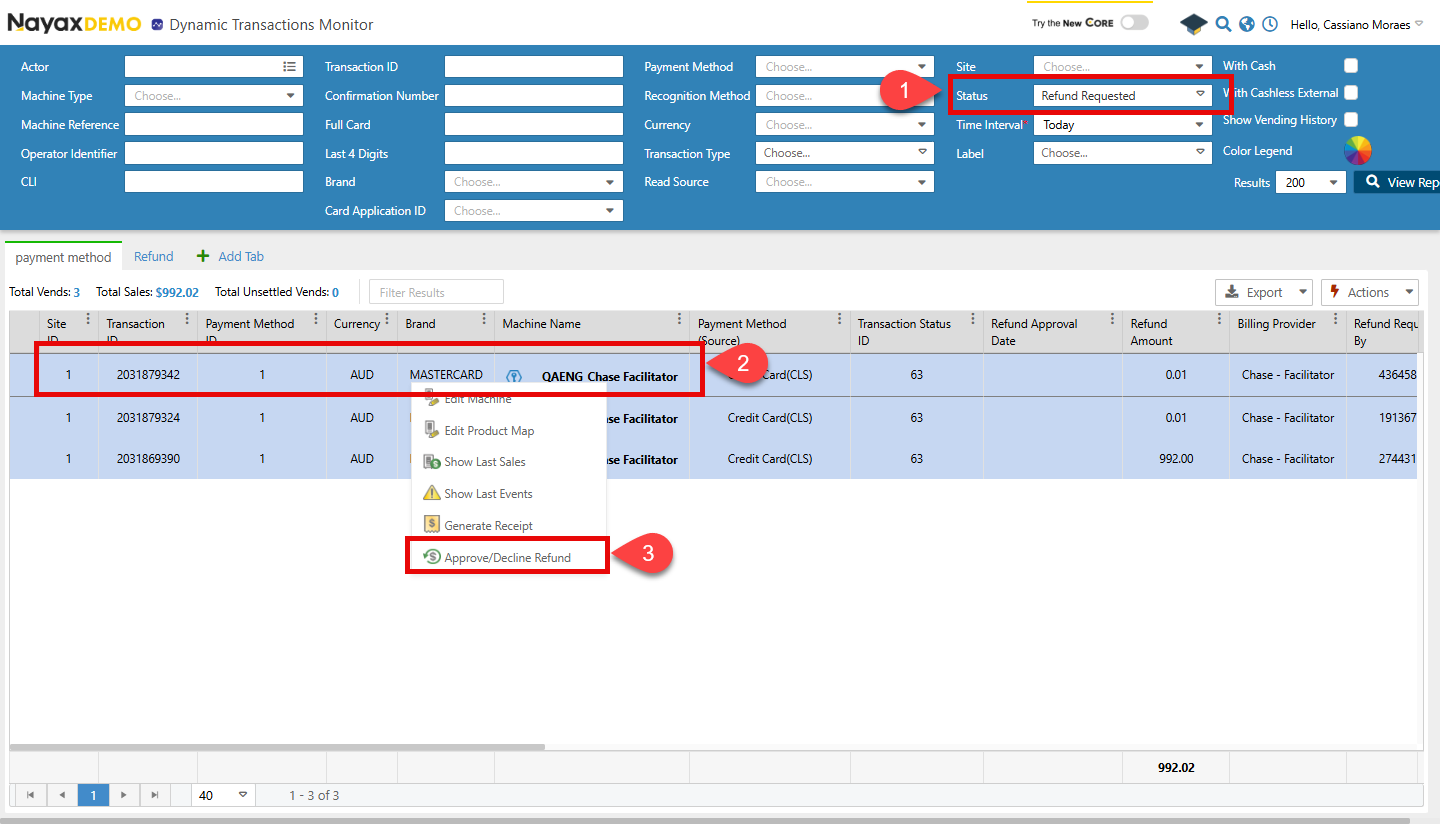
When a refund is successfully requested, the transaction will remain in the **Pending** status until approved or declined. You can see this in Nayax core by going to **Reports > Online Reports > Dynamic Transactions Monitor**. Follow the steps below:

1. Use the search feature to find the transaction. Then, choose **Refund Requested** to filter by **Status**.
2. Right-click the transaction in the list.
3. Click **Approve/Decline Refund**.

   <Frame>
     <img src="https://mintcdn.com/nayax-44d6e37b/1pW0jXOF4OhjjY4f/images/docs/approve-or-decline-a-refund/image1.png?fit=max&auto=format&n=1pW0jXOF4OhjjY4f&q=85&s=c77f31546c533b2c7ebdba5be3283aed" width="1440" height="824" data-path="images/docs/approve-or-decline-a-refund/image1.png" />
   </Frame>
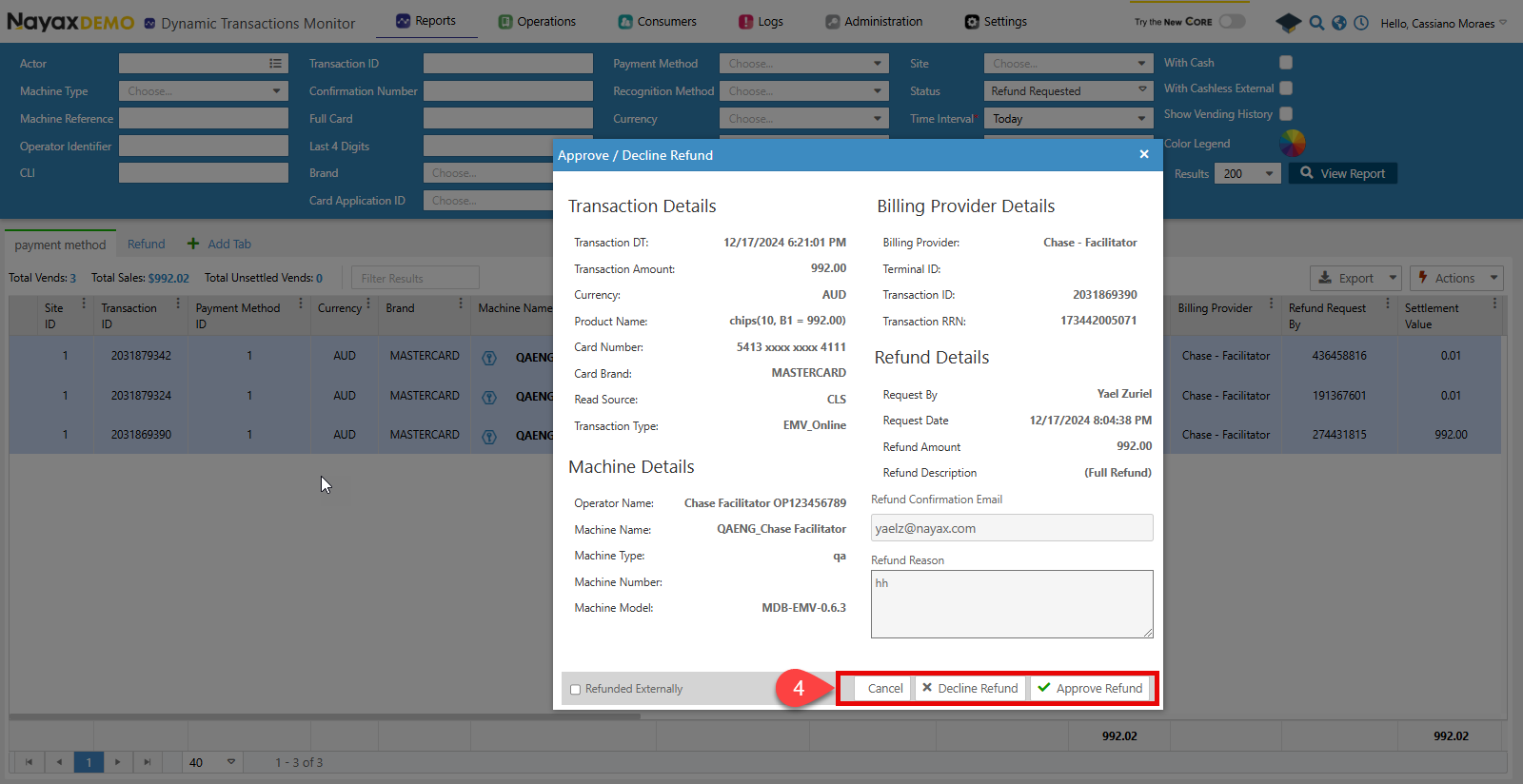
4. A pop-up window will appear. Click **Decline Refund** or **Approve Refund**.
   <Frame>
     <img src="https://mintcdn.com/nayax-44d6e37b/1pW0jXOF4OhjjY4f/images/docs/approve-or-decline-a-refund/image2.png?fit=max&auto=format&n=1pW0jXOF4OhjjY4f&q=85&s=18b9b9b9dcc8ba1deb4923b0525c4030" width="1600" height="824" data-path="images/docs/approve-or-decline-a-refund/image2.png" />
   </Frame>

## Lynx API

This process can be done through the Lynx API using the endpoints below.

<Columns cols={2}>
  <EndpointCard title="Approve a Payment Refund" href="/reference/lynx/payment/approve-payment-refund" method="post" />

  <EndpointCard title="Decline a Payment Refund" href="/reference/lynx/payment/decline-a-payment-refund" method="post" />
</Columns>

<br />

<Warning>
  **Authentication**

  Refer to the [Security & Token](/docs/manage-data-operations/lynx-api/security) page of this documentation to learn how to access your tokens and how to properly use them to authenticate your API requests.
</Warning>

### Approve request

Use the Approve Payment Refund endpoint to approve the refund. The code block below shows the request object and its body parameters:

```sh Request theme={null}
curl --request POST \
     --url https://qa-lynx.nayax.com/operational/v1/payment/refund-approve \
     --header 'accept: application/json' \
     --header 'content-type: application/json' \
     --data '
{
  "IsRefundedExternally": true,
  "RefundDocumentUrl": "string",
  "TransactionId": 0,
  "SiteId": 0,
  "MachineAuTime": "2024-10-10T16:30:37.179Z"
}
'
```

See the table below for more details on each parameter:

<table align={["left","left","left"]}>
  <thead>
    <tr>
      <th>
        **Name**
      </th>

      <th>
        **Type**
      </th>

      <th>
        **Description**
      </th>
    </tr>
  </thead>

  <tbody>
    <tr>
      <td>
        **IsRefundedExternally**
      </td>

      <td>
        `boolean`
      </td>

      <td>
        It is used when the customer contacts the billing provider for a refund. In that case, this flag is set to true, and the file received by the billing provider is added to the `RefundedDocumentUrl`.
      </td>
    </tr>

    <tr>
      <td>
        **RefundDocumentUrl**
      </td>

      <td>
        `string`
      </td>

      <td>
        If `IsRefundedExternally` is set to `true`, the URL for the refund document from the billing provider needs to be added here.
        See

        [Upload Refund Documentation](/docs/manage-data-operations/lynx-api/refunds/upload-refund-document)

        for more details on uploading the document and getting the URL.
      </td>
    </tr>

    <tr>
      <td>
        **TransactionId**
      </td>

      <td>
        `int64`
      </td>

      <td>
        The unique identifier of the transaction for which the refund is being approved.
      </td>
    </tr>

    <tr>
      <td>
        **SiteId**
      </td>

      <td>
        `int32`
      </td>

      <td>
        The unique identifier of the site where the transaction occurred.
      </td>
    </tr>

    <tr>
      <td>
        **MachineAuTime**
      </td>

      <td>
        `date-time`
      </td>

      <td>
        The machine's authorization time is associated with the transaction
      </td>
    </tr>
  </tbody>
</table>

<Warning>
  The `TransactionId`, `SiteId` and `MachineAuTime` need to be the same as sent in the refund request.
</Warning>

### Decline Request

To decline a refund, use the Decline a Payment Refund endpoint. The code block below displays the request object and its body parameters.

```sh Request theme={null}
curl --request POST \
     --url https://qa-lynx.nayax.com/operational/v1/payment/refund-decline \
     --header 'accept: application/json' \
     --header 'content-type: application/json' \
     --data '
{
  "DeclineReason": "string",
  "TransactionId": 0,
  "SiteId": 0,
  "MachineAuTime": "2024-10-10T16:30:37.179Z"
}
'
```

See the table below for more details on each parameter:

| **Name**          | **Type**    | **Description**                                                                  |
| ----------------- | ----------- | -------------------------------------------------------------------------------- |
| **DeclineReason** | `string`    | The reason for declining the refund request.                                     |
| **TransactionId** | `int64`     | The unique identifier of the transaction for which the refund is being declined. |
| **SiteId**        | `int32`     | The unique identifier of the site where the transaction occurred.                |
| **MachineAuTime** | `date-time` | The machine's authorization time is associated with the transaction.             |

<Warning>
  The `TransactionId`, `SiteId` and `MachineAuTime` need to be the same as the one sent in the refund request.
</Warning>

## Request Status

Once the request is approved or denied, the consumer will receive an email at the address provided in the refund request. The request status will also be updated. You can see this in Nayax core by going to **Reports > Online Reports > Dynamic Transactions Monitor**.