> ## Documentation Index
> Fetch the complete documentation index at: https://devzone.nayax.com/llms.txt
> Use this file to discover all available pages before exploring further.
# Dashboard Widgets Overview
> Widgets are visual components on the Lynx Reports dashboard that display machine and operator data.
Widgets are visual components that show specific customized data to meet your business needs. You can find these widgets on **Reports > Dashboard**.
There are widgets available at two levels:
* **Operator/Actor Level:** Widgets that gather data from multiple machines.
* **Machine Level:** Widgets that show data specific to a single machine.
Every widget has its own unique identifier (`widget_type_id`), filters, and other configuration options. See the [Widgets ID List](/docs/manage-data-operations/lynx-api/reports/available-widgets) for a full reference.
## Documented Widgets
Bar chart showing revenue generated across your fleet over a selected time period.
Numeric breakdown of revenue and transaction counts by reporting window.
Visual comparison of monthly sales performance between the current and previous year.
Ranking of the top-performing machines in your fleet by sales and vend volume.
## General Widget Actions
These options appear on the right side of every widget and offer additional controls.
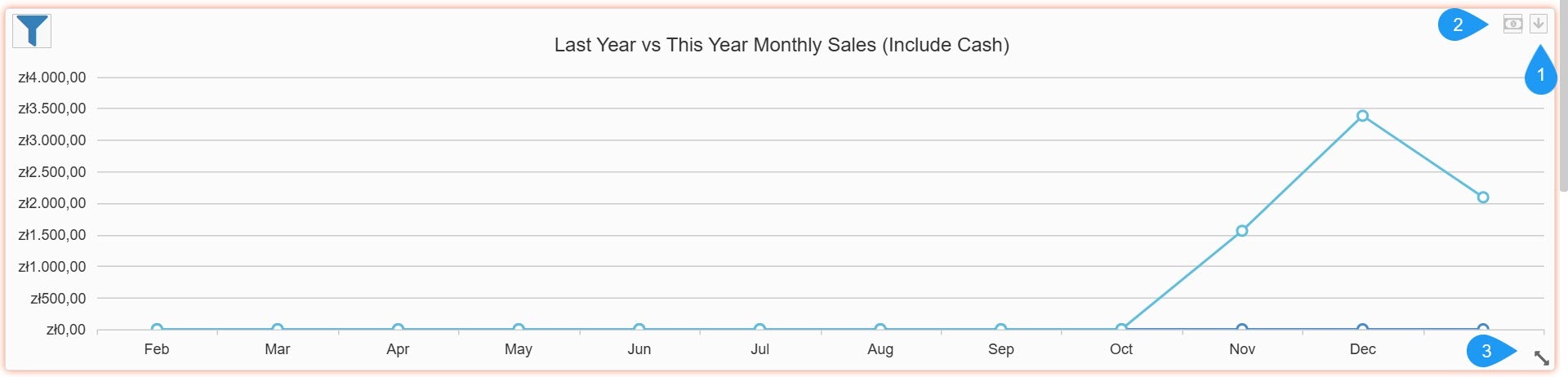 1. The **Dropdown Arrow** button offers the following options:
* **Lock Widget**: Secures the widget in its current position on the dashboard to prevent accidental moving or resizing.
* **Export**: Allows you to download the widget's raw data in PDF format for external reporting.
* **Remove Widget**: Deletes the widget from your current dashboard view.
2. **Currency Toggle**: The bill/money icon opens a sub-menu that allows you to change the currency in the widget.
3. **Resize Tool**: Located in the bottom-right corner of the widget, this icon lets you click and drag to resize the widget on your dashboard.
1. The **Dropdown Arrow** button offers the following options:
* **Lock Widget**: Secures the widget in its current position on the dashboard to prevent accidental moving or resizing.
* **Export**: Allows you to download the widget's raw data in PDF format for external reporting.
* **Remove Widget**: Deletes the widget from your current dashboard view.
2. **Currency Toggle**: The bill/money icon opens a sub-menu that allows you to change the currency in the widget.
3. **Resize Tool**: Located in the bottom-right corner of the widget, this icon lets you click and drag to resize the widget on your dashboard.