> ## Documentation Index
> Fetch the complete documentation index at: https://devzone.nayax.com/llms.txt
> Use this file to discover all available pages before exploring further.
# Security & Token
Authentication using an access token is required to interact securely with the Lynx API. This guide provides an overview of generating and using access tokens and best practices for ensuring API security.
## Access Token
An access token is a security credential used to authenticate API requests. Each request to the Lynx API must include a valid access token in the `Authorization` header. This access token is also known as an API key or API token, and appears as a User Token in Nayax Core.
**Keep your Tokens Safe**
It is important to avoid sharing your secret tokens in public places like GitHub or Bitbucket since it can allow malicious API calls.
Access tokens can be found through the Nayax Back Office (Nayax Core). Follow these steps to retrieve an access token:
1. **Log in to Nayax Core** using your username and password.
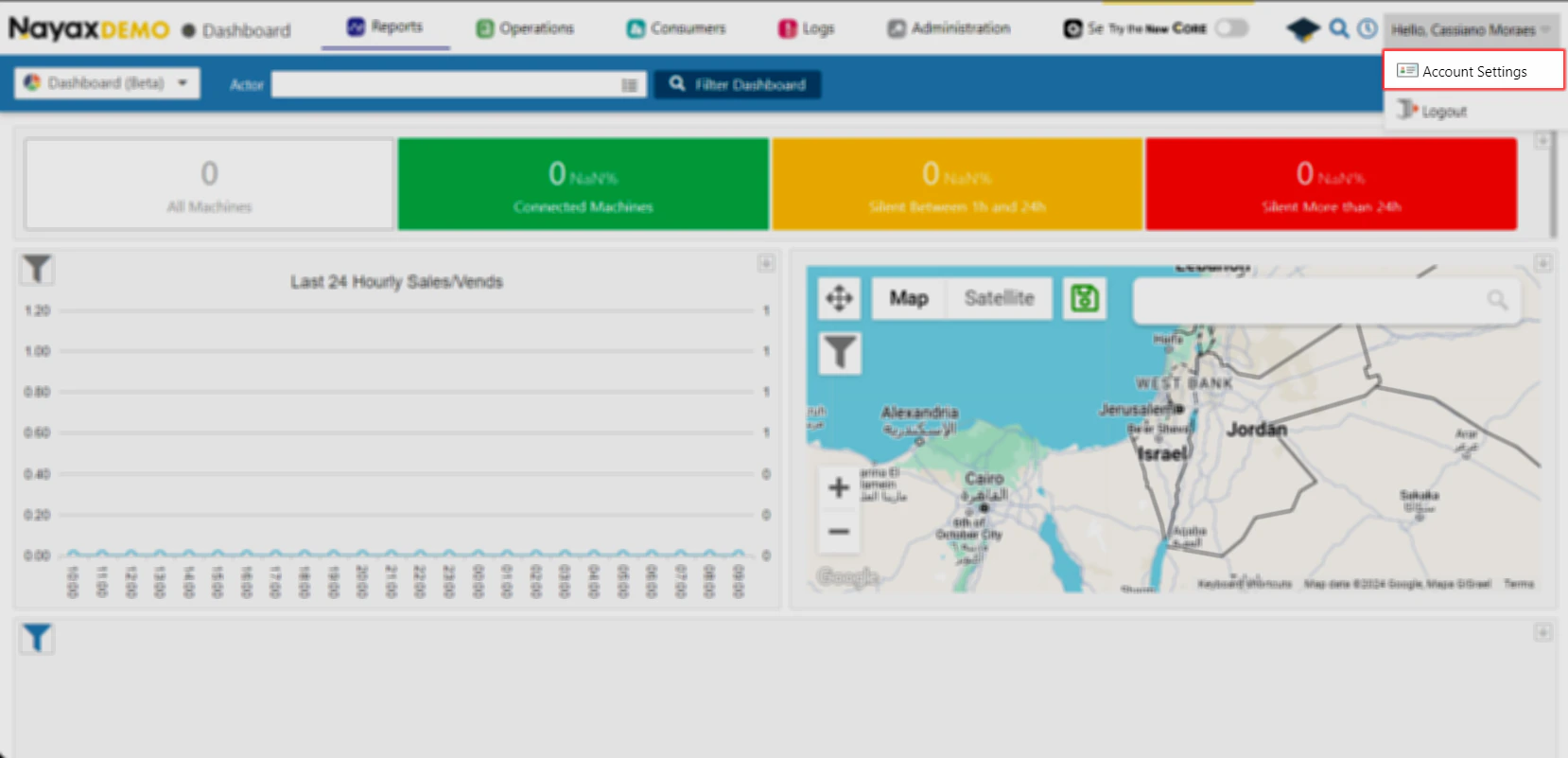
2. **Navigate to Account Settings** by clicking on your username at the top right corner, and selecting the **Account Settings** option.
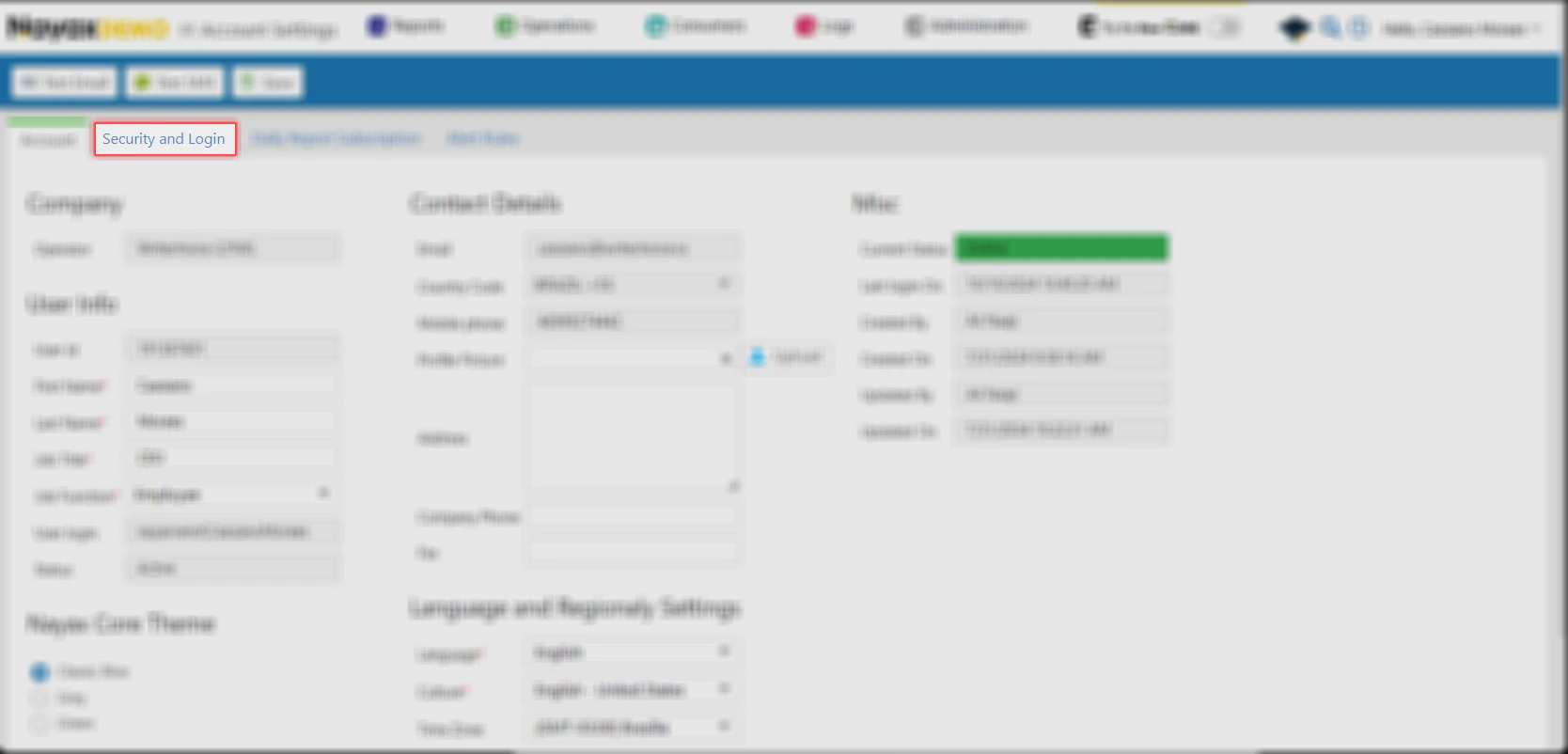
 3. Access the **Security and Login** Tab.
 4. Navigate down to the **User Tokens** section.
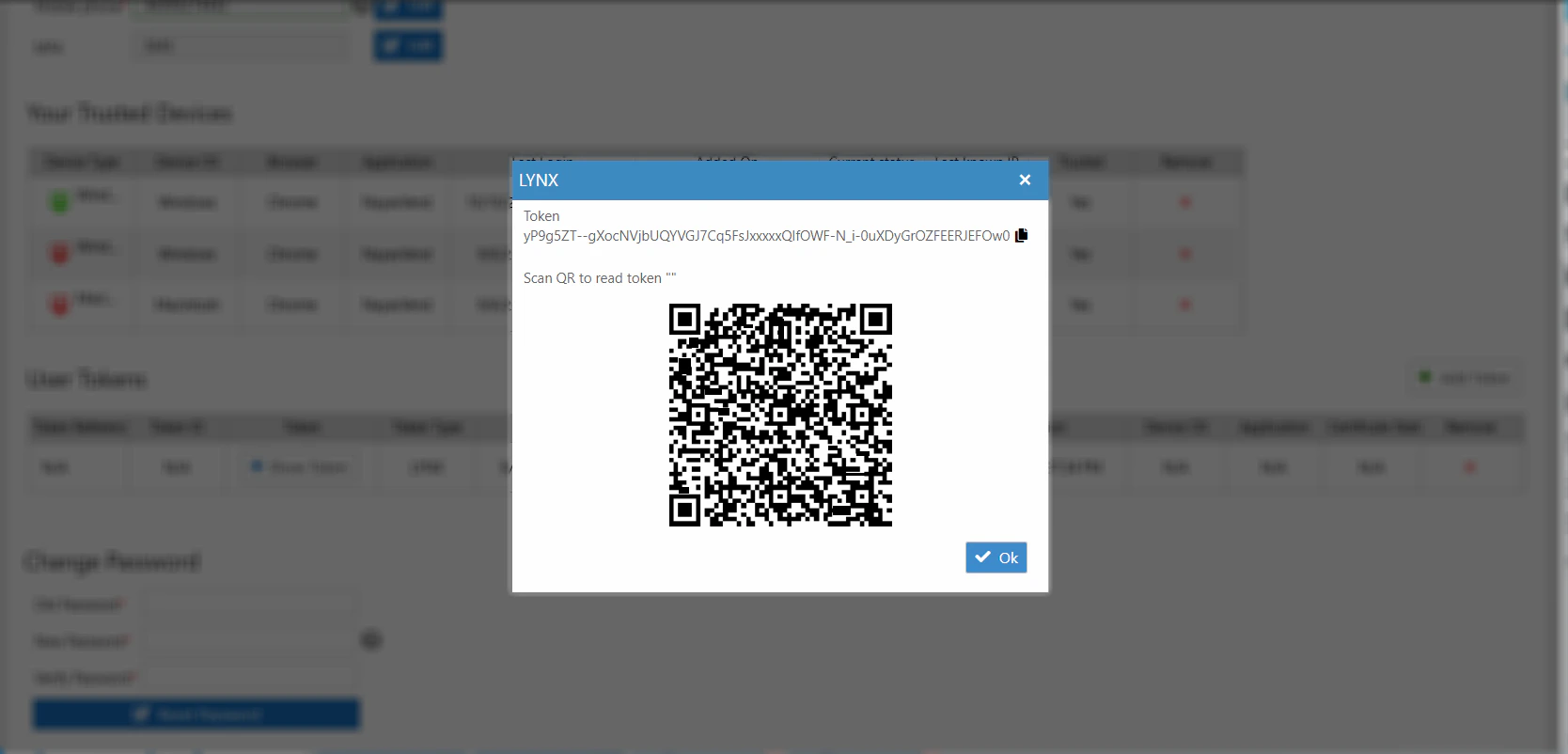
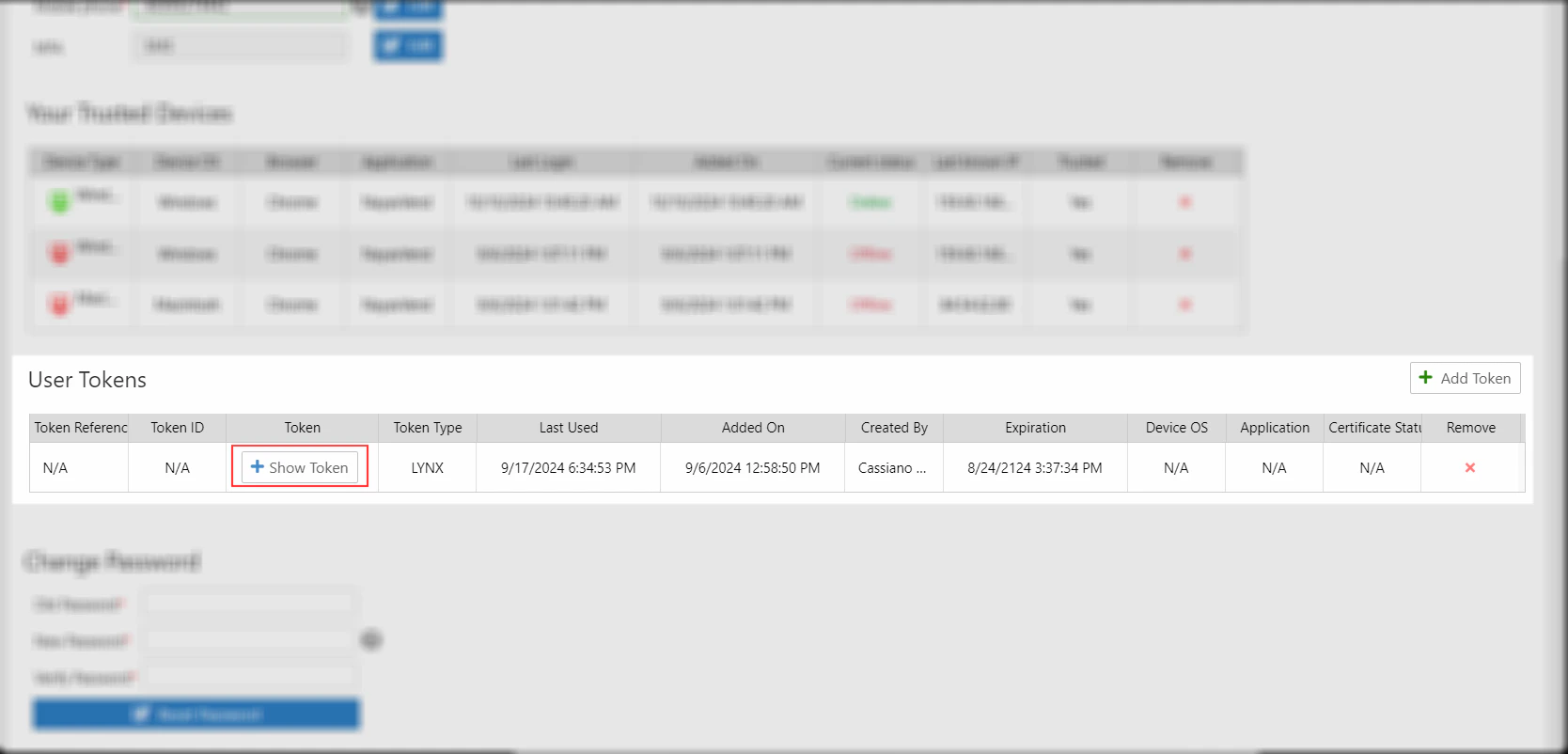 5. Click the **Show Token** button next to an existing token to show it, and copy the token for use in API calls.
 ## Using the Token in API Requests
Include the access token in the `Authorization` header for each API request:
```sh theme={null}
curl -X GET "https://qa-lynx.nayax.com/operational/v1/devices" \
-H "Authorization: Bearer "
```
* Replace `` with your actual token retrieved from Nayax Core.
**Environments**
All examples in this documentation use the QA base URL: `https://qa-lynx.nayax.com/operational`. For production, replace the hostname with `lynx.nayax.com`.
## Using the Token in API Requests
Include the access token in the `Authorization` header for each API request:
```sh theme={null}
curl -X GET "https://qa-lynx.nayax.com/operational/v1/devices" \
-H "Authorization: Bearer "
```
* Replace `` with your actual token retrieved from Nayax Core.
**Environments**
All examples in this documentation use the QA base URL: `https://qa-lynx.nayax.com/operational`. For production, replace the hostname with `lynx.nayax.com`.