> ## Documentation Index
> Fetch the complete documentation index at: https://devzone.nayax.com/llms.txt
> Use this file to discover all available pages before exploring further.
# 静态二维码
快速查找关于 Nayax API 集成、设备配置、交易跟踪和部署流程等常见问题的答案和分步指南。浏览下方分类以查找解决方案和最佳实践。
### 我如何将 Nayax 的 IP 加入白名单?
为确保您的系统能够可靠地接收来自 Nayax 的通信(例如 `StartSession` 和 `SaleEndNotification` 请求),您必须配置网络防火墙,将 Nayax 的服务器 IP 范围加入白名单。
您有两种配置这些规则的选项,两者覆盖的地址范围相同。
### 选项 1:完整范围白名单(推荐)
这是最简单的方法,使用单个 CIDR 块即可覆盖当前所有 Nayax 服务器 IP。为便于维护,推荐使用此方法。
* 单个 CIDR 块:`185.159.232.0/22`
### 选项 2:特定服务器白名单
如果您的防火墙配置需要更细粒度的规则,或需要按地理位置划分规则,请使用此选项。
| 服务器位置 | CIDR 块 |
| :- | :- |
| 以色列(IL) | `185.159.232.0/24` |
| 德国(DE) | `185.159.234.0/24` |
| 美国(US) | `185.159.233.0/24` |
### 每个命令对应的端点是什么?
每个命令都有自己的端点,取决于您提供给 Nayax 的 URL。格式因命令而异。
`SaleEndNotification` 使用以下格式:
| 命令 | 端点 |
| :- | :- |
| SaleEndNotification | `(customer's URL)/Cortina/SaleEndNotification` |
其他命令的路径中还包含集成类型(`StaticQR`):
| 命令 | 端点 |
| :- | :- |
| 授权 | `(customer's URL)/Cortina/StaticQR/Authorization` |
| 沉降 | `(customer's URL)/Cortina/StaticQR/Settlement` |
| 取消 | `(customer's URL)/Cortina/StaticQR/Cancel` |
| 销售 | `(customer's URL)/Cortina/StaticQR/Sale` |
| **Void** | `(customer's URL)/Cortina/StaticQR/Void` |
### \[UniQR] 我如何使用设备附带的二维码贴纸来唤醒机器(而不是使用设备的 SN)?
First, connect the sticker to your device via the MOMA app. See [How to Connect Your Unattended Machine via the MoMa 2.0 App and Your QR Code Sticker](https://www.youtube.com/watch?v=DLaMQ-x-ra8) to learn more.
连接完成后,Nayax 的服务器会在扫描的 URL 与设备之间建立关联:
智能贴纸 ID 会与设备的虚拟机器 ID 相匹配。
扫描后,该二维码会生成一个包含交易所需特定标识符的长 URL。
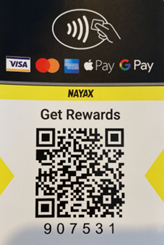
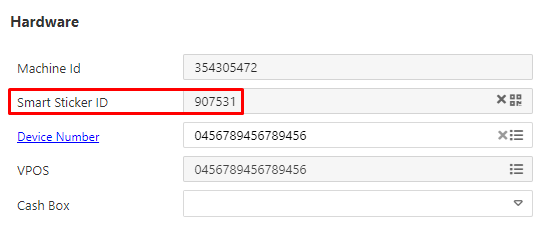 在上面的示例中,智能贴纸 ID 为 907531,当我将手机悬停在二维码上方时,得到以下 URL:
[https://preview.page.link/m.monyx.com/?link=https://m.monyx.com/?data%3D1;https://qr.nayax.com/v1/rWg\_p6pZh1pwjvbkGrmBLy3KgwSz3dq-y63r5FPxk2NOWw2\&apn=com.monyx.wallet\&isi=1455956409\&ibi=com.monyx.wallet](https://preview.page.link/m.monyx.com/?link=https://m.monyx.com/?data%3D1;https://qr.nayax.com/v1/rWg_p6pZh1pwjvbkGrmBLy3KgwSz3dq-y63r5FPxk2NOWw2\&apn=com.monyx.wallet\&isi=1455956409\&ibi=com.monyx.wallet)
注意:您只需使用以 [http://qr.nayax.com/v1/x](http://qr.nayax.com/v1/x) 开头的部分(直到 "&" 为止),也就是说,在我的例子中,我会使用
[https://qr.nayax.com/v1/rWg\_p6pZh1pwjvbkGrmBLy3KgwSz3dq-y63r5FPxk2NOWw2](https://qr.nayax.com/v1/rWg_p6pZh1pwjvbkGrmBLy3KgwSz3dq-y63r5FPxk2NOWw2)。
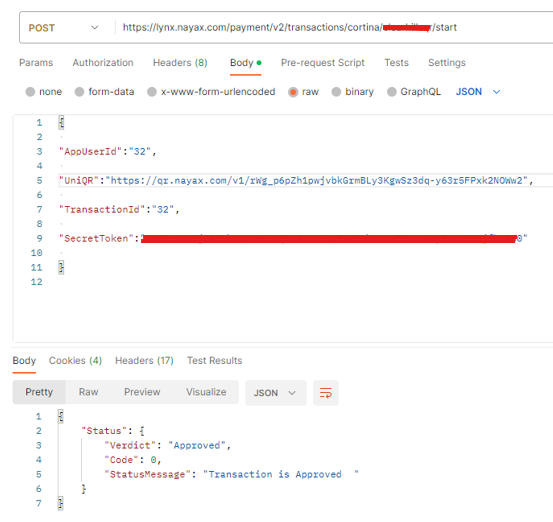
您应使用 "UniQR" 字段而不是 "TerminalID" 字段,并将二维码的值(而不是贴纸上印刷的编号)作为该字段的值填入:
在上面的示例中,智能贴纸 ID 为 907531,当我将手机悬停在二维码上方时,得到以下 URL:
[https://preview.page.link/m.monyx.com/?link=https://m.monyx.com/?data%3D1;https://qr.nayax.com/v1/rWg\_p6pZh1pwjvbkGrmBLy3KgwSz3dq-y63r5FPxk2NOWw2\&apn=com.monyx.wallet\&isi=1455956409\&ibi=com.monyx.wallet](https://preview.page.link/m.monyx.com/?link=https://m.monyx.com/?data%3D1;https://qr.nayax.com/v1/rWg_p6pZh1pwjvbkGrmBLy3KgwSz3dq-y63r5FPxk2NOWw2\&apn=com.monyx.wallet\&isi=1455956409\&ibi=com.monyx.wallet)
注意:您只需使用以 [http://qr.nayax.com/v1/x](http://qr.nayax.com/v1/x) 开头的部分(直到 "&" 为止),也就是说,在我的例子中,我会使用
[https://qr.nayax.com/v1/rWg\_p6pZh1pwjvbkGrmBLy3KgwSz3dq-y63r5FPxk2NOWw2](https://qr.nayax.com/v1/rWg_p6pZh1pwjvbkGrmBLy3KgwSz3dq-y63r5FPxk2NOWw2)。
您应使用 "UniQR" 字段而不是 "TerminalID" 字段,并将二维码的值(而不是贴纸上印刷的编号)作为该字段的值填入:
 ### 创建您自己的二维码
如果您想使用自定义二维码将用户导向您自己的应用程序,您必须将 Nayax 提供的 HASH 代码集成到您的 URL 中。
```text theme={null}
/{hashCode}
```
Nayax 将提供一份 HASH 详情列表,其中包含每台机器唯一的 UniQRCode(即 HASH)。
### 创建您自己的二维码
如果您想使用自定义二维码将用户导向您自己的应用程序,您必须将 Nayax 提供的 HASH 代码集成到您的 URL 中。
```text theme={null}
/{hashCode}
```
Nayax 将提供一份 HASH 详情列表,其中包含每台机器唯一的 UniQRCode(即 HASH)。
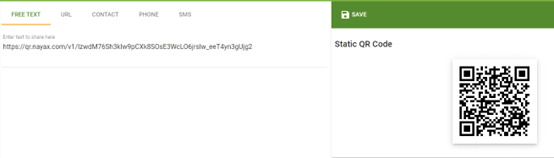
 1. 获取您所需的链接(例如 [https://YourApp.com](https://YourApp.com)),并在末尾附加 HASH 代码:
 2. 使用 MOMA 应用扫描并将原始 Nayax 二维码贴纸绑定到目标虚拟机器:操作 > 绑定贴纸 > 扫描原始二维码。
 3. 现在您可以使用:
```text theme={null}
/{hashCode}
```
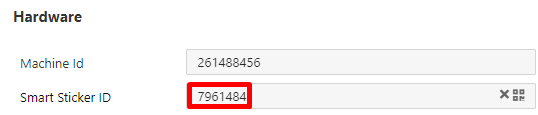
绑定完成后,UniQRNumber 将出现在您虚拟机器的 Smart Sticker ID 字段中,以确认匹配成功。
#### 例子
假设我有一位名为 "MagicQR" 的客户,他们希望生成自己的二维码并使其能够触发自己的应用程序,他们拥有以下 UniQRNumber 和 UniQRCode:
3. 现在您可以使用:
```text theme={null}
/{hashCode}
```
绑定完成后,UniQRNumber 将出现在您虚拟机器的 Smart Sticker ID 字段中,以确认匹配成功。
#### 例子
假设我有一位名为 "MagicQR" 的客户,他们希望生成自己的二维码并使其能够触发自己的应用程序,他们拥有以下 UniQRNumber 和 UniQRCode:
 他们首先需要按照上文所述将 UniQRCode 与 MoMa 应用绑定(以便将 UniQRNumber 与目标虚拟机器关联),然后绑定该 hash。绑定完成后,他们会在自己的 URL 中使用相同的 hash:[https://MagicQR.com/IzwdM76Sh3kIw9pCXk8SOsE3WcLO6jrslw\_eeT4yn3gUjg2](https://MagicQR.com/IzwdM76Sh3kIw9pCXk8SOsE3WcLO6jrslw_eeT4yn3gUjg2)
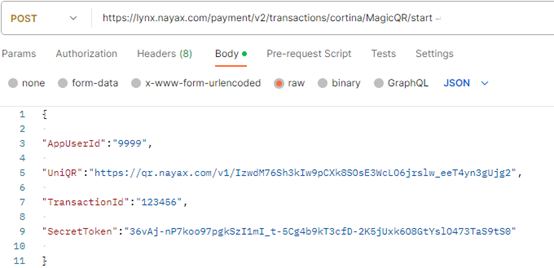
这意味着一旦消费者扫描了此 URL,且 MagicQR 已准备好引导其进行支付,他们需要获取 URL 末尾的 hash,将其还原为 Nayax 提供的 UniQRCode,然后让 "Start" 在 "UniQR" 字段中包含该 URL:
他们首先需要按照上文所述将 UniQRCode 与 MoMa 应用绑定(以便将 UniQRNumber 与目标虚拟机器关联),然后绑定该 hash。绑定完成后,他们会在自己的 URL 中使用相同的 hash:[https://MagicQR.com/IzwdM76Sh3kIw9pCXk8SOsE3WcLO6jrslw\_eeT4yn3gUjg2](https://MagicQR.com/IzwdM76Sh3kIw9pCXk8SOsE3WcLO6jrslw_eeT4yn3gUjg2)
这意味着一旦消费者扫描了此 URL,且 MagicQR 已准备好引导其进行支付,他们需要获取 URL 末尾的 hash,将其还原为 Nayax 提供的 UniQRCode,然后让 "Start" 在 "UniQR" 字段中包含该 URL:
 ```json theme={null}
{
"AppUserID": "9999",
"UniQR": "https://qr.nayax.com/v1/rWg_p6pZh1pwjvbkGrmBLy3KgwSz3dq-y63r5FPxk2NOWw2",
"TransactionId": "123456",
"SecretToken": "*****"
}
```
This documentation is built and hosted on [Mintlify](https://mintlify.com), a developer documentation platform.
```json theme={null}
{
"AppUserID": "9999",
"UniQR": "https://qr.nayax.com/v1/rWg_p6pZh1pwjvbkGrmBLy3KgwSz3dq-y63r5FPxk2NOWw2",
"TransactionId": "123456",
"SecretToken": "*****"
}
```
This documentation is built and hosted on [Mintlify](https://mintlify.com), a developer documentation platform.