> ## Documentation Index
> Fetch the complete documentation index at: https://devzone.nayax.com/llms.txt
> Use this file to discover all available pages before exploring further.
# 屏幕二维码显示
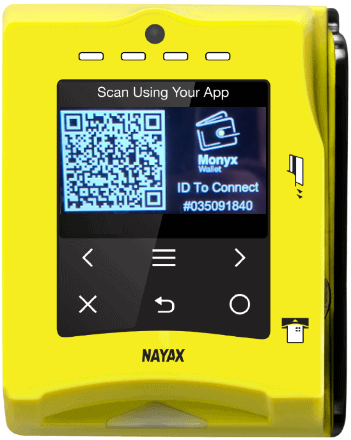
每台设备默认都会生成一个二维码(Monyx QR),其中包含该设备的设备 ID。该二维码可在空闲模式下显示在屏幕上,或与其他支付方式一起在设备屏幕上以轮播形式循环显示。您还可以在二维码旁边添加您的品牌标识。
从整个二维码字符串中提取设备 ID 的操作应由移动应用程序或其后端执行。
移动应用程序后端应使用从二维码图像中提取的设备 ID 执行 Cortina 调用。为使二维码在空闲模式下显示,您必须执行以下操作:
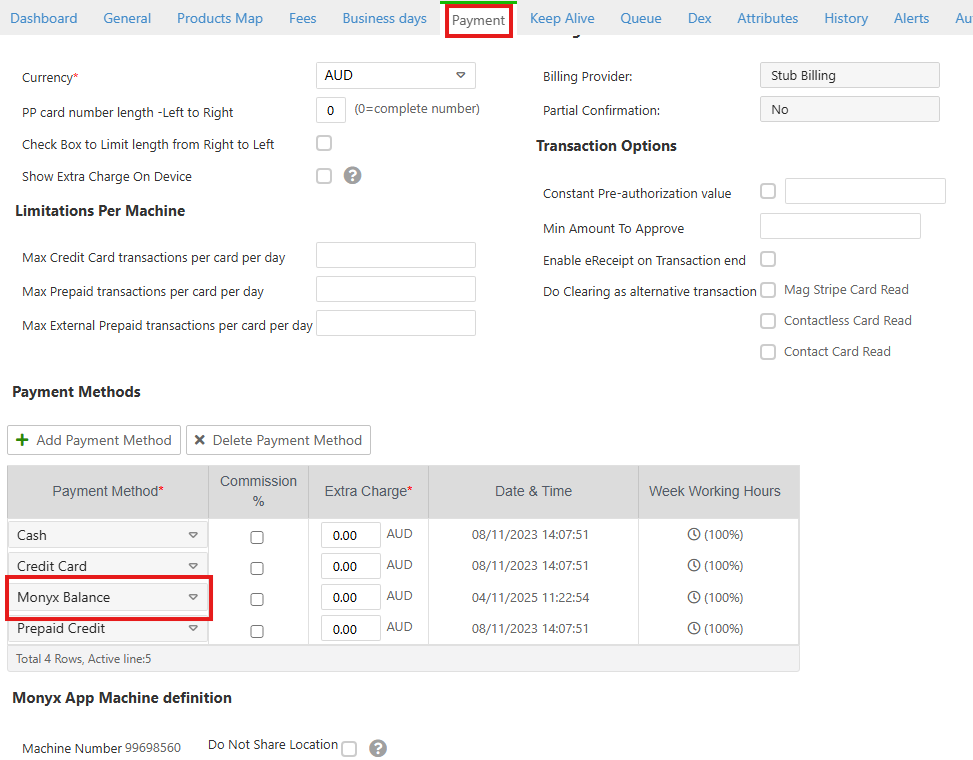
* 确保您在支付页面上(在相应的虚拟机下)已启用 Monyx Balance:
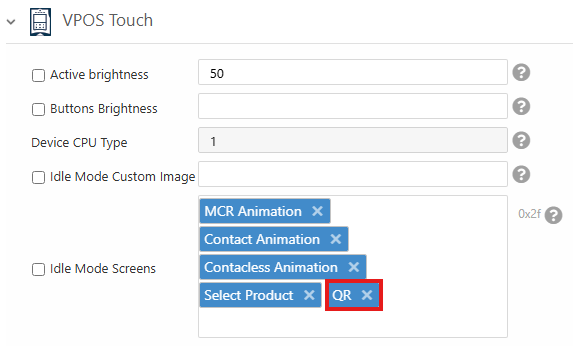
 * 将 "QR" 设置为您的空闲模式屏幕之一:
 请参见下图,了解显示效果的示例:
 This documentation is built and hosted on [Mintlify](https://mintlify.com), a developer documentation platform.