> ## Documentation Index
> Fetch the complete documentation index at: https://devzone.nayax.com/llms.txt
> Use this file to discover all available pages before exploring further.
# 设置 Nayax Core 以实现 Marshall 集成
完成 Marshall 安装过程后,请按照以下步骤配置 Nayax 设备以支持 Marshall 功能。
## 在机器级别配置机器模型
此配置可确保您的系统与所选设备进行适当的交互,从而确保高效、最佳运行。请注意,在集成过程中,您的 Nayax 集成商将负责为您设置虚拟机,但如果您想学习如何自行设置,以下是配置虚拟机模型的必要步骤:
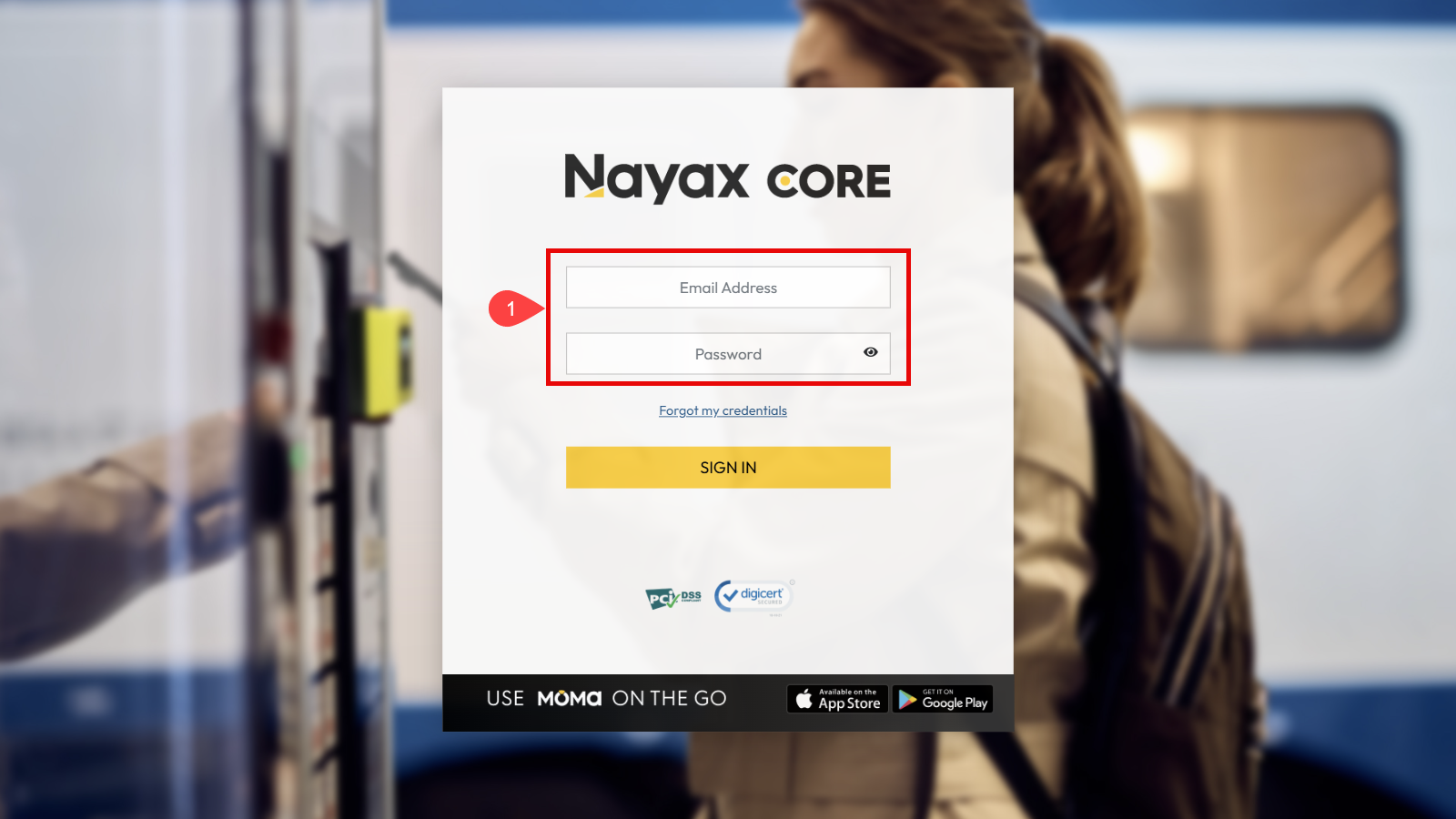
1. 使用您的凭据登录[Nayax Core](https://my.nayax.com/core/LoginPage.aspx?ReturnUrl=%2fdcs%2fpublic%2fdefault.aspx&_ga=2.5742451.1172703238.1627224233-738608359.1611493235)。
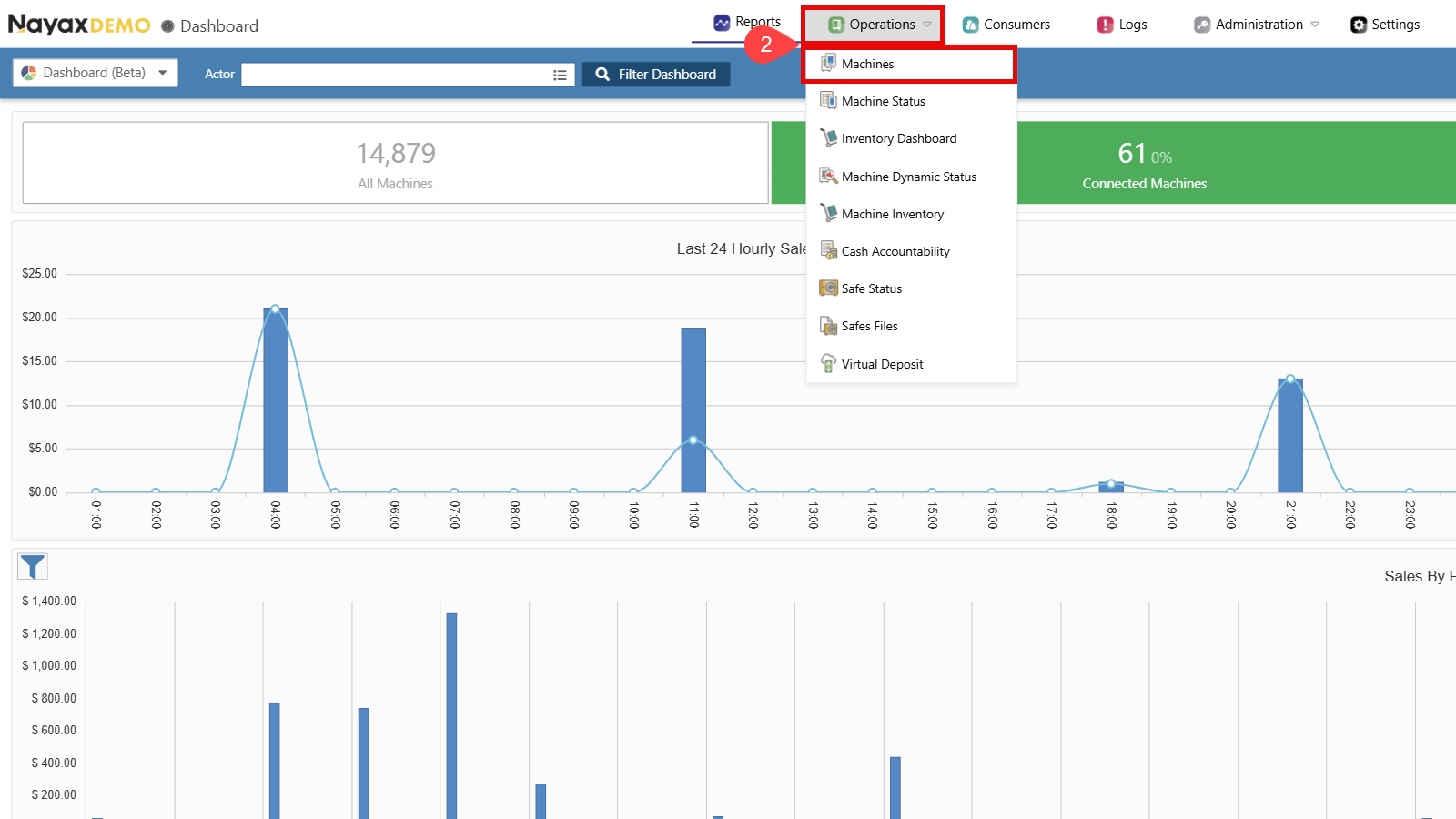
 2. 前往\*\*“操作” > 机器\*\*。
 3. 创建一台机器。如需帮助,请参阅[创建新机器](/docs/manage-data-operations/lynx-api/machines/create-new-machine-guides)指南。
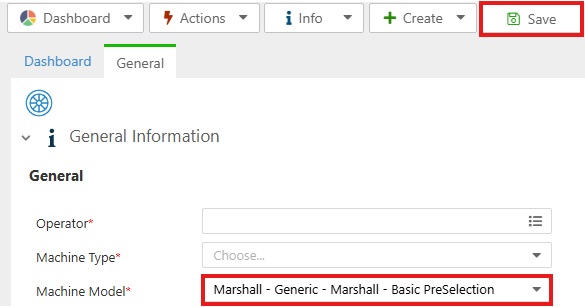
4. 在**机器型号**字段中,从下拉菜单中选择以下选项之一:
For Amit:
* RS232 – PC机 – Marshall(Amit设备)
For VPOST/Onyx/VPOSM:
对于预选(单次/多次)/ 如果对流程不确定:
* 马歇尔 - 通用 - 马歇尔 - 基本预选
有关单会话配置的视频和手册:
[Marshall 配置操作指南 | 单会话](https://nayax-u.nayax.com/scenario/how-to-for-marshall-configurations-single-session-54374)
有关多会话配置的视频和手册:
[Marshall 配置操作指南 | 带预选的多会话](https://nayax-u.nayax.com/scenario/how-to-for-marshall-configurations-multi-session-with-53447)
对于始终空闲(预选子流程):
* Marshall - 通用 - Marshall - 始终空闲
有关 Always Idle 配置的视频和手册:
[Marshall 配置操作指南 | 始终空闲预选](https://nayax-u.nayax.com/scenario/how-to-for-marshall-configurations-always-idle-pre-54427)
预授权:
* Marshall - 通用 - Marshall - 预授权
有关预授权配置的视频和手册
[Marshall 配置操作指南 | 预授权](https://nayax-u.nayax.com/scenario/how-to-for-marshall-configurations-pre-authorization-54263)
5. 单击\*\*“保存”\*\*以应用配置。
3. 创建一台机器。如需帮助,请参阅[创建新机器](/docs/manage-data-operations/lynx-api/machines/create-new-machine-guides)指南。
4. 在**机器型号**字段中,从下拉菜单中选择以下选项之一:
For Amit:
* RS232 – PC机 – Marshall(Amit设备)
For VPOST/Onyx/VPOSM:
对于预选(单次/多次)/ 如果对流程不确定:
* 马歇尔 - 通用 - 马歇尔 - 基本预选
有关单会话配置的视频和手册:
[Marshall 配置操作指南 | 单会话](https://nayax-u.nayax.com/scenario/how-to-for-marshall-configurations-single-session-54374)
有关多会话配置的视频和手册:
[Marshall 配置操作指南 | 带预选的多会话](https://nayax-u.nayax.com/scenario/how-to-for-marshall-configurations-multi-session-with-53447)
对于始终空闲(预选子流程):
* Marshall - 通用 - Marshall - 始终空闲
有关 Always Idle 配置的视频和手册:
[Marshall 配置操作指南 | 始终空闲预选](https://nayax-u.nayax.com/scenario/how-to-for-marshall-configurations-always-idle-pre-54427)
预授权:
* Marshall - 通用 - Marshall - 预授权
有关预授权配置的视频和手册
[Marshall 配置操作指南 | 预授权](https://nayax-u.nayax.com/scenario/how-to-for-marshall-configurations-pre-authorization-54263)
5. 单击\*\*“保存”\*\*以应用配置。
 ## 配置会话超时参数
**多会话模式**仅在预选模式下运行,但功能类似于预授权。交易流程类似于单机售货流程,但增加了\*\*“关闭会话”\*\*命令。
如果您的机器工作在**多会话模式**,请按如下方式设置会话超时参数:
1. 对于已配置的机器,单击**常规选项**卡。
2. 转到**VMC**部分。
3. 定义**会话超时**以指定会话的持续时间:
* **信用卡最长到账时间:** 23 小时 \*更新:截至 2025 年 — **71**小时\*
* **预付卡最长期限:** 72 小时
* **默认值:** 60 分钟
* **最短:** 1分钟
## 配置会话超时参数
**多会话模式**仅在预选模式下运行,但功能类似于预授权。交易流程类似于单机售货流程,但增加了\*\*“关闭会话”\*\*命令。
如果您的机器工作在**多会话模式**,请按如下方式设置会话超时参数:
1. 对于已配置的机器,单击**常规选项**卡。
2. 转到**VMC**部分。
3. 定义**会话超时**以指定会话的持续时间:
* **信用卡最长到账时间:** 23 小时 \*更新:截至 2025 年 — **71**小时\*
* **预付卡最长期限:** 72 小时
* **默认值:** 60 分钟
* **最短:** 1分钟
 会话到期和结算
当会话超时时间达到设定的阈值时,会话即告终止。此时,结算金额将与“供应商请求”命令中发送的价格一致。会话超时后,设备会自动结算交易,并向外围设备发送“状态”命令,通知其结算已完成。这将告知外围设备无需再进行该笔交易的结算(因为交易已完成),如果外围设备尝试再次结算已完成的交易,则会收到“结算错误”提示(因为设备找不到该会话进行结算)。
## 配置保持活动参数
Keep Alive 信号每秒发送一次信号,确保 Nayax 设备与机器之间持续通信。请按如下方式调整参数以提高系统的容错能力:
1. 对于已配置的机器,单击**常规选项**卡。
2. 转到**VMC**部分。
3. 设置**保持活动间隔**(以秒为单位)来定义设备和机器之间的通信时间范围(最大值:255 秒)。
会话到期和结算
当会话超时时间达到设定的阈值时,会话即告终止。此时,结算金额将与“供应商请求”命令中发送的价格一致。会话超时后,设备会自动结算交易,并向外围设备发送“状态”命令,通知其结算已完成。这将告知外围设备无需再进行该笔交易的结算(因为交易已完成),如果外围设备尝试再次结算已完成的交易,则会收到“结算错误”提示(因为设备找不到该会话进行结算)。
## 配置保持活动参数
Keep Alive 信号每秒发送一次信号,确保 Nayax 设备与机器之间持续通信。请按如下方式调整参数以提高系统的容错能力:
1. 对于已配置的机器,单击**常规选项**卡。
2. 转到**VMC**部分。
3. 设置**保持活动间隔**(以秒为单位)来定义设备和机器之间的通信时间范围(最大值:255 秒)。
 保持连接通信失败
如果设备在规定时间内未收到 Keep Alive 命令,则通信失败。设备将启动配对过程并再次发送 Reset 命令。强烈建议将此值设置为 1,且最大值不要超过 10——除非您使用 VPOSM 通过以太网连接 Marshall,在这种情况下,由于 LAN 限制,您可以使用 10。有关更多信息,请参阅[“稳定性/连接不足问题”](/docs/integrate-pos-device/marshall/additional-resources/stablity-issues#/)部分。
## 配置无现金地址
无现金地址配置可确保机器与 Nayax 设备之间无缝通信,实现无现金交易。请按照以下步骤设置正确的地址:
1. 对于已配置的机器,单击**常规选项**卡。
2. 单击**MDB**部分。
3. 选择**无现金 MDB 地址**到**Marshall VMC** 。
保持连接通信失败
如果设备在规定时间内未收到 Keep Alive 命令,则通信失败。设备将启动配对过程并再次发送 Reset 命令。强烈建议将此值设置为 1,且最大值不要超过 10——除非您使用 VPOSM 通过以太网连接 Marshall,在这种情况下,由于 LAN 限制,您可以使用 10。有关更多信息,请参阅[“稳定性/连接不足问题”](/docs/integrate-pos-device/marshall/additional-resources/stablity-issues#/)部分。
## 配置无现金地址
无现金地址配置可确保机器与 Nayax 设备之间无缝通信,实现无现金交易。请按照以下步骤设置正确的地址:
1. 对于已配置的机器,单击**常规选项**卡。
2. 单击**MDB**部分。
3. 选择**无现金 MDB 地址**到**Marshall VMC** 。
 ## 配置预选和预授权
预选和预授权设置可根据不同的售货场景灵活定制交易流程。预选支持多会话操作,预授权则侧重于已设定信用额度的银行卡交易。请根据您的机器功能需求配置这些参数。
### 预选 - 多场会议
预选功能支持多会话操作,即一台设备可以并行处理多笔交易,每笔交易包含两个部分:产品选择和授权,以及结算。要配置此功能:
1. 对于已配置的机器,单击**常规选项**卡。
2. 单击**MDB**部分。
3. 选择**MDB 标志**并将**预选启用设置**为\*\*“是”\*\* 。
## 配置预选和预授权
预选和预授权设置可根据不同的售货场景灵活定制交易流程。预选支持多会话操作,预授权则侧重于已设定信用额度的银行卡交易。请根据您的机器功能需求配置这些参数。
### 预选 - 多场会议
预选功能支持多会话操作,即一台设备可以并行处理多笔交易,每笔交易包含两个部分:产品选择和授权,以及结算。要配置此功能:
1. 对于已配置的机器,单击**常规选项**卡。
2. 单击**MDB**部分。
3. 选择**MDB 标志**并将**预选启用设置**为\*\*“是”\*\* 。
 这使得系统可以在付款之前提供产品预选。
\*\*“选择产品超时”\*\*选项是指消费者选择产品所需的时间范围。当交易流程从机器选择(预选)开始时,“\*\*选择产品超时”\*\*选项必须定义为零。
4. 单击**付款**部分。
5. 将选择产品超时设置为**0**秒。
这使得系统可以在付款之前提供产品预选。
\*\*“选择产品超时”\*\*选项是指消费者选择产品所需的时间范围。当交易流程从机器选择(预选)开始时,“\*\*选择产品超时”\*\*选项必须定义为零。
4. 单击**付款**部分。
5. 将选择产品超时设置为**0**秒。
 这样可以确保在付款过程中选择产品时没有时间限制。
### 预选 – 始终空闲
启用“始终空闲”模式下的预选功能,可确保机器始终处于待命状态,随时为消费者提供服务。请按照以下步骤进行配置:
1. 对于已配置的机器,单击**常规选项**卡。
2. 单击**读卡器**部分。
* 将交易开始方法设置为产品。
这样可以确保在付款过程中选择产品时没有时间限制。
### 预选 – 始终空闲
启用“始终空闲”模式下的预选功能,可确保机器始终处于待命状态,随时为消费者提供服务。请按照以下步骤进行配置:
1. 对于已配置的机器,单击**常规选项**卡。
2. 单击**读卡器**部分。
* 将交易开始方法设置为产品。
 3. 单击**MDB**部分。
* 将**MDB 标志**设置为**Preselection Enabled** 。
3. 单击**MDB**部分。
* 将**MDB 标志**设置为**Preselection Enabled** 。
 * 将**MDB 3 级可选功能**设置为**启用“始终空闲”状态**。
 Choose Product Timeout 选项是消费者
选择商品所需的时间范围。
当交易流程为 “Always Idle” 时,Choose Product Timeout 选项
必须定义为大于零的值。
4. 单击**付款**部分。
5. 设置**选择产品超时**所需的值。
Choose Product Timeout 选项是消费者
选择商品所需的时间范围。
当交易流程为 “Always Idle” 时,Choose Product Timeout 选项
必须定义为大于零的值。
4. 单击**付款**部分。
5. 设置**选择产品超时**所需的值。
 ### 预授权
预授权功能允许系统在自动售货流程开始前确保资金安全。请按以下步骤进行设置:
1. 对于已配置的机器,单击**常规选项**卡。
2. 单击**MDB**部分。
3. 将**MDB 标志**选择为**Flags Disabled** 。
### 预授权
预授权功能允许系统在自动售货流程开始前确保资金安全。请按以下步骤进行设置:
1. 对于已配置的机器,单击**常规选项**卡。
2. 单击**MDB**部分。
3. 将**MDB 标志**选择为**Flags Disabled** 。
 4. \*\*“选择产品超时”\*\*选项是指消费者选择产品所需的时间范围。当交易流程从信用卡授权开始时, \*\*“选择产品超时”\*\*选项的值必须大于零。
5. 单击**付款**部分。
6. 设置所需的**选择产品超时**值。
4. \*\*“选择产品超时”\*\*选项是指消费者选择产品所需的时间范围。当交易流程从信用卡授权开始时, \*\*“选择产品超时”\*\*选项的值必须大于零。
5. 单击**付款**部分。
6. 设置所需的**选择产品超时**值。
 需要为预授权模式配置**默认信用额度**选项。这是 Nayax 将对信用卡预授权收取的金额。
7. 单击**付款**部分。
8. 设置所需的**默认信用**值。
需要为预授权模式配置**默认信用额度**选项。这是 Nayax 将对信用卡预授权收取的金额。
7. 单击**付款**部分。
8. 设置所需的**默认信用**值。
 预授权值的小数对齐
预授权金额必须与系统设置中的“小数位”配置一致。确保正确对齐可避免交易错误,确保付款顺利进行。
需要为预授权模式配置付款标志选项。
9. 单击**付款**部分。
10. 将**付款标志**设置为**未设置标志**。
预授权值的小数对齐
预授权金额必须与系统设置中的“小数位”配置一致。确保正确对齐可避免交易错误,确保付款顺利进行。
需要为预授权模式配置付款标志选项。
9. 单击**付款**部分。
10. 将**付款标志**设置为**未设置标志**。
 ## 配置 LCD 参数
为了优化用户体验,请配置设备在空闲或禁用状态下显示的液晶显示屏信息。这包括根据设备的具体要求自定义或禁用\*\*“仅限现金”**或**“欢迎”\*\*信息。
## 配置 LCD 参数
为了优化用户体验,请配置设备在空闲或禁用状态下显示的液晶显示屏信息。这包括根据设备的具体要求自定义或禁用\*\*“仅限现金”**或**“欢迎”\*\*信息。
 ### Amit 和 VPOS 设备的仅限现金信息
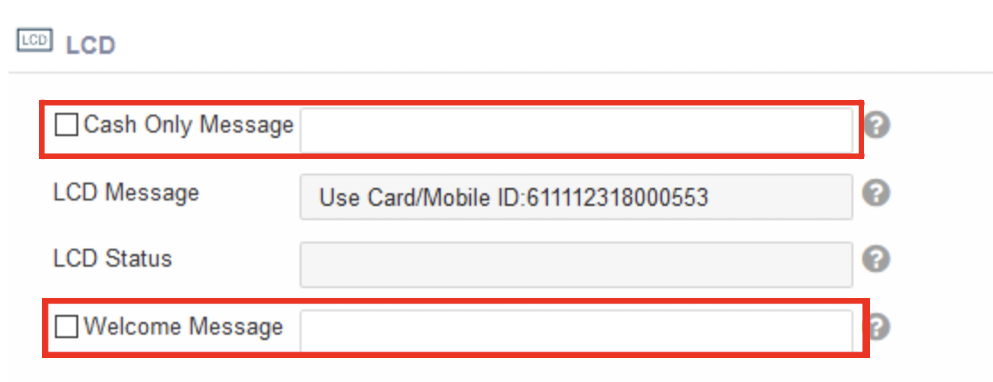
默认情况下,VPOS 设备在禁用或处于空闲模式时会显示\*\*“仅限现金”\*\*信息。这种情况发生在交易启动方式设置为随机器启动时。对于 Marshall 设备,这是正常状态。但是,为了确保更好的通信,应该自定义“仅限现金”信息。
请按照以下步骤更新消息:
1. 验证 VPOS 设备是否处于空闲模式或已禁用。
2. 转到**机器页面**。
3. 单击**LCD**部分。
4. 输入适合您需要的**仅限现金信息**。
### 仅限现金/触控设备欢迎信息
当 Nayax 阅读器被禁用时,待机屏幕会显示动画,引导用户先选择产品或服务。此外,还可以根据需要自定义或禁用“欢迎”信息。
请按照以下步骤更新消息:
1. 验证 Nayax 阅读器是否已禁用并且空闲屏幕是否显示默认动画。
2. 要禁用 Welcome message,请在 Machine 页面的 LCD 部分中,通过 Welcome message 属性向设备发送 `@@`。
3. 要自定义欢迎信息,请点击**LCD 部分**并输入适当的信息(例如,“刷卡开始交易”)。
4. 单击\*\*“保存”\*\*以存储自定义的欢迎消息。
## 在系统中定义预付卡
定义在**操作员/机器**下发送给客户的预付测试卡,以便客户可以立即开始其专有集成测试。
按照以下步骤定义预付卡:
1. 转到系统中的**操作员/机器**部分。
2. 定义发送给客户的预付测试卡。
3. 确保客户能够立即开始其专有的集成测试。
## VPOSM5 的其他相关配置
* Marshall over ETH——如果使用 ETH 端口而非串口工作,您需要具备以下配置:
### Amit 和 VPOS 设备的仅限现金信息
默认情况下,VPOS 设备在禁用或处于空闲模式时会显示\*\*“仅限现金”\*\*信息。这种情况发生在交易启动方式设置为随机器启动时。对于 Marshall 设备,这是正常状态。但是,为了确保更好的通信,应该自定义“仅限现金”信息。
请按照以下步骤更新消息:
1. 验证 VPOS 设备是否处于空闲模式或已禁用。
2. 转到**机器页面**。
3. 单击**LCD**部分。
4. 输入适合您需要的**仅限现金信息**。
### 仅限现金/触控设备欢迎信息
当 Nayax 阅读器被禁用时,待机屏幕会显示动画,引导用户先选择产品或服务。此外,还可以根据需要自定义或禁用“欢迎”信息。
请按照以下步骤更新消息:
1. 验证 Nayax 阅读器是否已禁用并且空闲屏幕是否显示默认动画。
2. 要禁用 Welcome message,请在 Machine 页面的 LCD 部分中,通过 Welcome message 属性向设备发送 `@@`。
3. 要自定义欢迎信息,请点击**LCD 部分**并输入适当的信息(例如,“刷卡开始交易”)。
4. 单击\*\*“保存”\*\*以存储自定义的欢迎消息。
## 在系统中定义预付卡
定义在**操作员/机器**下发送给客户的预付测试卡,以便客户可以立即开始其专有集成测试。
按照以下步骤定义预付卡:
1. 转到系统中的**操作员/机器**部分。
2. 定义发送给客户的预付测试卡。
3. 确保客户能够立即开始其专有的集成测试。
## VPOSM5 的其他相关配置
* Marshall over ETH——如果使用 ETH 端口而非串口工作,您需要具备以下配置:
 请确保 SDK 中的配置匹配。这意味着注释掉串口行,取消注释以太网端口行,并将同一行中的端口号设置为 2025:
```csharp C# theme={null}
//vmc_instance = marshall_init(new pc_port("COM8", 115200));
vmc_instance = marshall_init(new eth_port("192.168.1.117", 2025)); //ensure to set the IP to be the VPOSM5's IP
```
* 支持 VPOSM5 的二维码阅读器:如果您想使用设备的二维码阅读器,则应设置以下交易启动方式(其中包含 QR):
请确保 SDK 中的配置匹配。这意味着注释掉串口行,取消注释以太网端口行,并将同一行中的端口号设置为 2025:
```csharp C# theme={null}
//vmc_instance = marshall_init(new pc_port("COM8", 115200));
vmc_instance = marshall_init(new eth_port("192.168.1.117", 2025)); //ensure to set the IP to be the VPOSM5's IP
```
* 支持 VPOSM5 的二维码阅读器:如果您想使用设备的二维码阅读器,则应设置以下交易启动方式(其中包含 QR):
 客户支持协助
如果在此问题上需要具体帮助,请联系**客户支持**。
This documentation is built and hosted on [Mintlify](https://mintlify.com), a developer documentation platform.
客户支持协助
如果在此问题上需要具体帮助,请联系**客户支持**。
This documentation is built and hosted on [Mintlify](https://mintlify.com), a developer documentation platform.