

Display types at a glance
Fullscreen extensions cannot receive the token via postMessage. Contact Nayax to confirm the token delivery method for your Fullscreen extension.
Screen
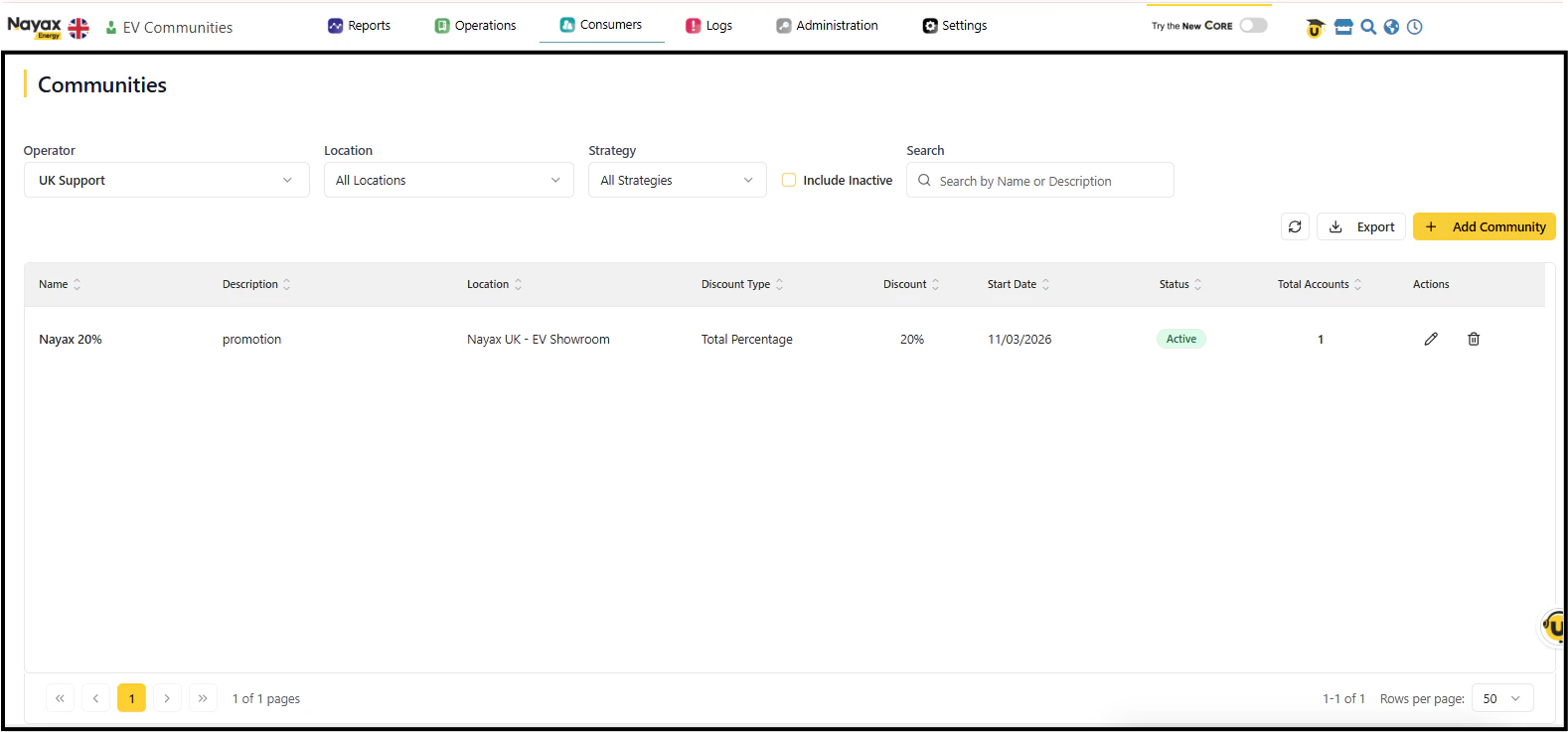
Menu type: App A Screen extension loads as a full page inside Nayax Core with the platform’s navigation menu still visible. Users reach it by selecting it from the menu. When to use: Your app is a standalone tool or dashboard that does not need to react to a specific element selected in another screen. Token delivery: postMessage from the parent frame. Your app receivestoken and cortexUrl. No selection context is passed.
Fullscreen
Menu type: App A Fullscreen extension loads as a full page and replaces the Nayax Core navigation entirely. Your app provides its own navigation. When to use: Your app has its own navigation structure and needs to own the full viewport. Token delivery: The Fullscreen type cannot use postMessage. Contact Nayax to confirm the token delivery method for your Fullscreen extension before building.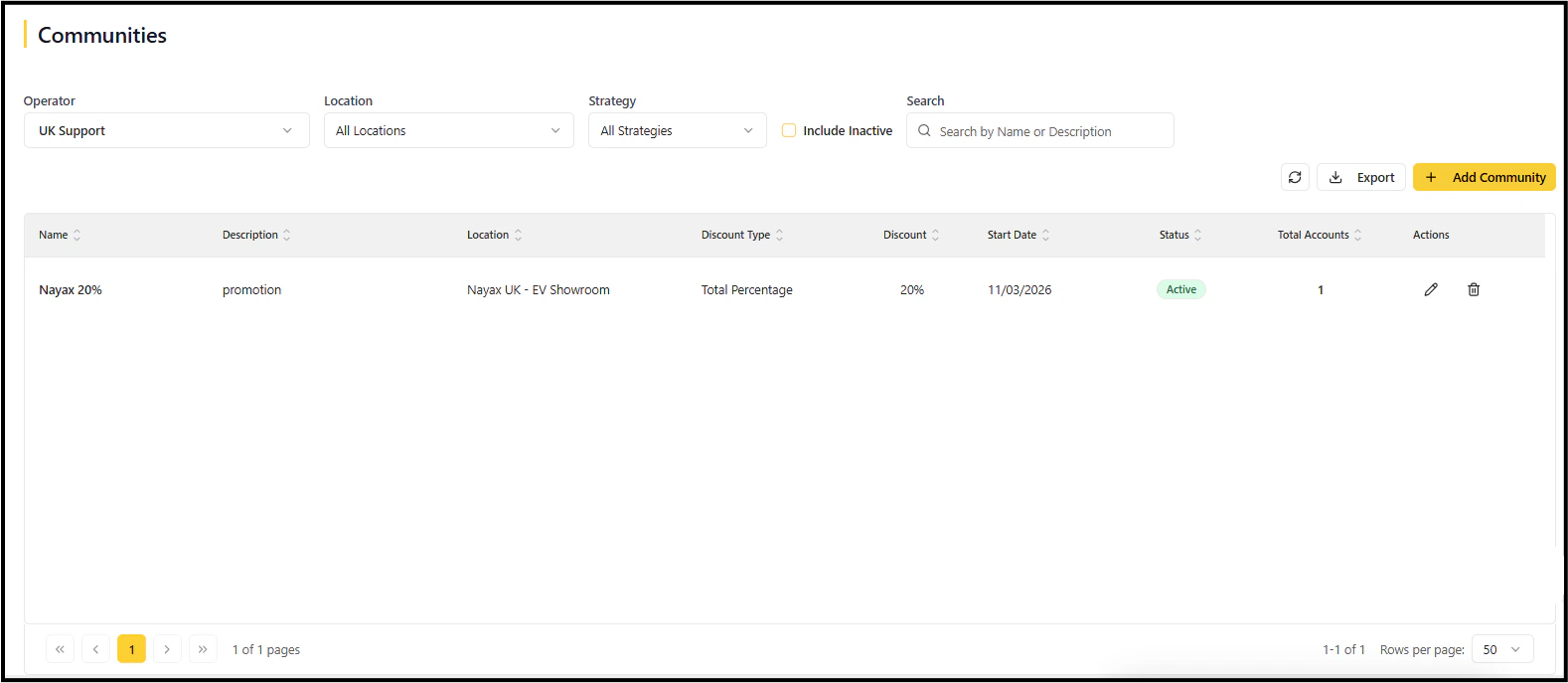
Button with popup
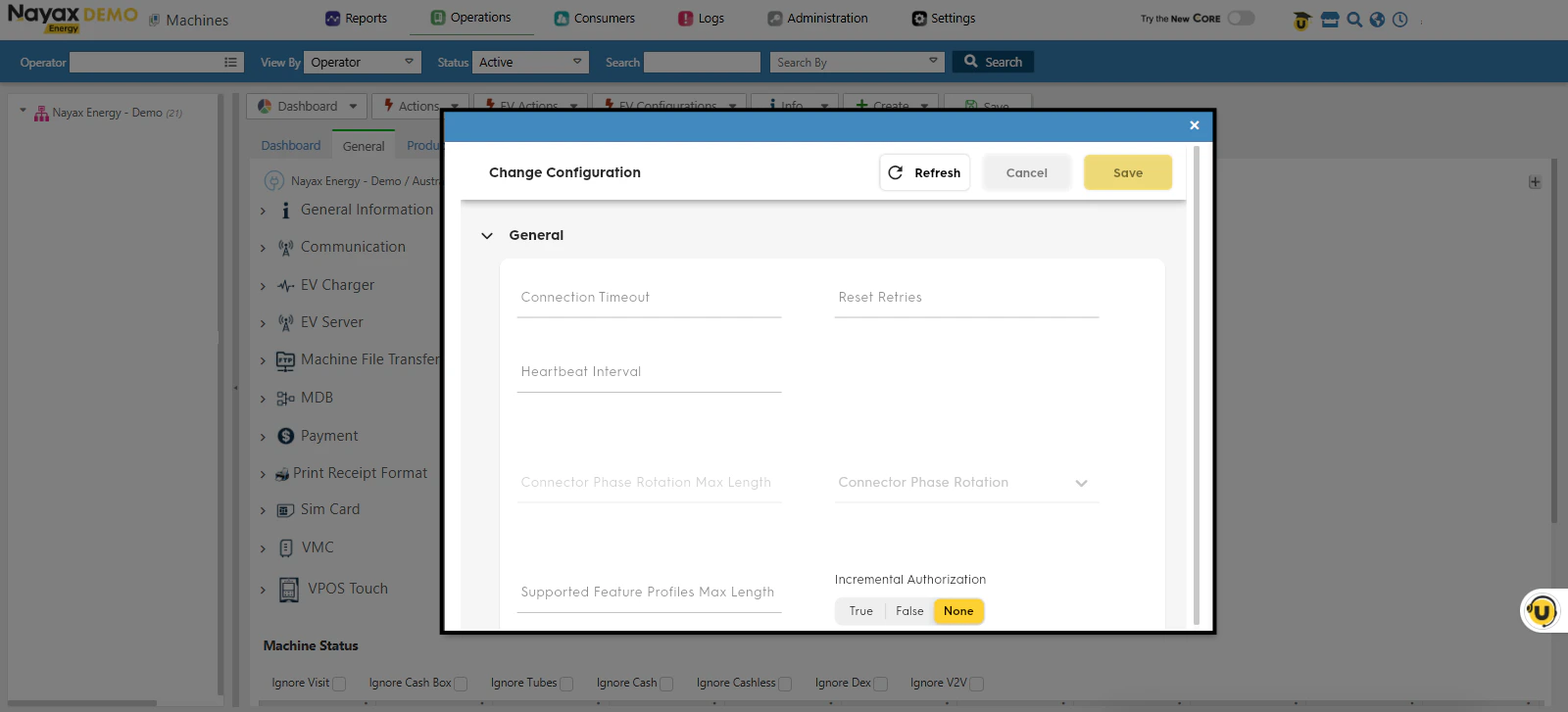
Menu type: App Plugin A Button with Popup extension adds a button to an existing Nayax Core screen. Clicking the button opens your app in a modal overlay. When to use: Your app is a contextual action or tool that works on the element currently in focus (for example, a machine-specific diagnostic tool accessible from the Machines screen). Token delivery: postMessage from the parent frame. Your app receivestoken, cortexUrl, and a selection object containing context about the focused element.
Tab
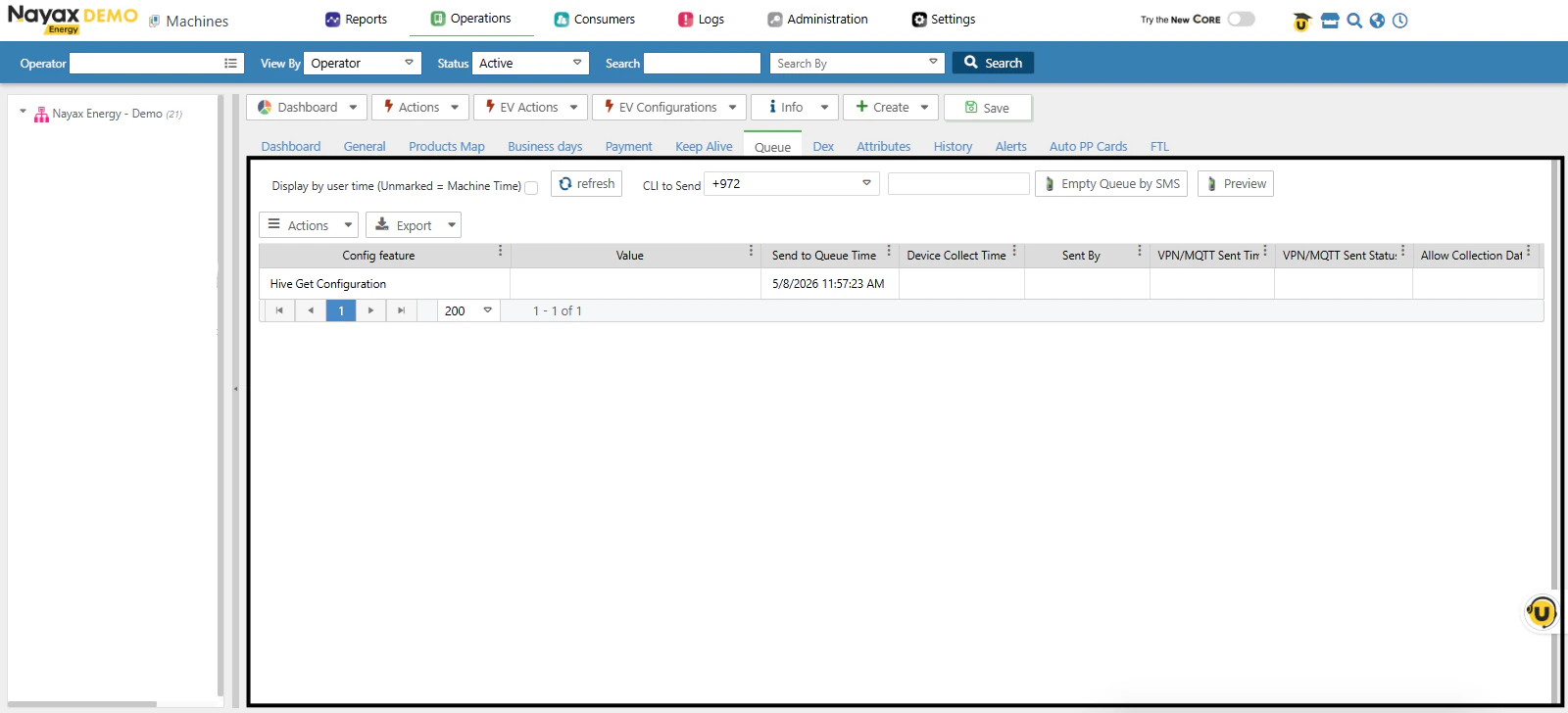
Menu type: App Plugin A Tab extension adds a tab to an existing Nayax Core screen. Your app loads inside that tab as an iframe. When to use: Your app is a view or panel that logically belongs alongside existing tabs on a screen (for example, a custom report tab on the machine detail screen). Token delivery: postMessage from the parent frame. Your app receivestoken, cortexUrl, and a selection object containing context about the focused element.
Configuration fields
When you provide your app details to Nayax for registration, use these fields:Configuration example: screen (external app)
A full-page external app with the Nayax Core menu visible:Available containers
App Plugin extensions (Button with Popup and Tab) require a container ID that positions the button on the parent screen. The following containers are available:Quick reference
Next steps
Authentication
Learn how Nayax delivers the token for each display type.
Get started
Walk through registering and testing your extension end to end.