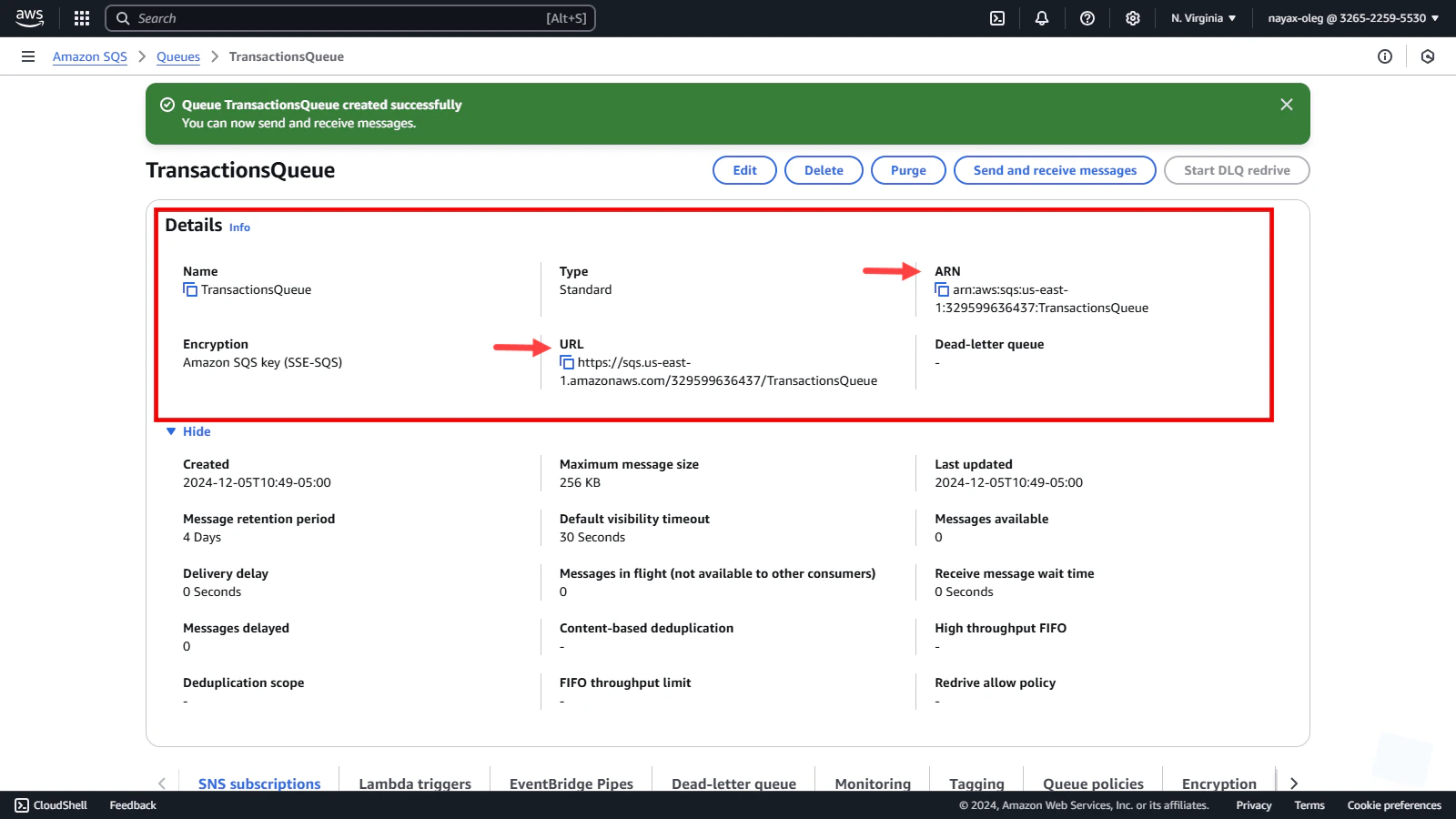
Select AWS region
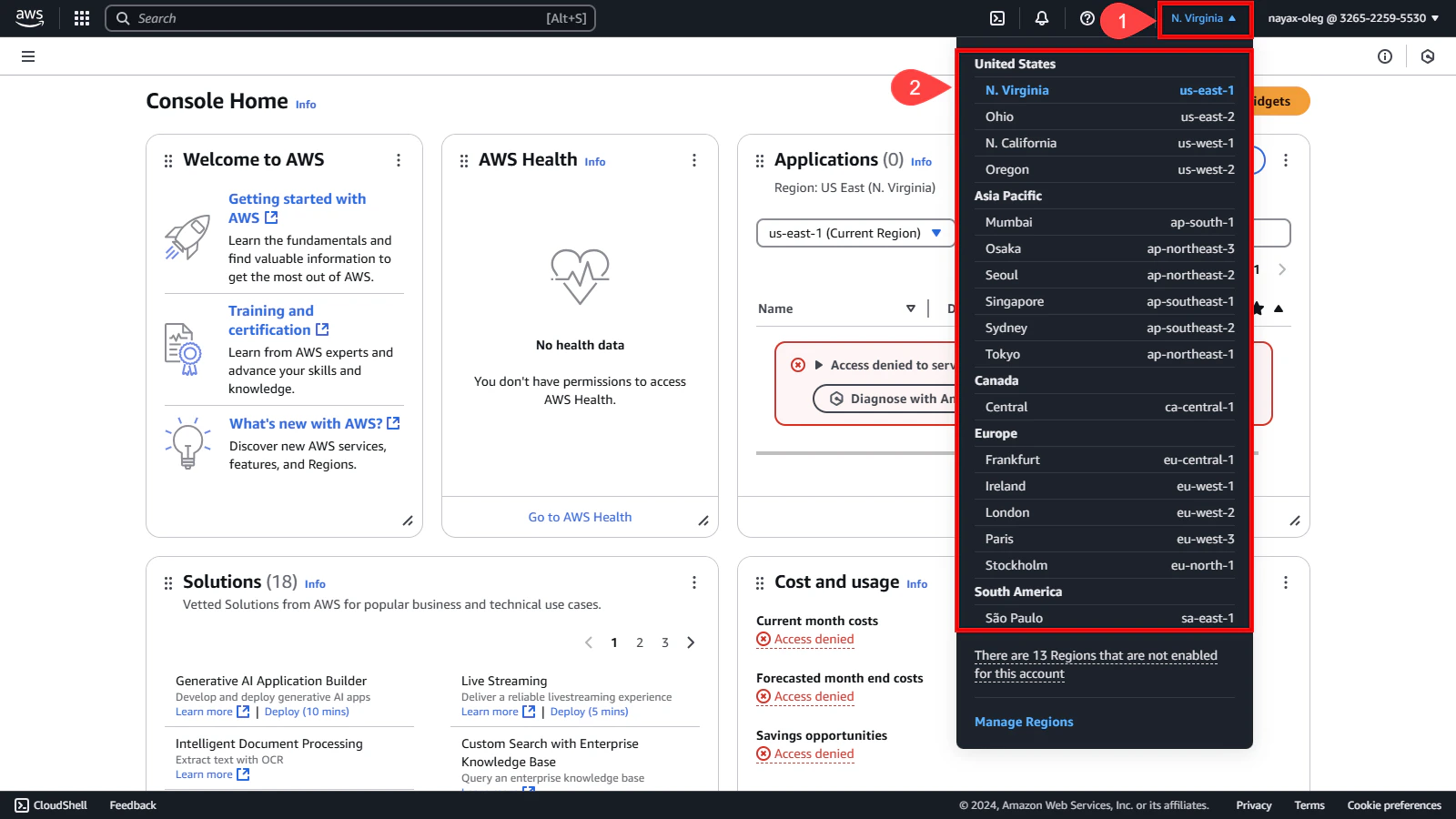
Once the prerequisites are complete, you can proceed to select the AWS region where your queue will be created.- Go to the top-right corner of the AWS console.
- Select the region where you will create the queue.
Create a queue
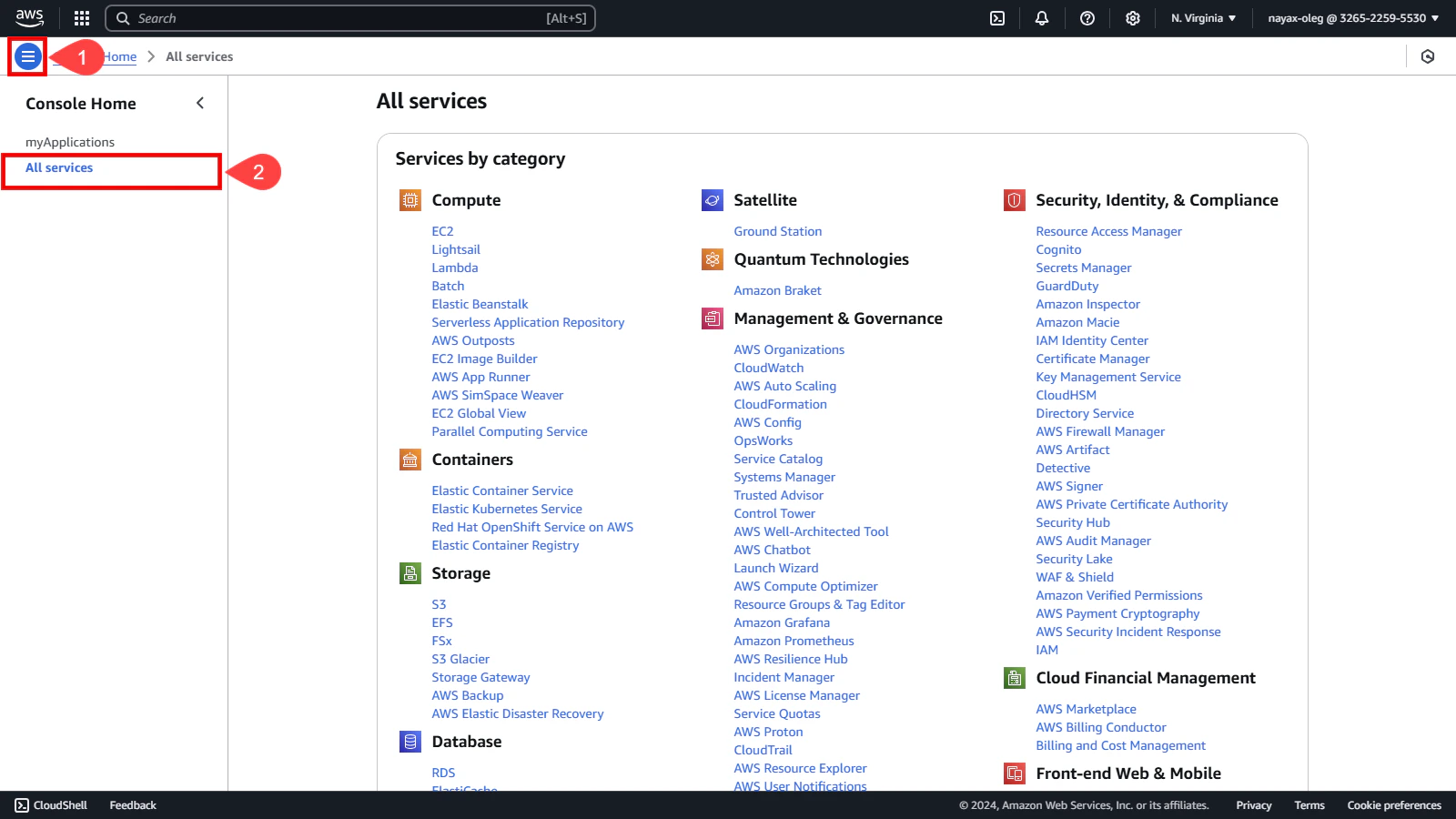
Now that you’ve selected a region, the next step is to create a new queue.- Click the three lines icon located in the upper left corner of the AWS console.
-
Select the All services option.
-
Search the Application Integration category and select Simple Queue Services (SQS).
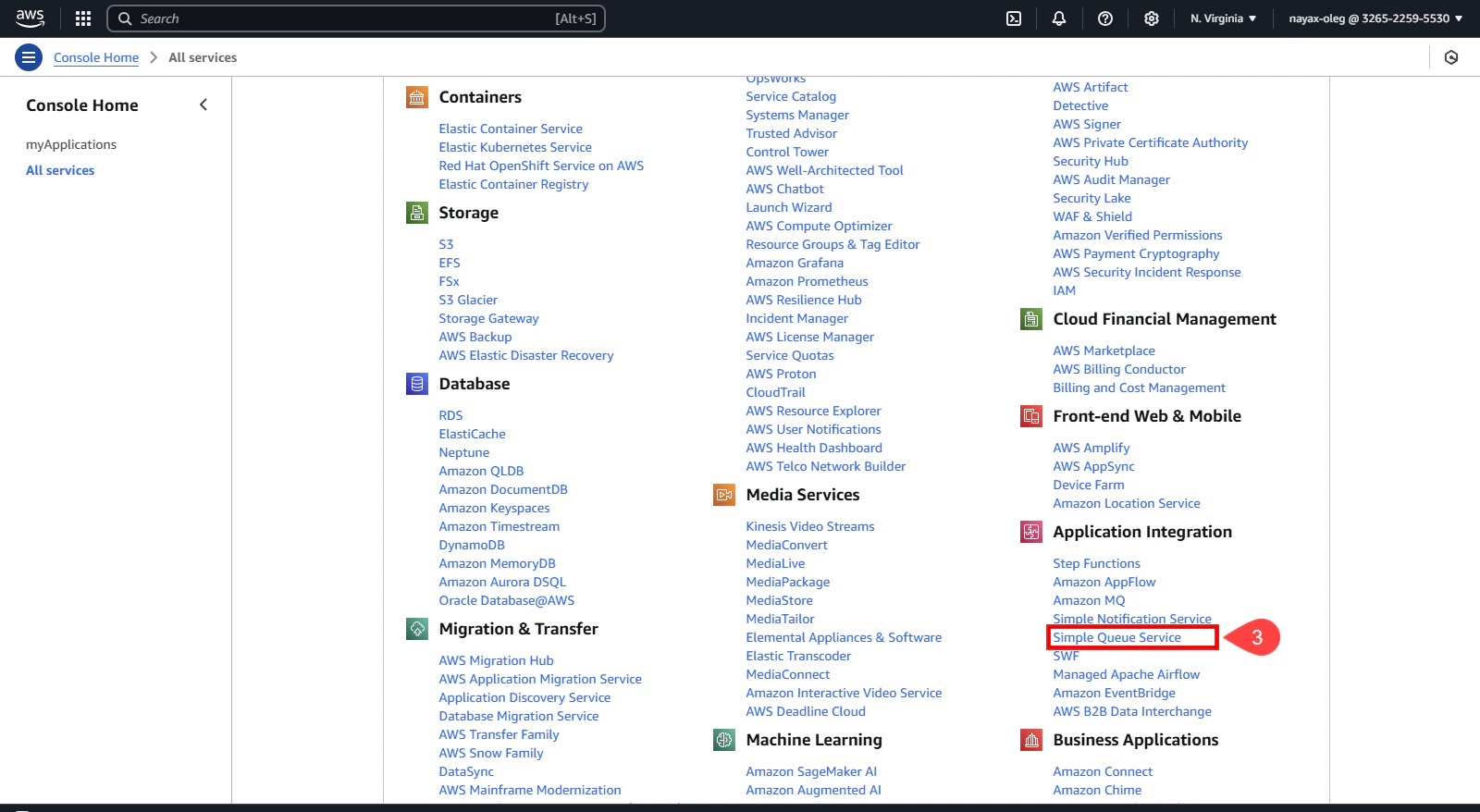
-
Then, click Create Queue.
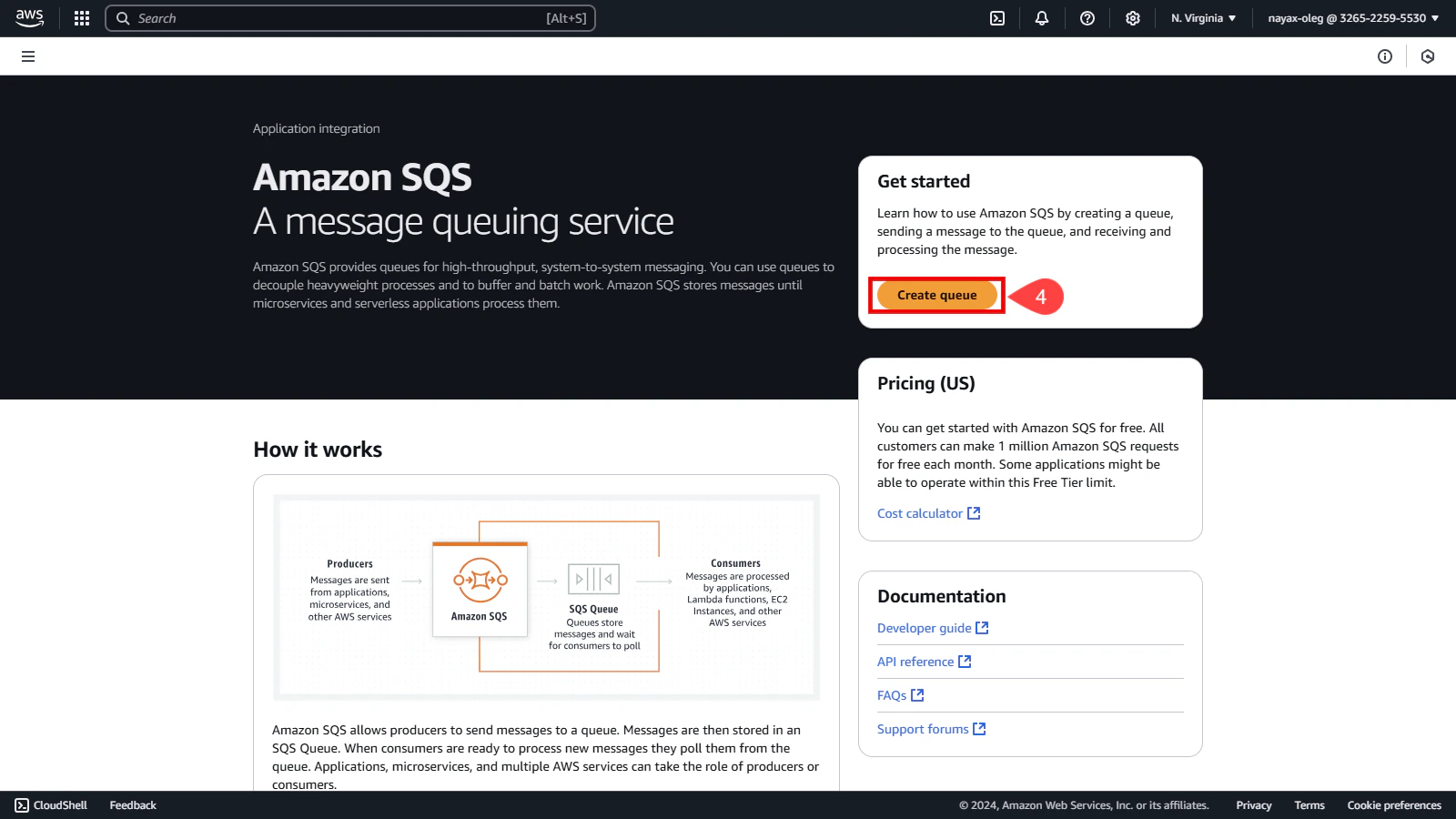
-
In the Details section:
a. Select Standard as the queue type.
b. Enter a unique name for your queue.
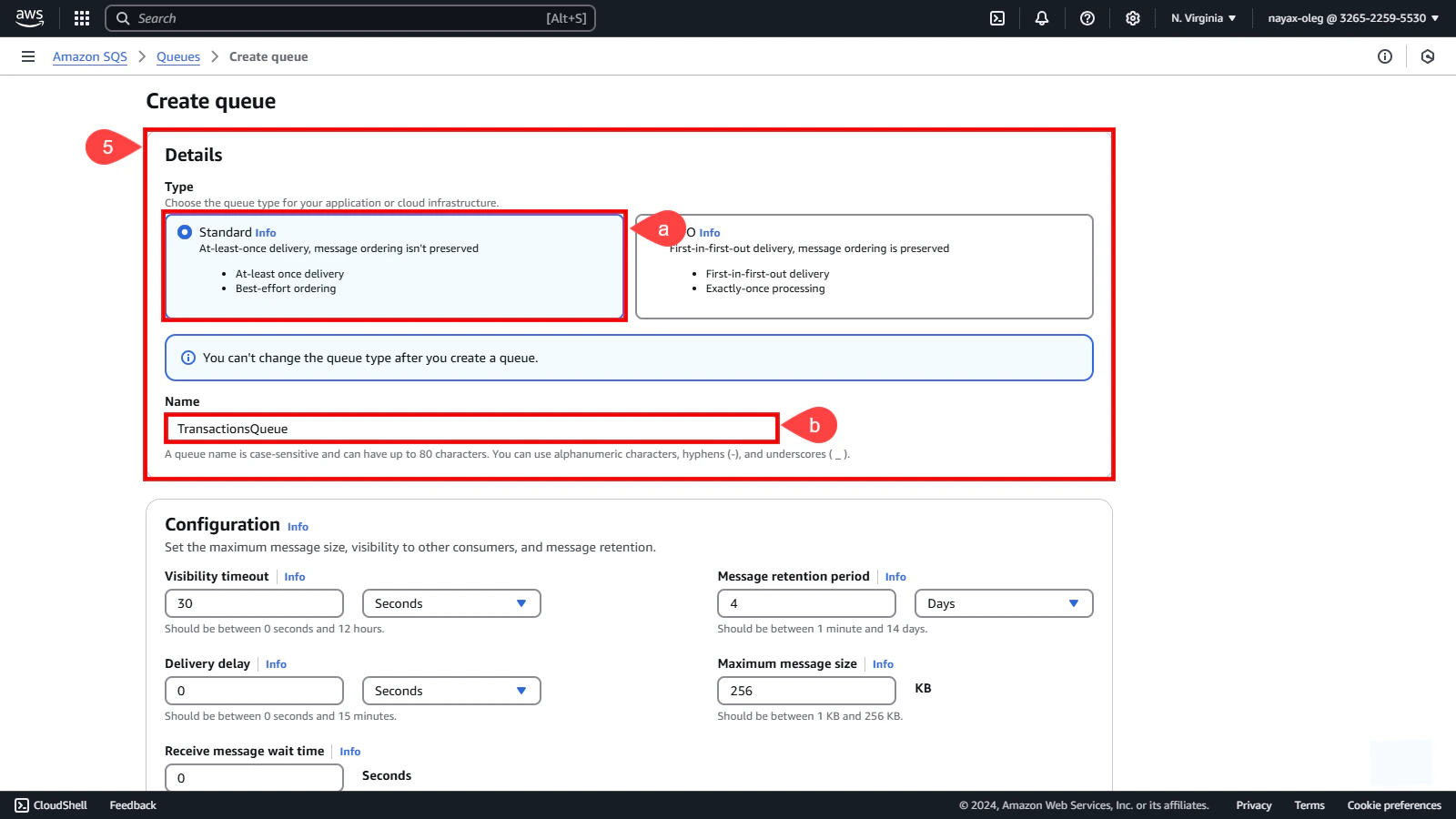
-
Configure the additional sections based on your needs:
- Configuration: Define basic settings for the queue.
- Encryption: Secure your queue messages with encryption.
- Access policy: Set permissions for accessing the queue.
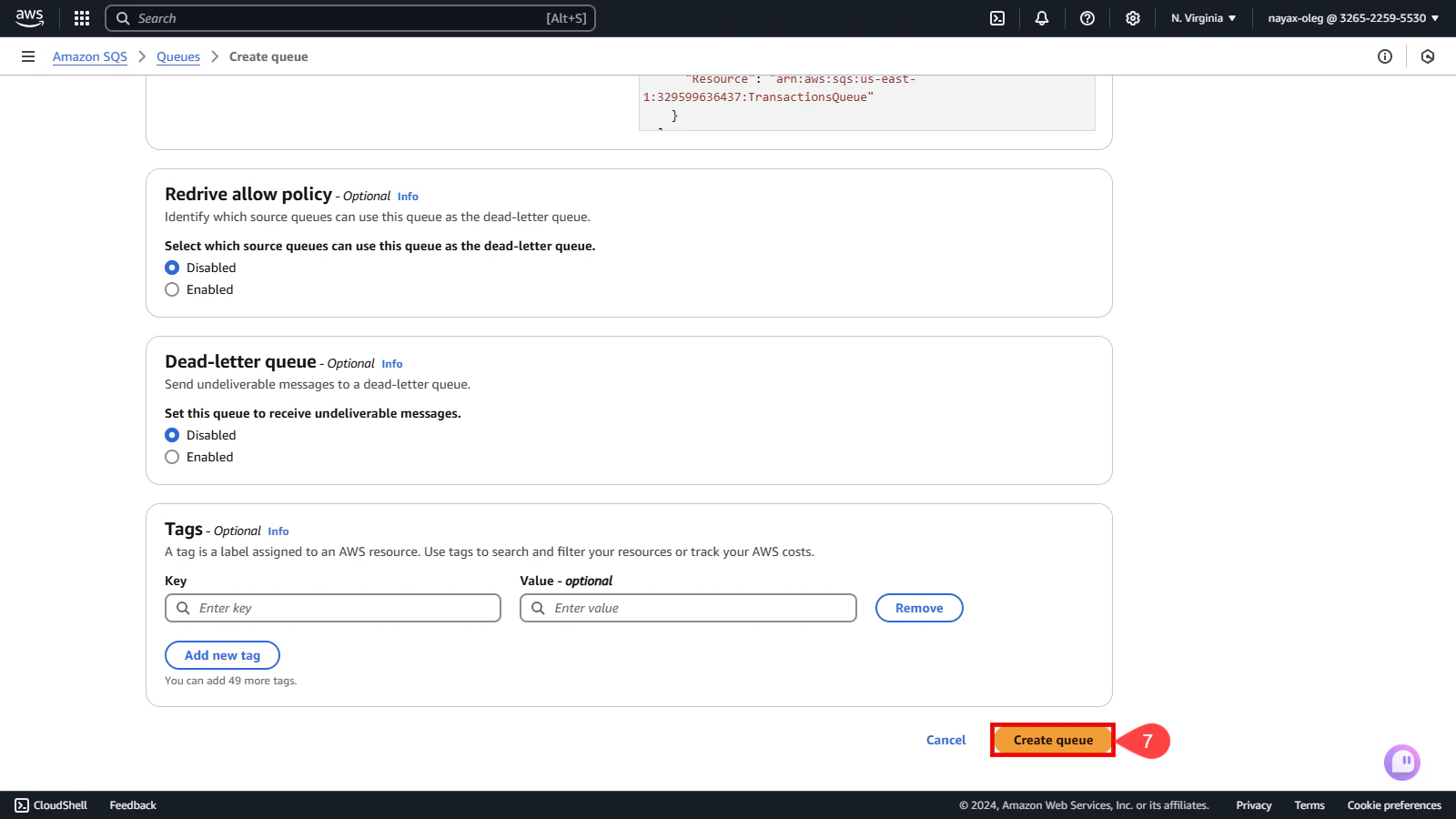
- Redrive allow policy (Optional): Enable or disable policies for message redriving.
- Dead-letter queue (Optional): Configure a queue for undeliverable messages.
- Tags (Optional): Add tags to categorize and manage your queue.
Optional SectionsOptional sections such as Redrive allow policy, Dead-letter queue, and Tags should be filled in based on your specific requirements. They help customize your queue’s functionality and management.
-
Click the Create Queue button.