- VMO-Manager
- DEX Notify - SQS
Prerequisite: Dex Read Schedule ConfigurationThese setup instructions assume that the DEX Read schedule has already been configured.
Operator level setup
Follow these steps to configure DEX delivery at the operator level in the Nayax Core:-
Go to Administration > Operator.
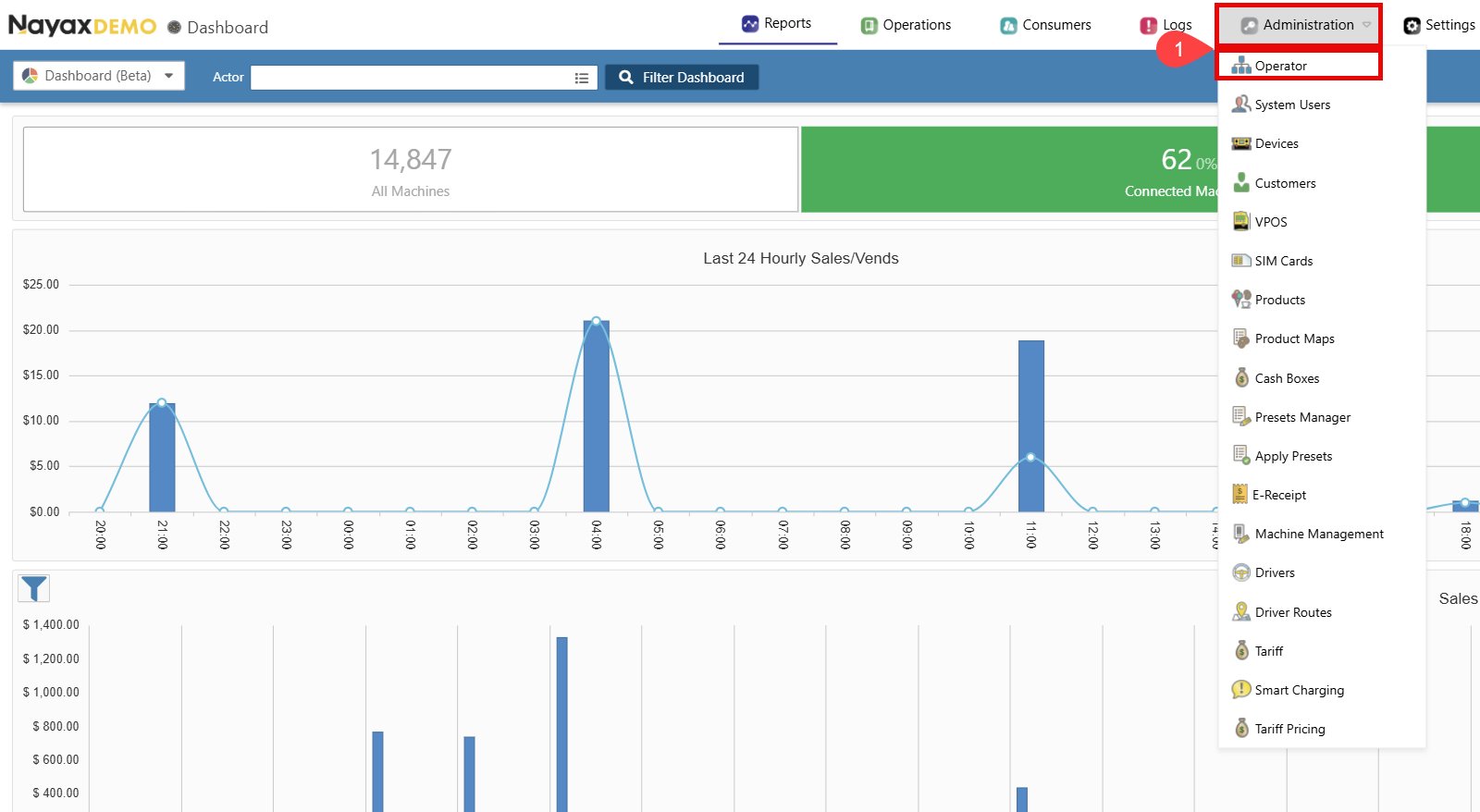
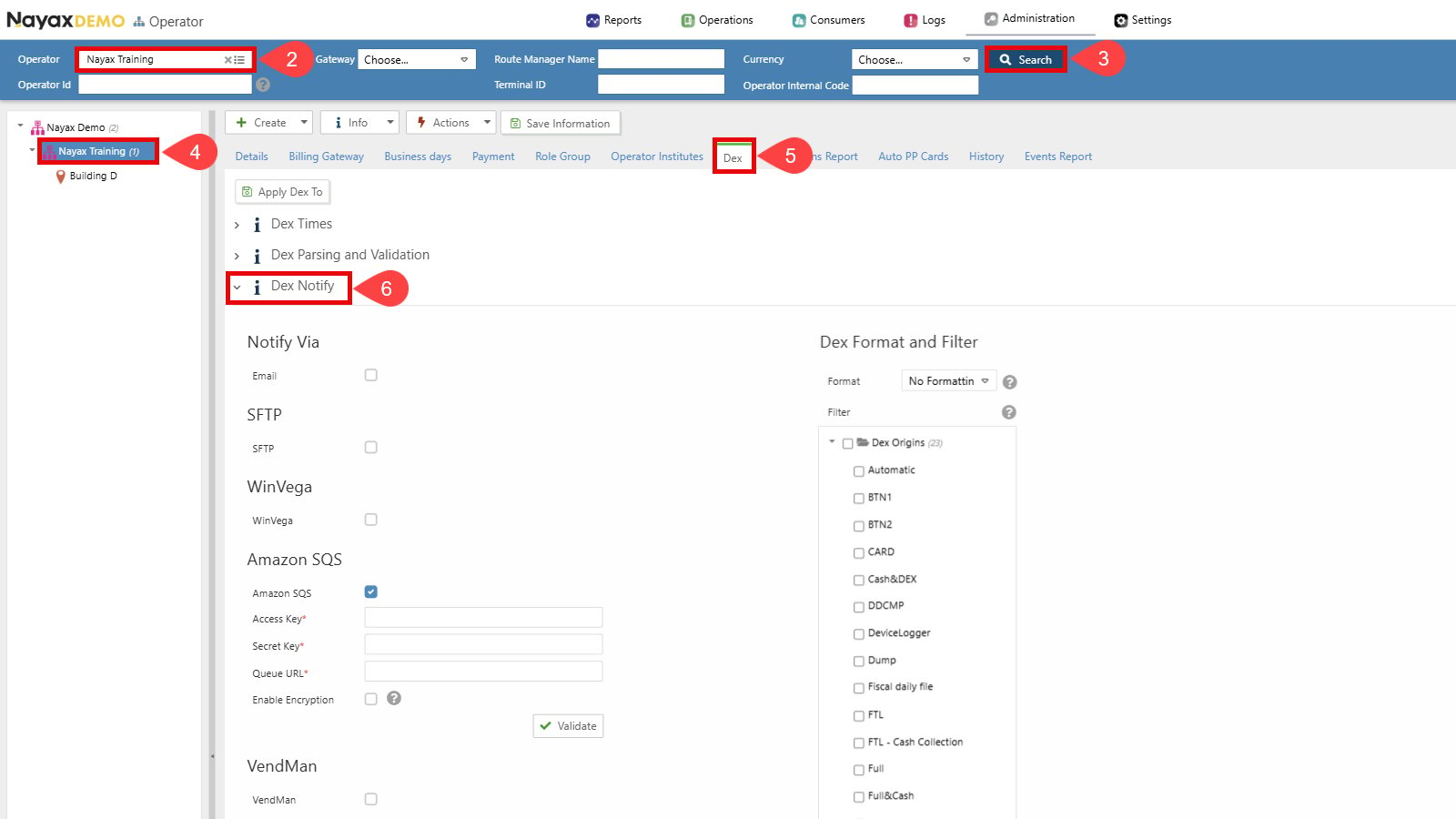
- Find the Operator you wish to set up.
- Click the Search button.
- Select the operator to display all tabs and details.
- Go to the Dex tab.
-
Click to open the Dex Notify section.
-
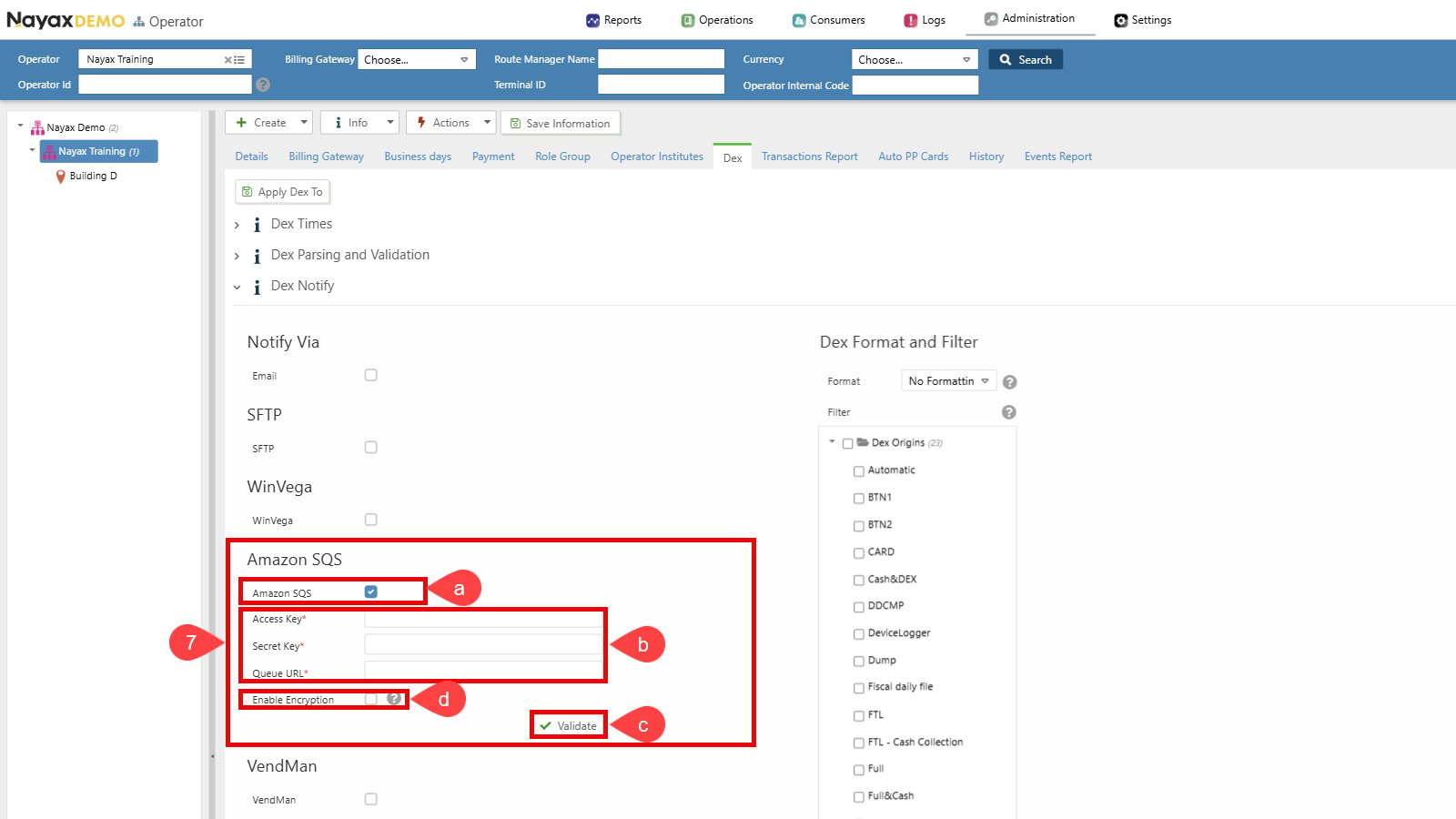
Set up Dex Transmission to Amazon SQS:
a. Select the checkbox next to Amazon SQS to enable this option.
b. Enter the SQS credentials (Access Key, Secret Key and Queue URL).
c. Click the Validate button to ensure the Queue credentials are correct.
d. Enable Encryption (Optional). See the Set Up Encryption section for details.
-
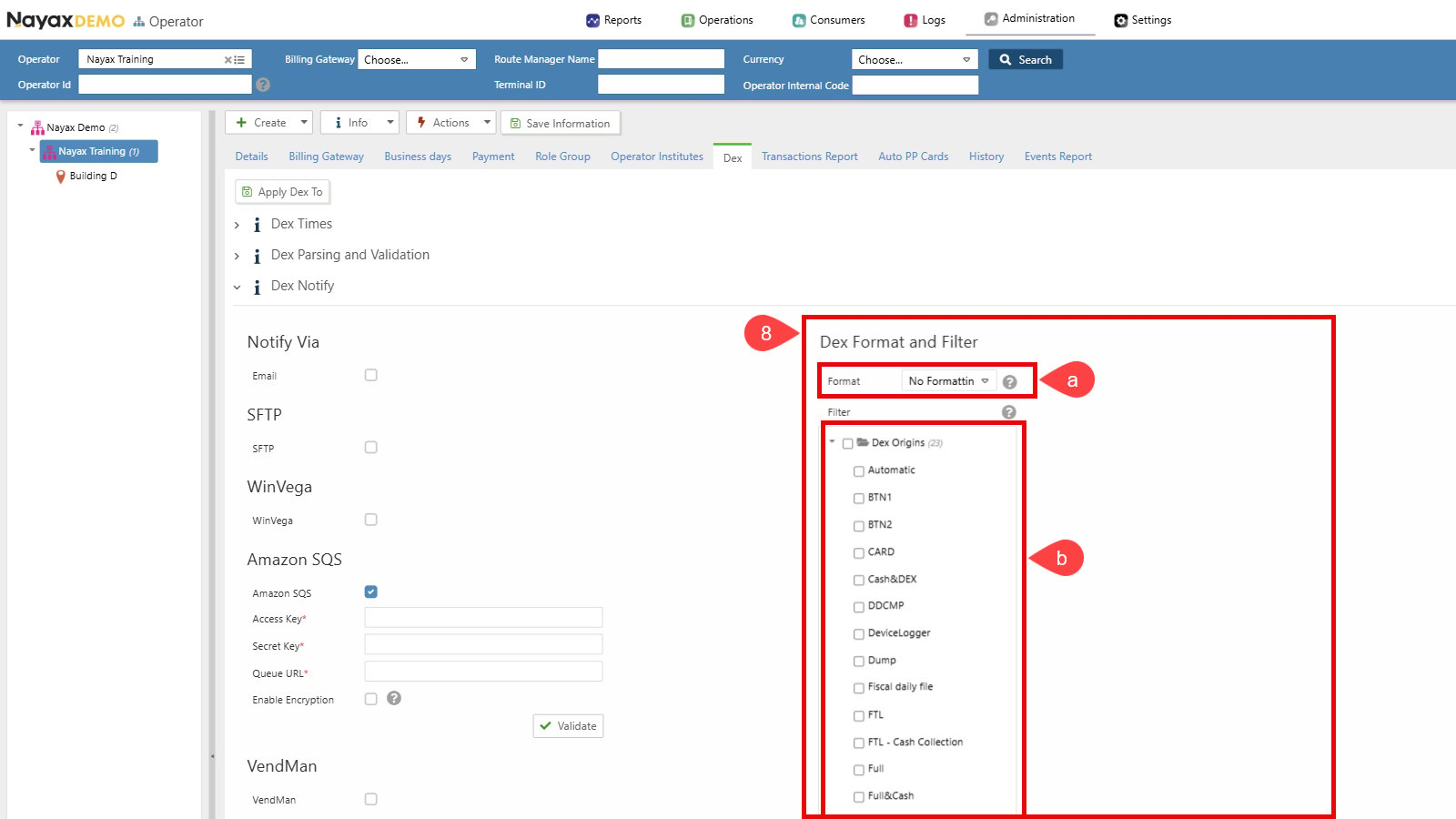
Choose Dex Format and Filter settings:
a. Ensure the format is set to No Formatting.
b. Select the desired DEX Read Types. Only the selected Dex Origins will be sent to the Queue.
-
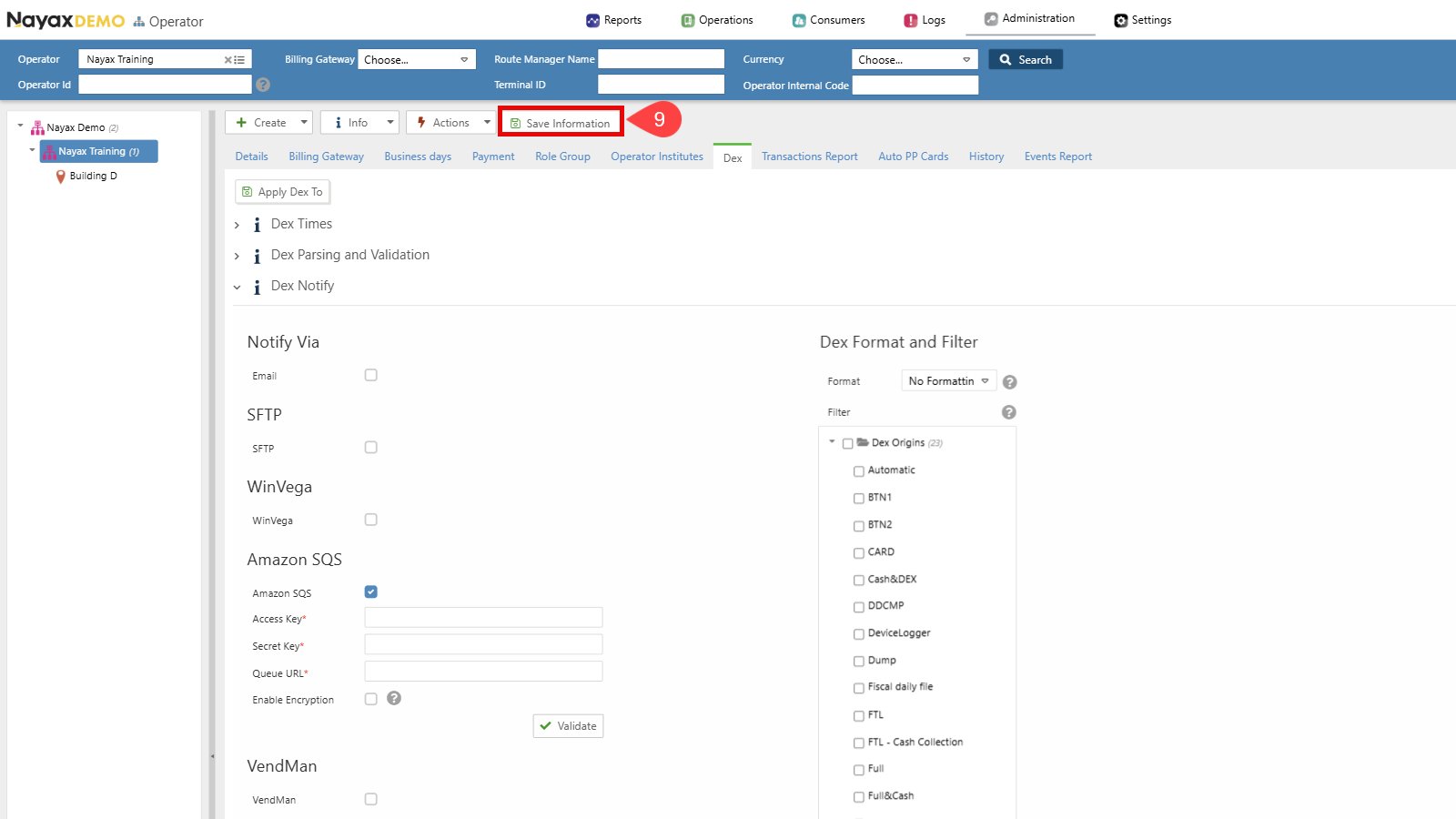
Click the Save Information button to apply the changes.
Operator Defaults vs Machine-Level ConfigurationSetting up DEX delivery at the operator level does not initiate the delivery of DEX files to the queue. Instead, these configurations act as defaults for new machines under the operator’s hierarchy. You can propagate these settings using the Apply Dex to button or perform individual setups at the machine level as explained below.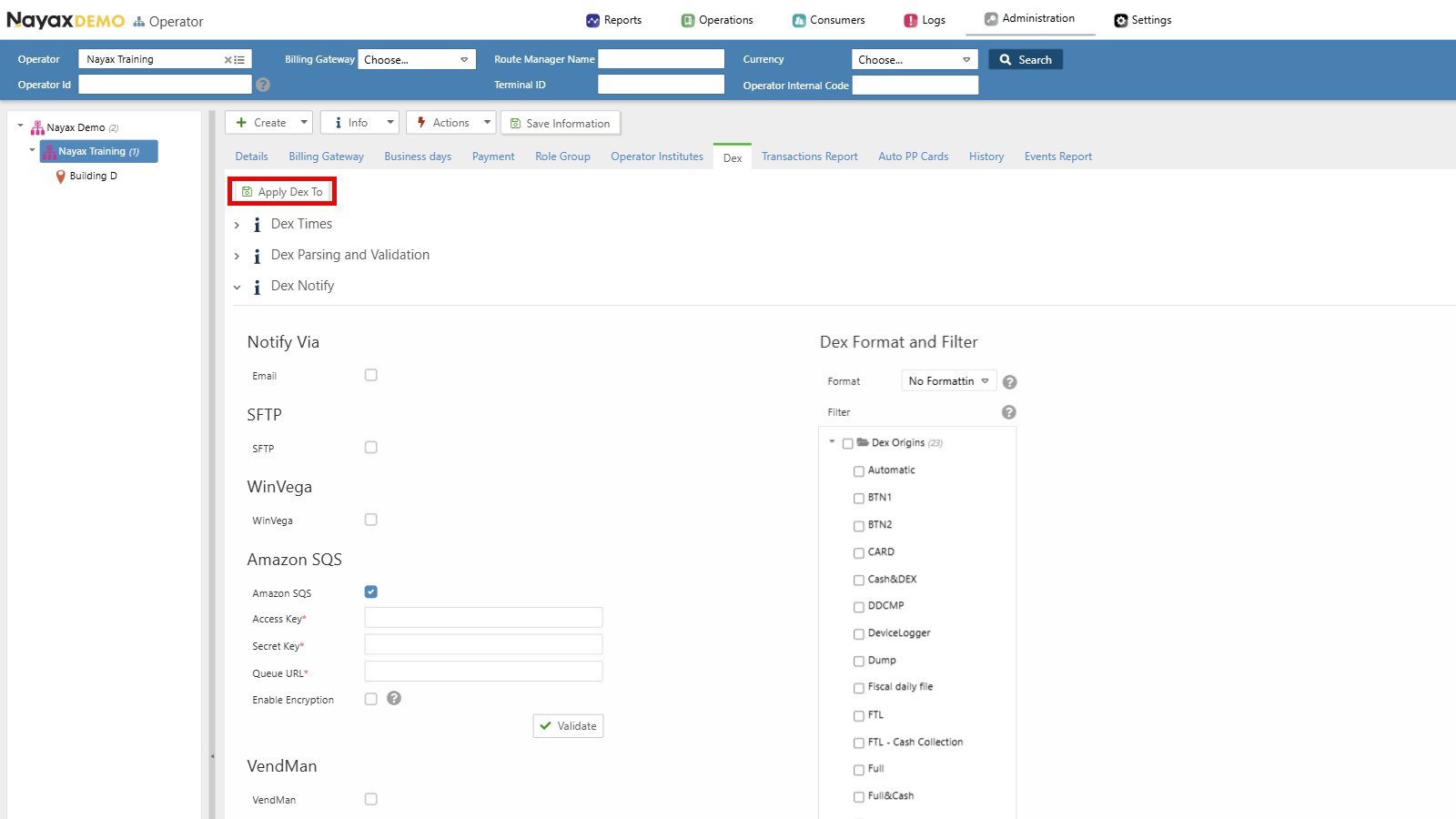
Machine level setup
Prerequisite: Dex Read Schedule ConfigurationThese setup instructions assume that the DEX Read schedule has already been configured.
-
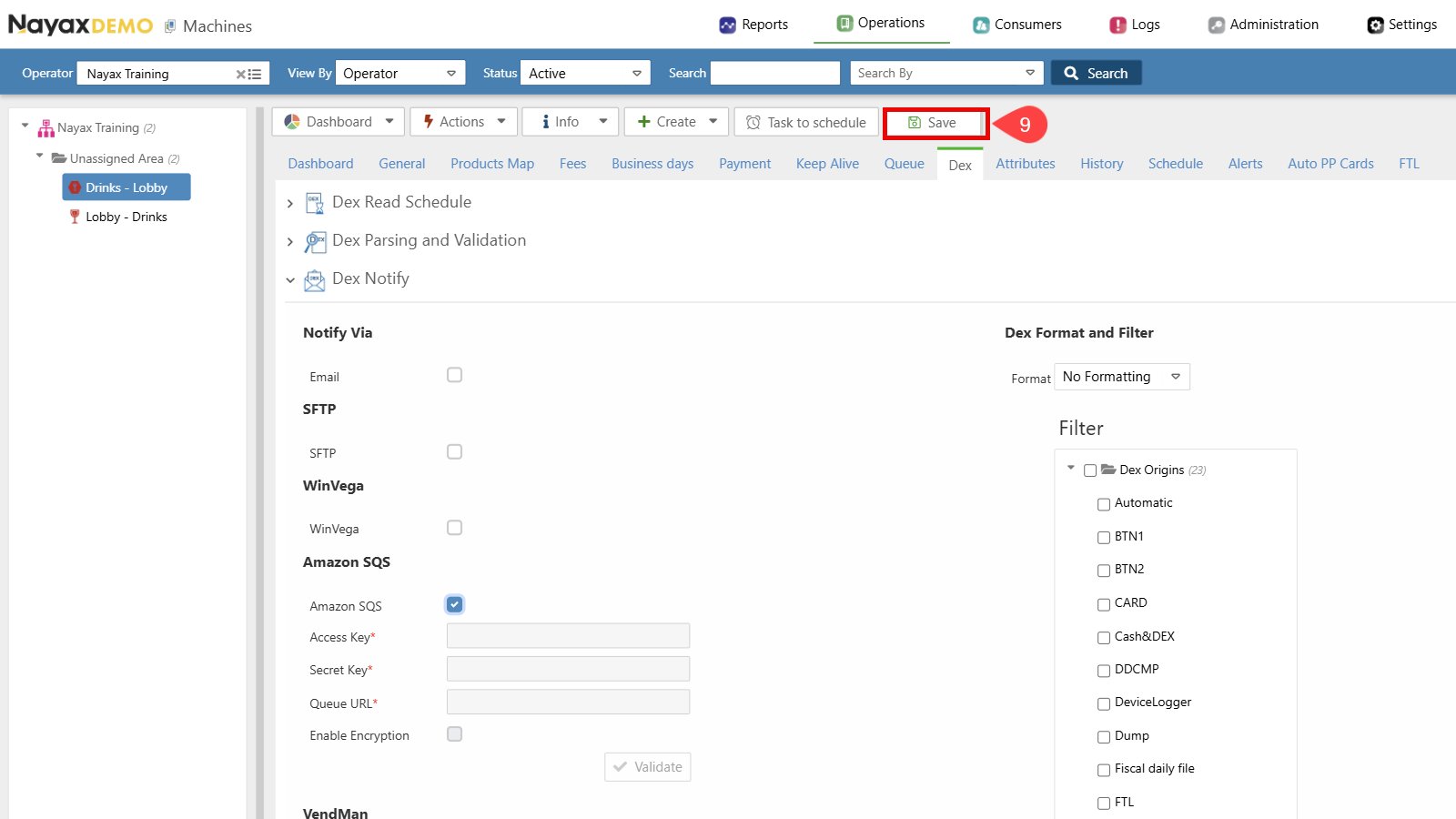
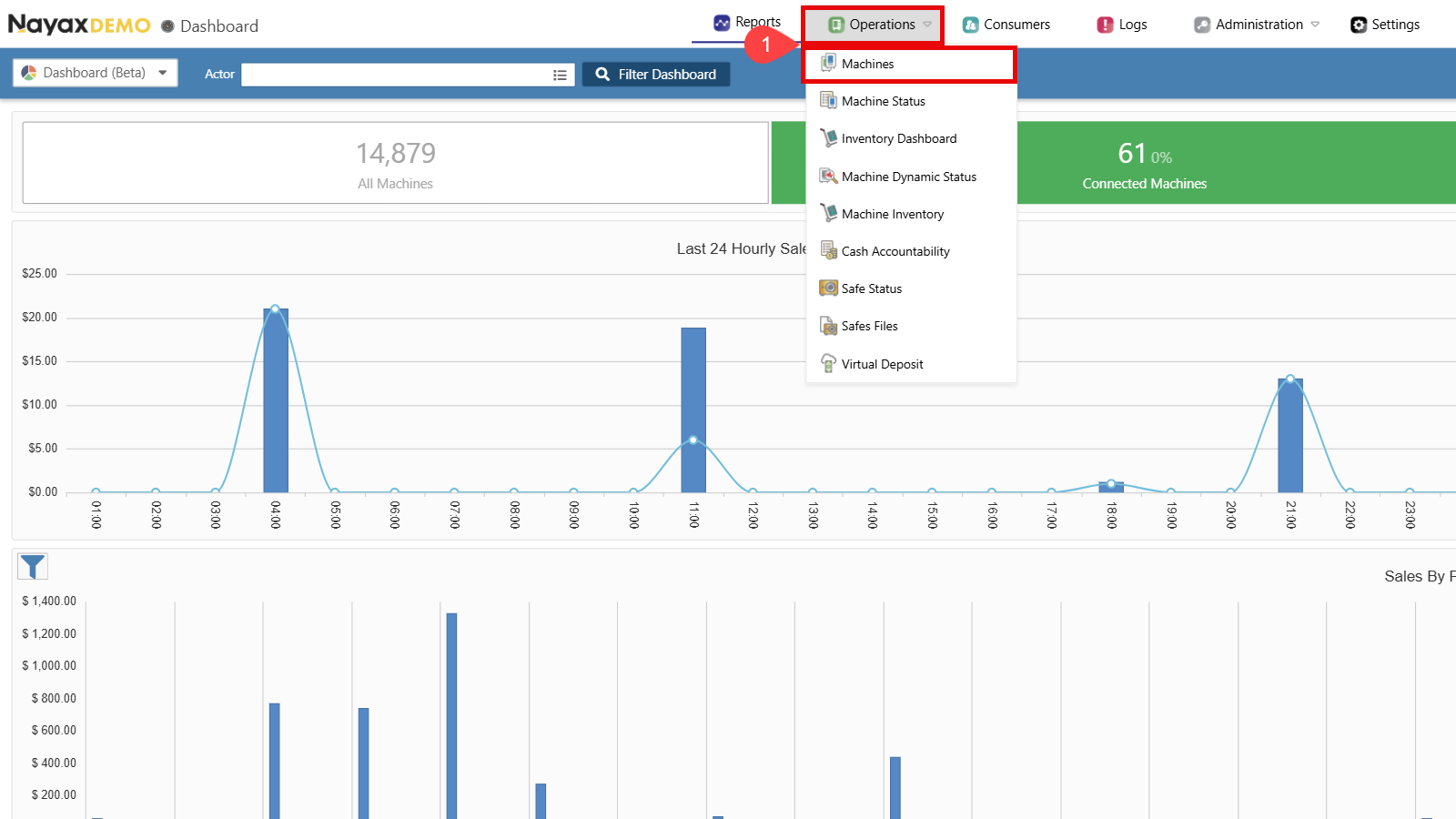
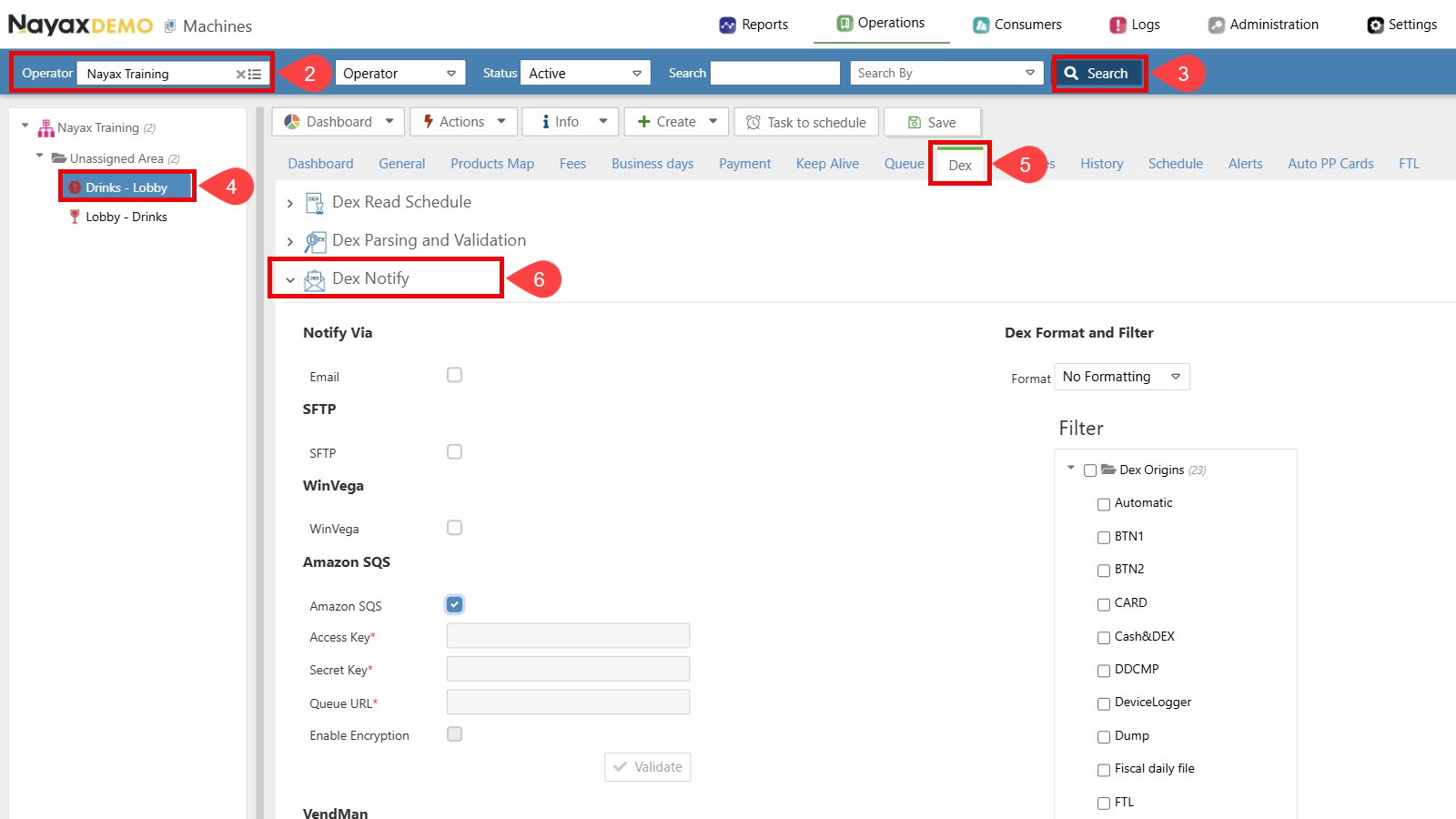
Go to Operations > Machines in the Nayax Core.
- Find the Operator you wish to set up.
- Click the Search button.
- Select the operator to display all tabs and details.
- Go to the Dex tab.
-
Click to open the Dex Notify section.
-
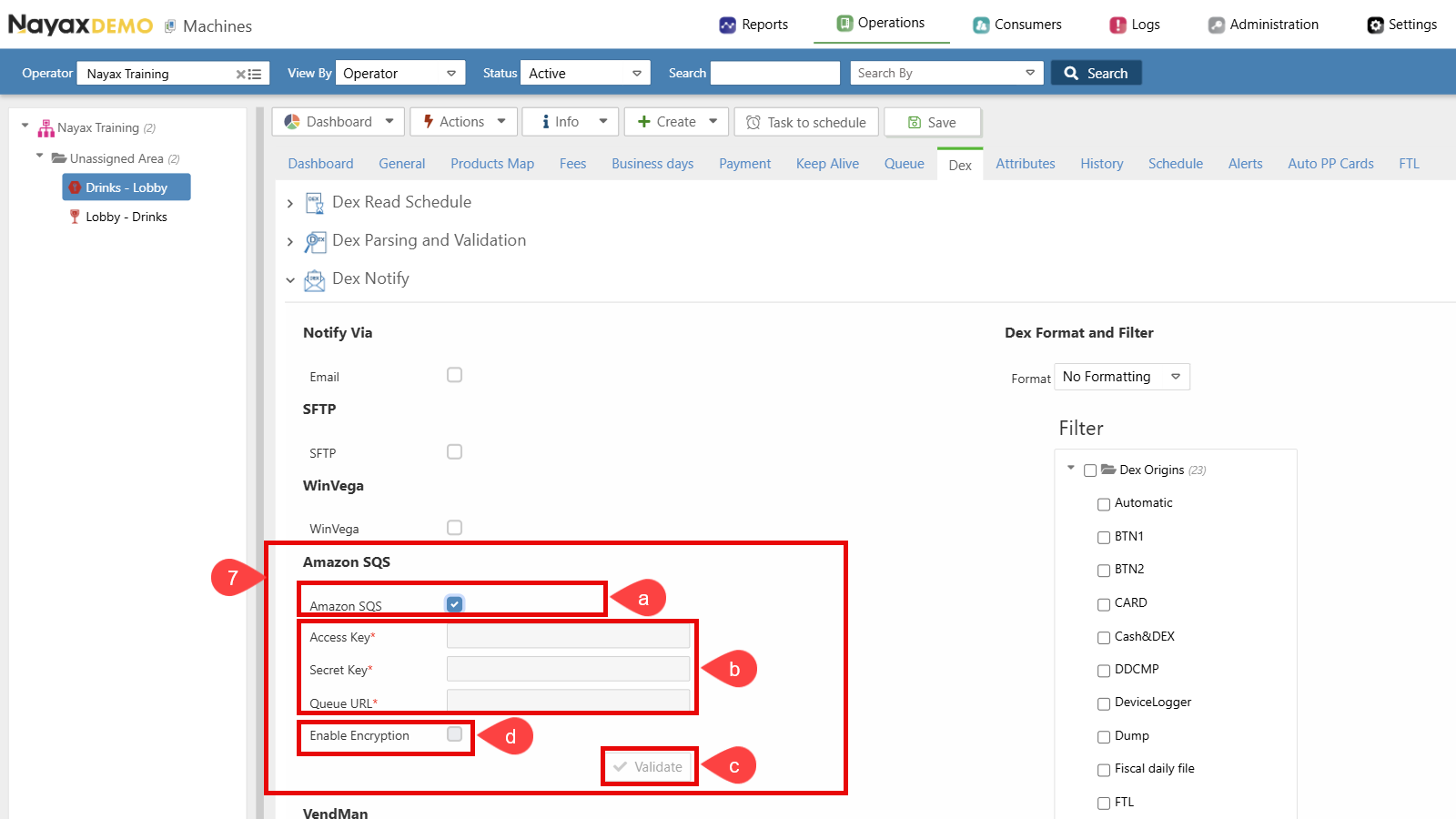
Set up Dex Transmission to Amazon SQS:
a. Select the checkbox next to Amazon SQS to enable this option.
b. Enter the SQS credentials (Access Key, Secret Key and Queue URL).
c. Click the Validate button to ensure the Queue credentials are correct.
d. Enable Encryption (Optional). See the Set Up Encryption section for details.
-
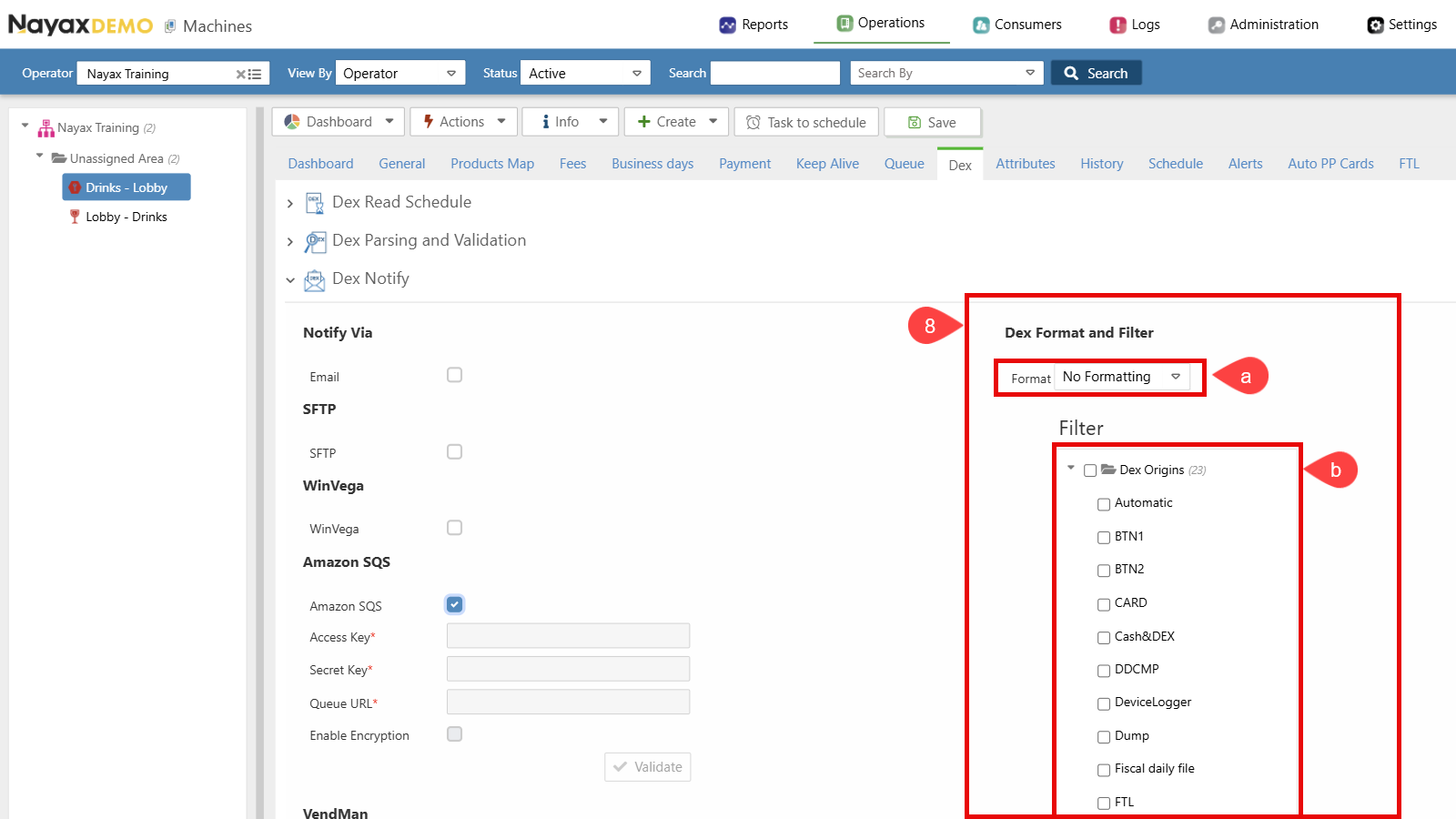
Choose Dex Format and Filter settings:
a. Ensure the format is set to No Formatting.
b. Select the desired DEX Read Types. Only the selected Dex Origins will be sent to the Queue.
-
Click the Save button to apply the changes.