

Prerequisites
To set up Transaction Delivery to Amazon SQS, you must have access to the Nayax Core with the appropriate user permissions. Specifically, the following roles are required:- Transaction Dispatcher
- Transactions Report Subscriber
Operator Level Setup
Follow these steps to configure transaction delivery at the operator level in the Nayax Core:-
Log in to the Nayax Core.
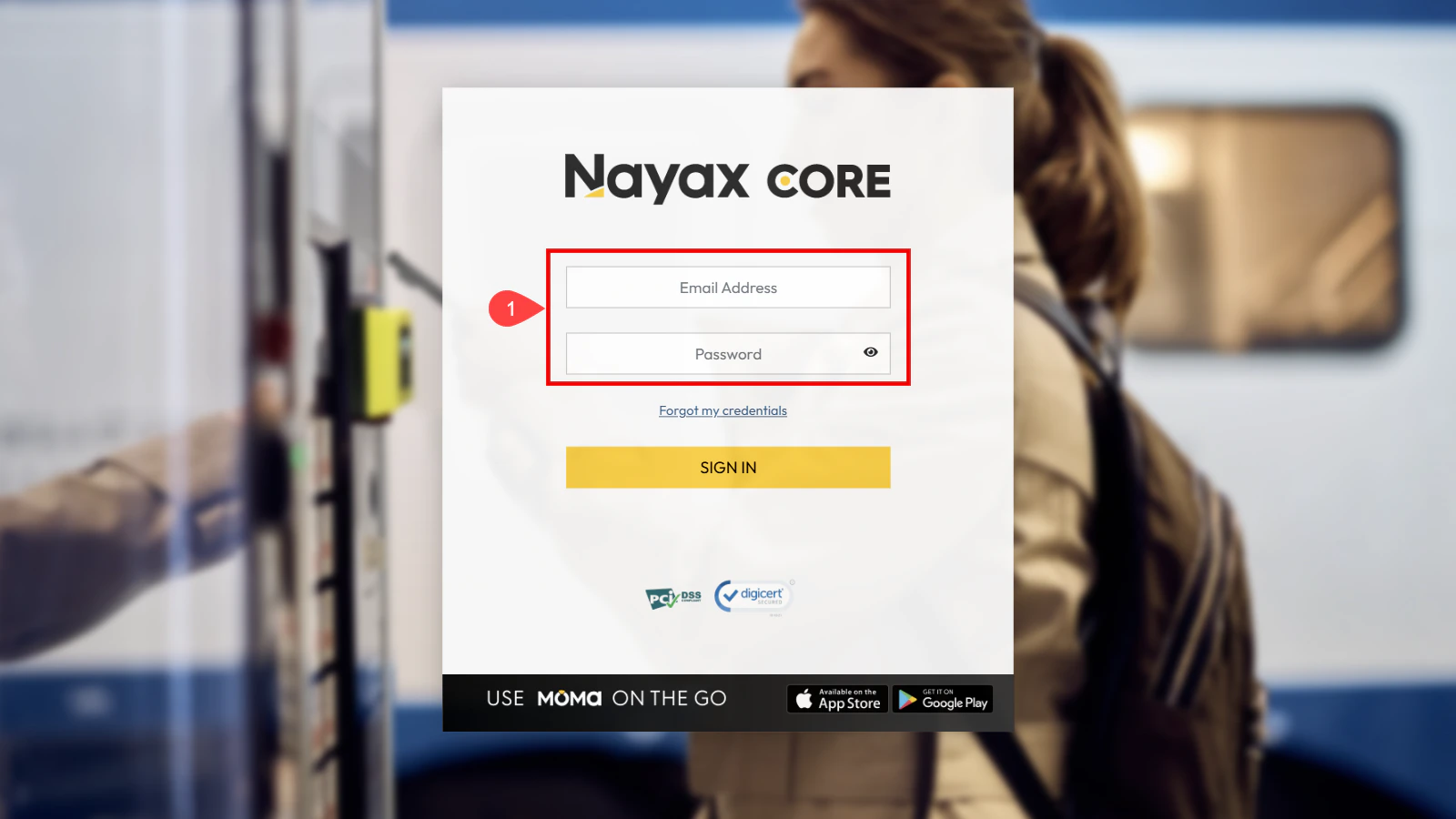
-
Go to Administration > Operator.
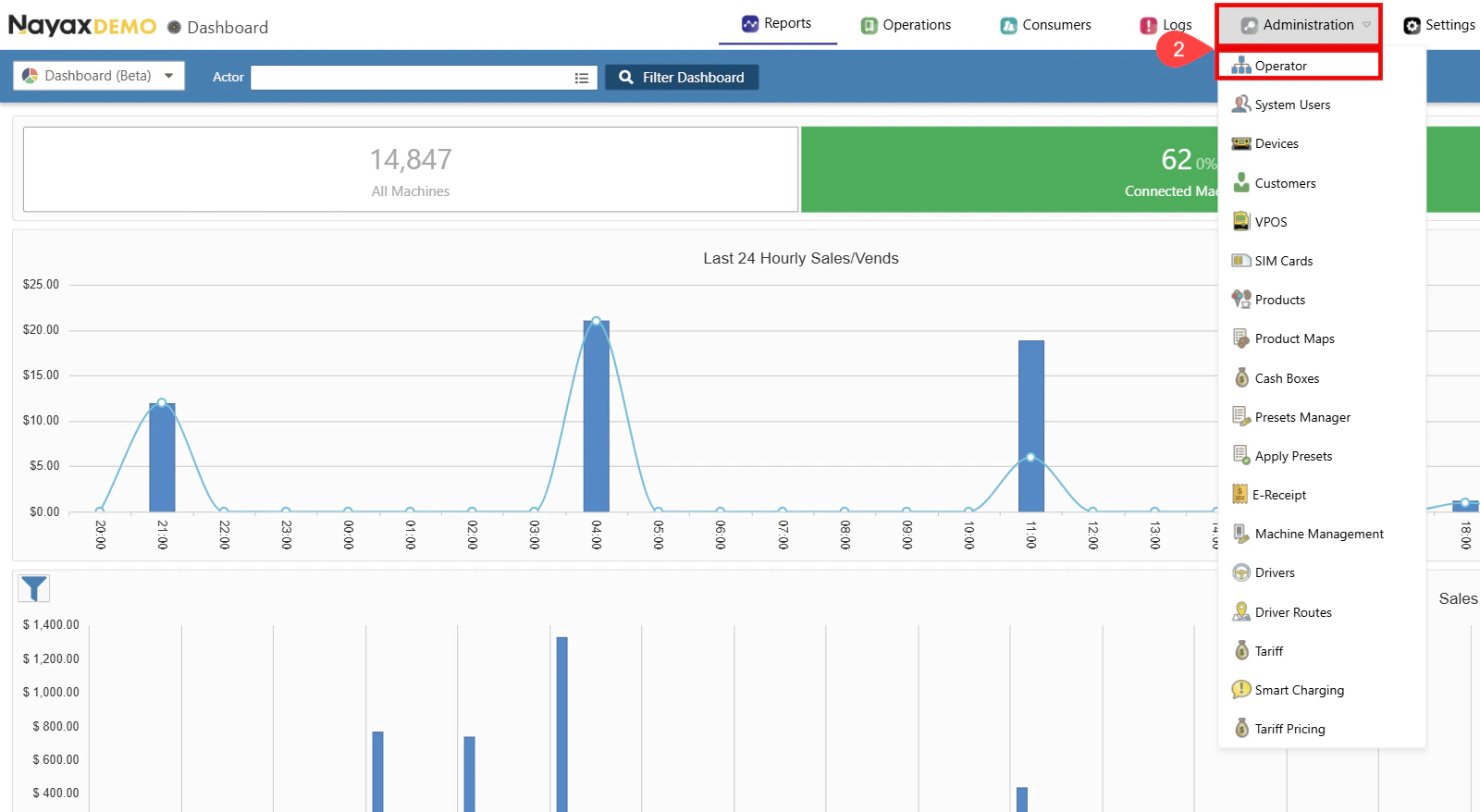
- Find the Operator you wish to set up.
- Click the Search button.
- Select the operator to display all tabs and details.
-
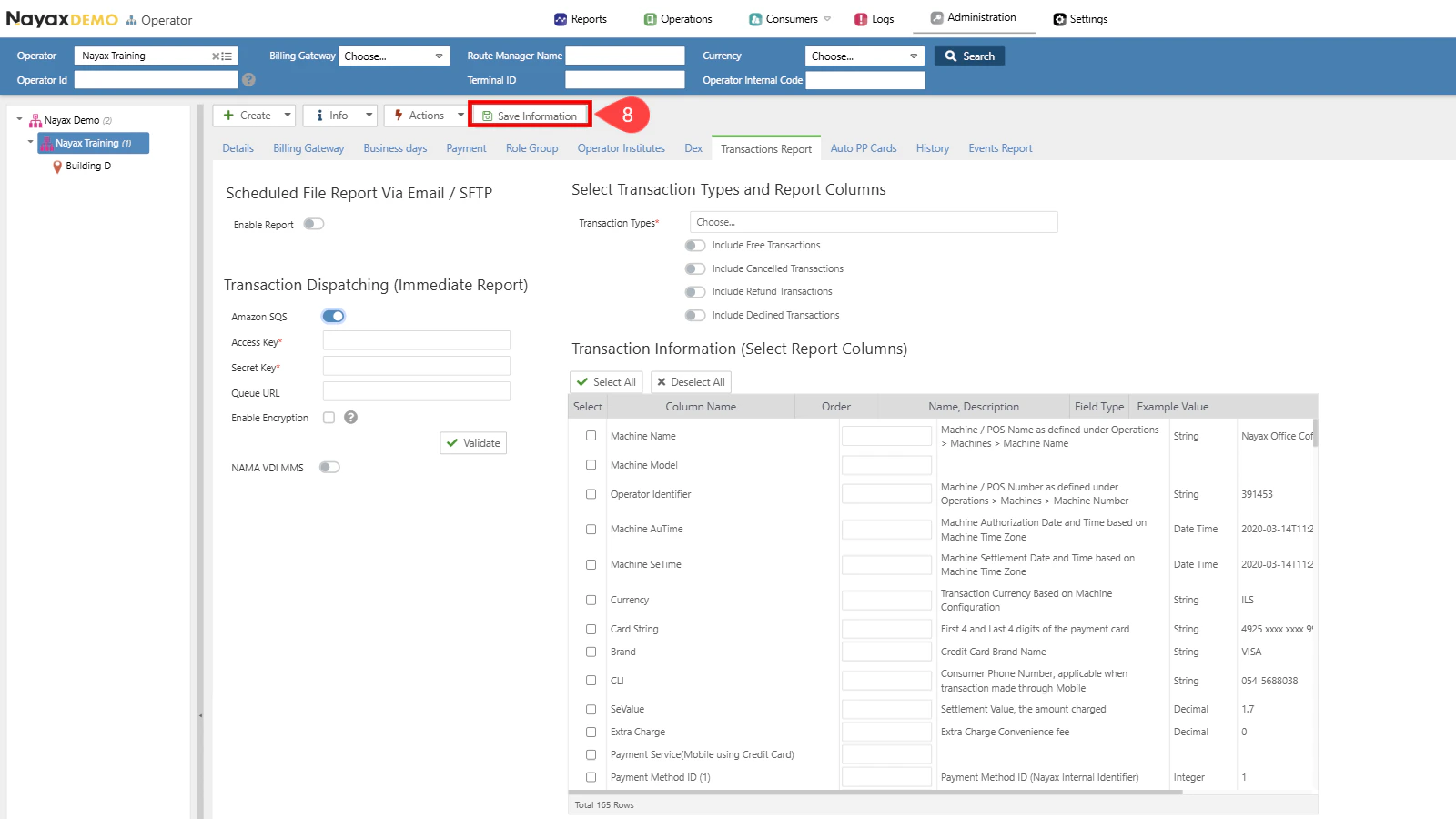
Go to the Transactions Report tab.
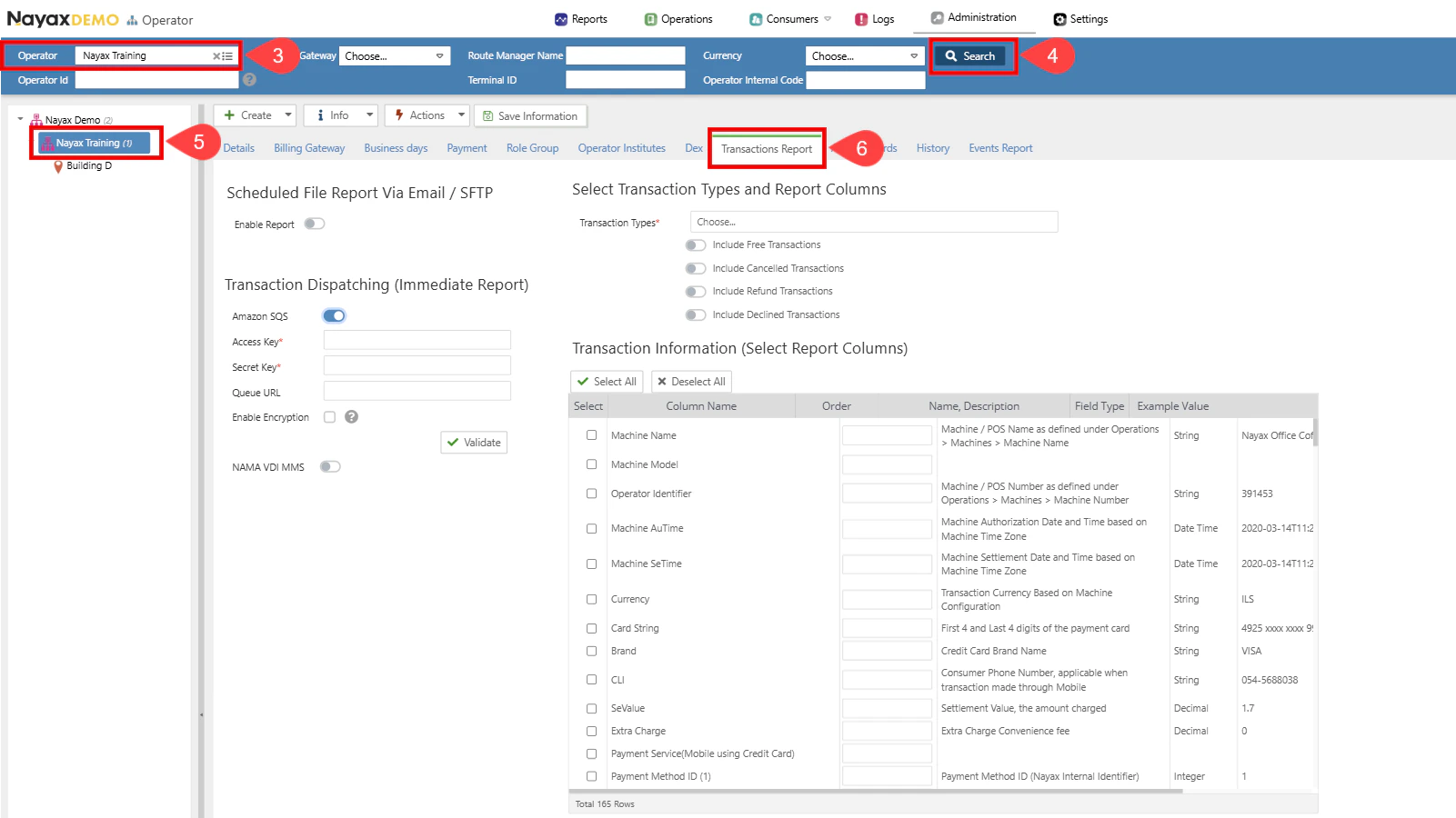
-
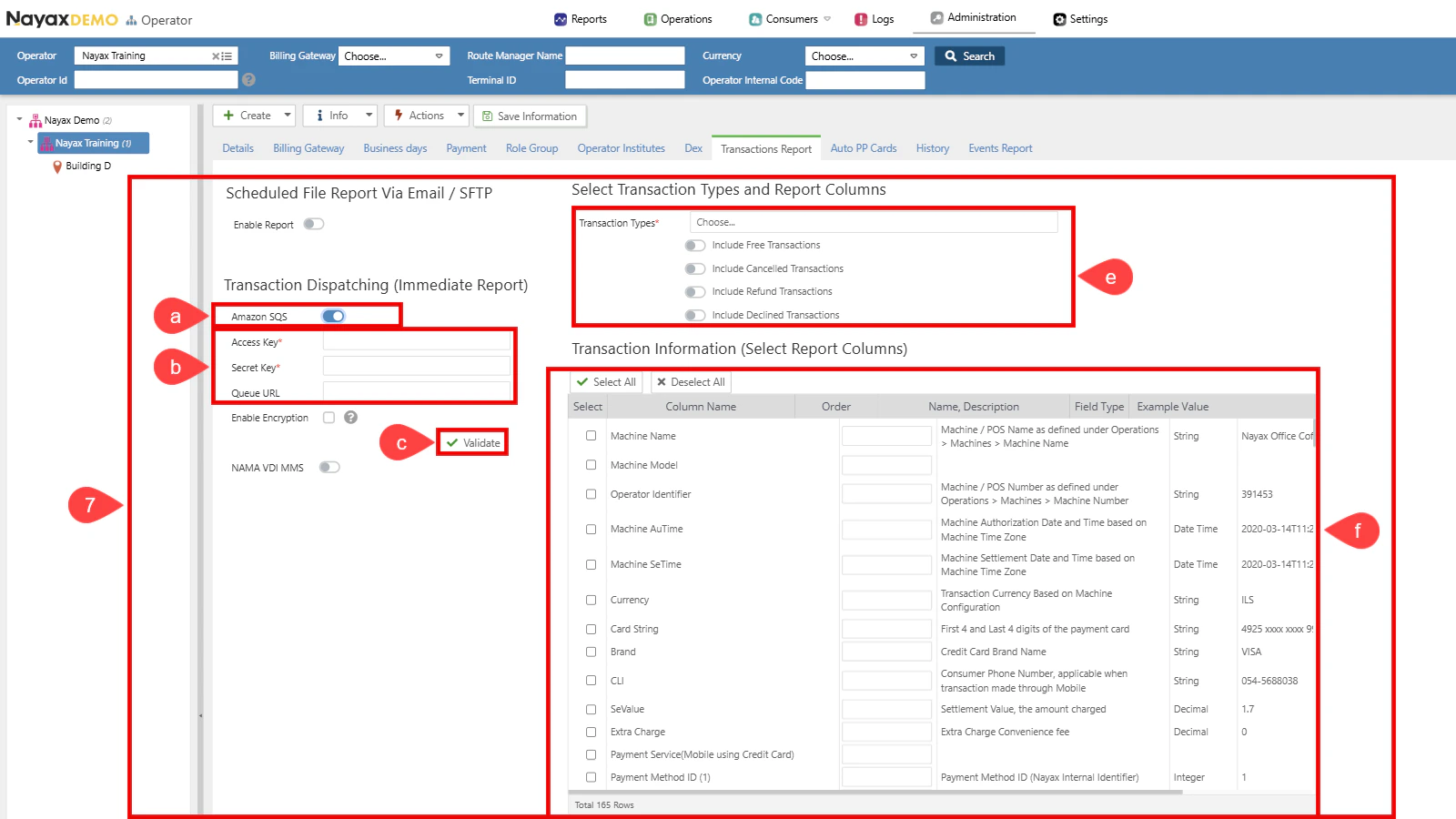
Set up Transaction Dispatching by completing the following steps:
a. Select the checkbox next to Amazon SQS to enable this option.
b. Enter the SQS credentials (Access Key, Secret Key and Queue URL).
c. Click the Validate button to ensure the Queue credentials are correct.
d. Enable Encryption (Optional). See the Set Up Encryption section for details.
e. Choose payment methods to send. Only the selected payment methods will be dispatched to the Queue.
You can also select the transaction type:
- Free Transactions
- Cancelled Transactions
- Refund Transactions
- Declined Transactions
-
Click the Save Information button to apply the changes.
Scheduled File Report (SFTP / Email)
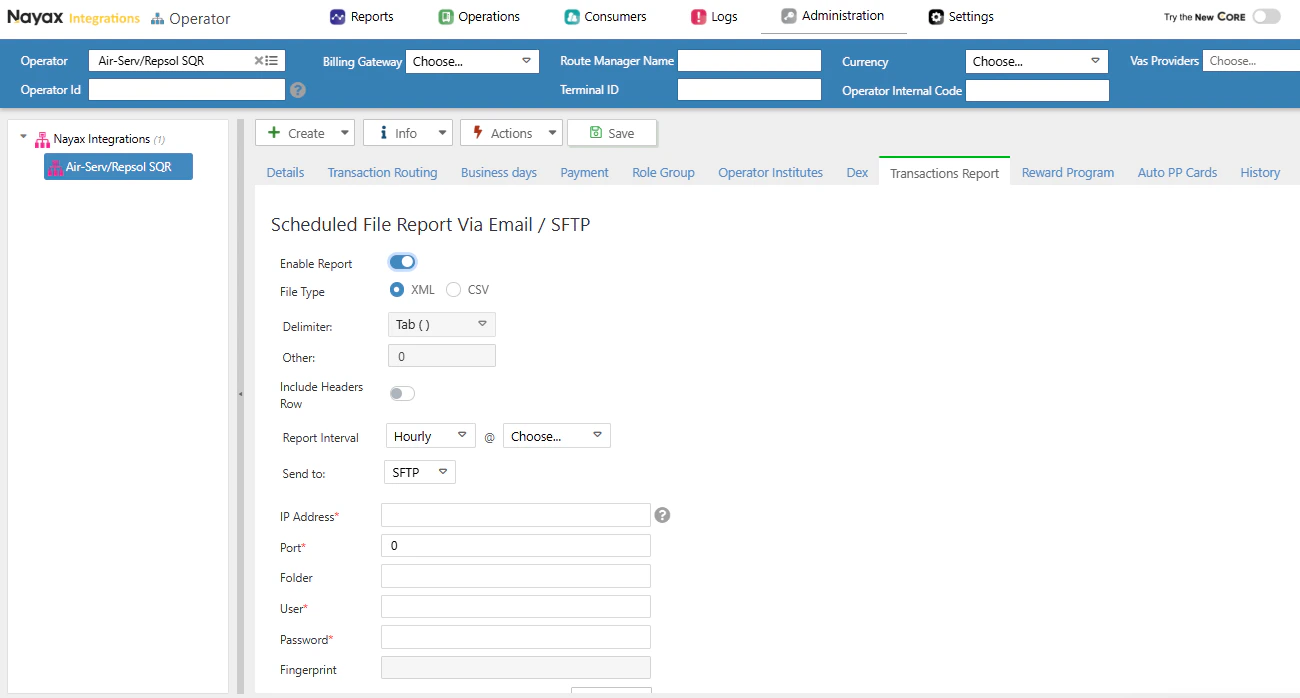
In addition to real-time Amazon SQS delivery, Nayax Core can deliver transaction reports periodically — either hourly or daily — to an SFTP server or by email. This is configured on the same Transactions Report tab, in the Scheduled File Report Via Email / SFTP section.Enable and configure the report
- In the Transactions Report tab, scroll to the Scheduled File Report Via Email / SFTP section.
- Toggle Enable Report to on.
- Configure the report format:
- Set the Report Interval: Hourly (select the minute) or Daily (select the time of day).
Connection details
Fill in the delivery connection details:
Click Validate to test the connection, then save.
Transaction JSON Reference
View the example JSON message and full field descriptions for transactions delivered to Amazon SQS.