

Configuration
To generate SDK logs, configure two flags in themain method. debug is a boolean that turns log generation on or off. dump_packets_level, in vmc_configuration, sets how much detail the SDK logs:
The example below sets both flags together.
Log file location
Where the SDK writes its log file depends on which SDK you use:-
On the C# SDK, logs save automatically to the
bin\Debugfolder in the directory you run the SDK from. For example: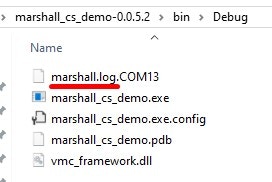
-
On the C SDK, you set the log location by invoking the function below.
The SDK sends its log output to whatever board or console you configure. It’s up to you to decide where to write it:C
- Command line, as in the x86/Linux example below.
- A UART port, as in the STM example below.
- Any other destination you choose.
The C SDK’s demo app generates the log to the command line by default.C -
On the Java SDK, you set the default log file path in the
FileWriterinitialization, as shown below:In the example above, the log file is created at the root of theJavaC:drive asout.txt. Thetrueparameter in theFileWriterconstructor appends new data to an existing log file instead of overwriting it.
See also
Log Trace Comparator
Once you have a log, run it through this tool to check it against known-good reference traces.