

Prerequisites
You need the following before you start:- A VPOS Touch or Onyx terminal that is not connected through a cable.
- An account in Nayax Core with an actor, a machine, and a user role.
- Your Spark provider entity set up in Nayax Core.
Certain provider-level configurations are managed internally by Nayax and are not
exposed in the Nayax Core interface. If you need one of these changed, contact your
Nayax Support representative.
Device Firmware Requirements
To procure a Nayax device, power supply, and cables, contact your Nayax Sales representative. To support the Spark features you plan to use, the device must run one of the firmware versions below, or a newer official version:Associate Your Operator with Spark
Confirm that your Operator is associated with your Spark entity in Nayax Core:1
Open the Operator Screen
Log in to Nayax Core, then click Administration > Operator.
2
Find Your Operator
Start typing the Operator name in the Operator search bar and select it from
the suggestions, then click Search. Alternatively, click Search and locate
the Operator in the hierarchy.
3
Open the VAS Provider Tab
Select the Operator in the hierarchy, then click the VAS Provider tab. Under
the Spark section, your Spark integration name appears in the Provider Name
field.
If you do not see the VAS Provider tab, or the Provider Name under the
Spark section is not your Spark integration name, contact your Nayax Support
representative.
Select or Create Your Machine
Open the machine you want to configure for Spark, or create one if none exists:1
Open the Machines Screen
Log in to Nayax Core, then click Operations > Machines.
2
Find Your Machine
Start typing your Operator name in the Operator search bar and select it from
the suggestions, then click Search. Alternatively, click Search and locate
the Operator in the hierarchy. A list of machines appears with their actor tree.
3
Open or Create the Machine
Click the machine you want to configure. If no machine is available, you can create
a new machine or duplicate an existing one. For step-by-step guidance, click the
Need Assistance button on the right.
4
Set the Machine Model
For a new machine, under General Information > General > Machine Model, use the
machine model suggested by Nayax Support. The machine model determines the initial
machine configuration in Nayax Core, which can save you steps later. You can change
or add configurations to the initial setup at any time.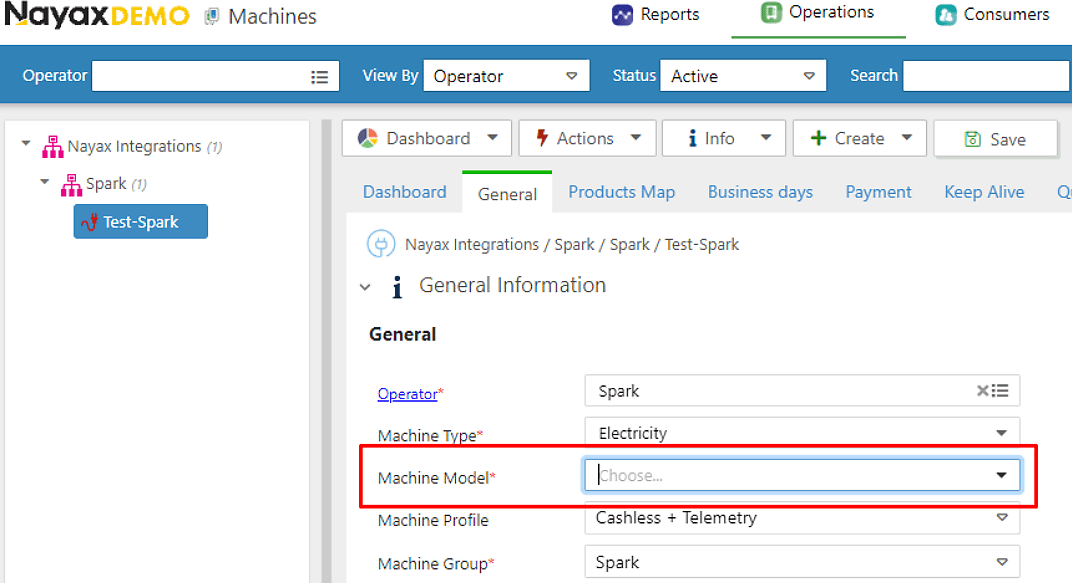
5
Connect a Nayax Device
Under General Information > Hardware > Device Number, enter your device number
and click Save. If no device is available, contact your Nayax Support
representative.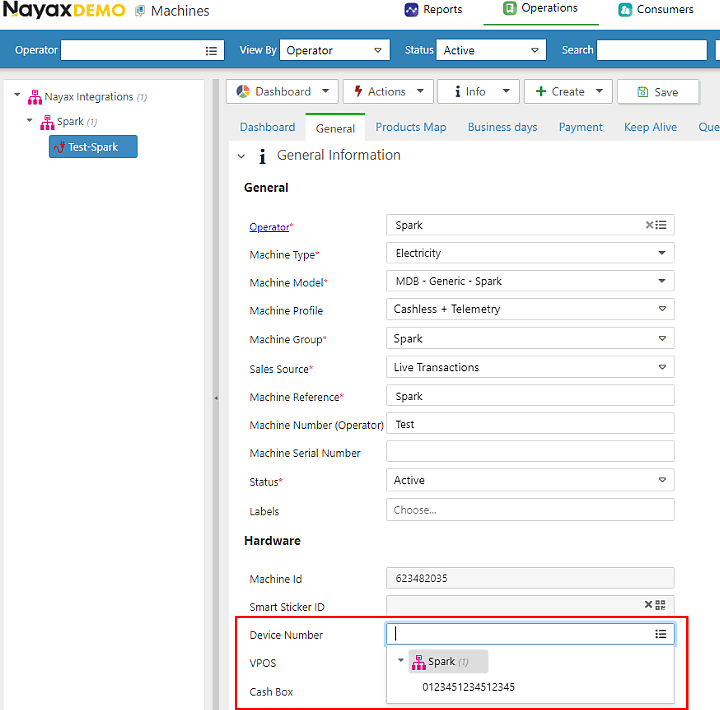
Next Steps
Remote Start Configuration
Configure a machine so your server can start transactions remotely.
Device Start Configuration
Configure a machine so transactions start from the terminal itself.
Device Stop Configuration
Configure a machine so a card at the terminal stops an active transaction.
External Settlement Configuration
Configure a machine so your server settles or cancels a terminal-authorized transaction.