

Single service station
Use this configuration when the Nayax device serves one service point.Card readers
These settings control the device hardware and how a transaction can start:- Decimal Place: defines the Nayax device and affects the Default Credit value.
This is usually
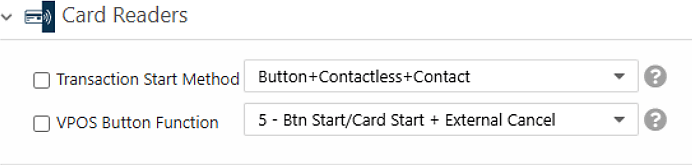
2. - Transaction Start Method: set to Button, Contactless, and Contact so a transaction can start either from a card presented in idle mode or from a button press on the device screen.
- VPOS Button Function: set to 5 - Btn Start/Card Start + External Cancel.
MDB
The MDB Flags setting tells the server which payment flow the device supports. Device Start uses the Pre-Authorization flow, which applies when the transaction starts before the consumer chooses a product or service and before the final amount is known. Set MDB Flags to * Flags Disabled.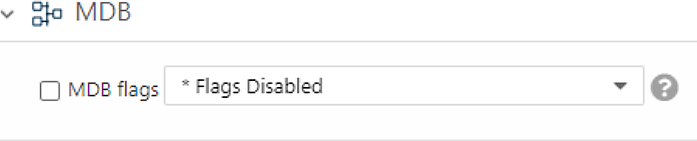
Payment
The Default Credit setting sets the authorization amount for the Pre-Authorization flow. The value is in cents and is affected by the Decimal Place value. The settlement value cannot be higher than this amount.Pulse/ccTalk
These settings define the credit applied per pulse and the authorization source:- Credit per Pulse 1: set to
1. - Number of Pulses per Vend 1: set to
1. - Pulse Options: set to Use Default Credit for Authorization.
VPOS touch
The VAS configurations setting informs the server that the machine supports the Spark Device Start flow. Set it to Spark Device Start (V2). Without this indication, Device Start does not function. This setting covers both Device Start and Device Stop. After you finish, click Save to store the configuration.Multiple service stations (2, 4, or 6)
Use this configuration when the Nayax device serves two to six service points. The device supports an even number of service stations only (2, 4, or 6).Card readers
These settings control the device hardware and how a transaction can start:- Decimal Place: defines the Nayax device and affects the Default Credit value.
When the device serves more than one service point, the decimal place also affects
the amount shown for each service station. This is usually
2. - Transaction Start Method: set to Product. With service station selection, the flow must start by selecting the desired service station first.

MDB
The MDB Flags setting tells the server which payment flow the device supports. Multi-station Device Start uses the Pre-Authorization flow. Set MDB Flags to * Flags Disabled.Payment
The Default Credit setting sets the authorization amount for the Pre-Authorization flow. The value is in cents and is affected by the Decimal Place value.Pulse/ccTalk
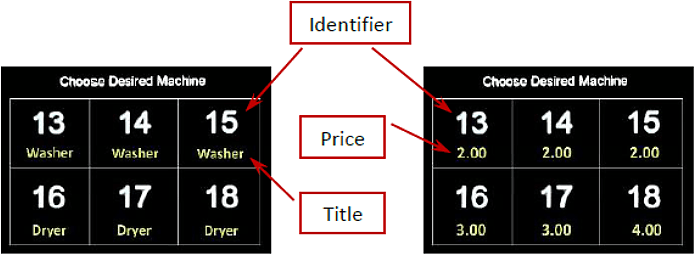
This section sets up the display for two to six service stations. Each pulse line represents one service station the device serves. The amount shown for each service station is the Credit per Pulse multiplied by the Number of Pulses. The authorization amount can be the same for every service station or set individually:- For an identical amount across all stations, set the amount in Default Credit and set Pulse Options to Use Default Credit for Authorization.
- For different amounts per station, configure Credit per Pulse and Number of Pulses and do not use Pulse Options.
- Credit per Pulse 1-6 (Cents): the amount to display for each service station,
stations 1 to 6. This is multiplied by Number of Pulses per Vend 1-6. To hide the
prices from the display, set this to
0. - Number of Pulses per Vend 1-6: set each station to
1(1;1;1;1;1;1). The amount displayed is Credit per Pulse multiplied by this number, so a value of1shows the Credit per Pulse amount unchanged. - Pulse Identifier 1-6: the identifier shown in idle mode for each service point.
The default values are
1to6. - Pulse Title 1-6: an optional description shown below each identifier. When set, the screen alternates between the price and the title every 3 seconds. If you do not set a title, the description screen is not shown. Examples: Charger, Air and Vac, Washer and Dryer.
- Pulse Options: set to Use Default Credit for Authorization to base the authorization on the Default Credit amount and ignore the amounts shown per station. To use the displayed amounts instead, leave this attribute unset.
- Pulse Line Welcome Message: an optional one-line message shown during idle mode, above the service stations layout. The default is “Choose Desired Machine”. Use it to tell consumers how to start a flow.
2 and currency USD, setting Credit per Pulse
1-6 to 200;200;200;300;300;400 and Number of Pulses per Vend 1-6 to
1;1;1;1;1;1 displays six prices: three at $2, two at $3, and one at $4. Setting
Pulse Options to Use Default Credit for Authorization then authorizes each
transaction against Default Credit.
VPOS touch
The VAS configurations setting informs the server that the machine supports the Spark Device Start flow. Set it to Spark Device Start (V2). Without this indication, Device Start does not function. This setting covers both Device Start and Device Stop. After you finish, click Save to store the configuration.Configuration summary
Use the following table as a quick reference for the Device Start settings:Next steps
Device start
See how the Device Start transaction flow works at the API level.
Device stop configuration
Add the settings to stop a transaction from the device.