- In your Dashboard go to Operations > Machines.
- Click Create > New Machine.
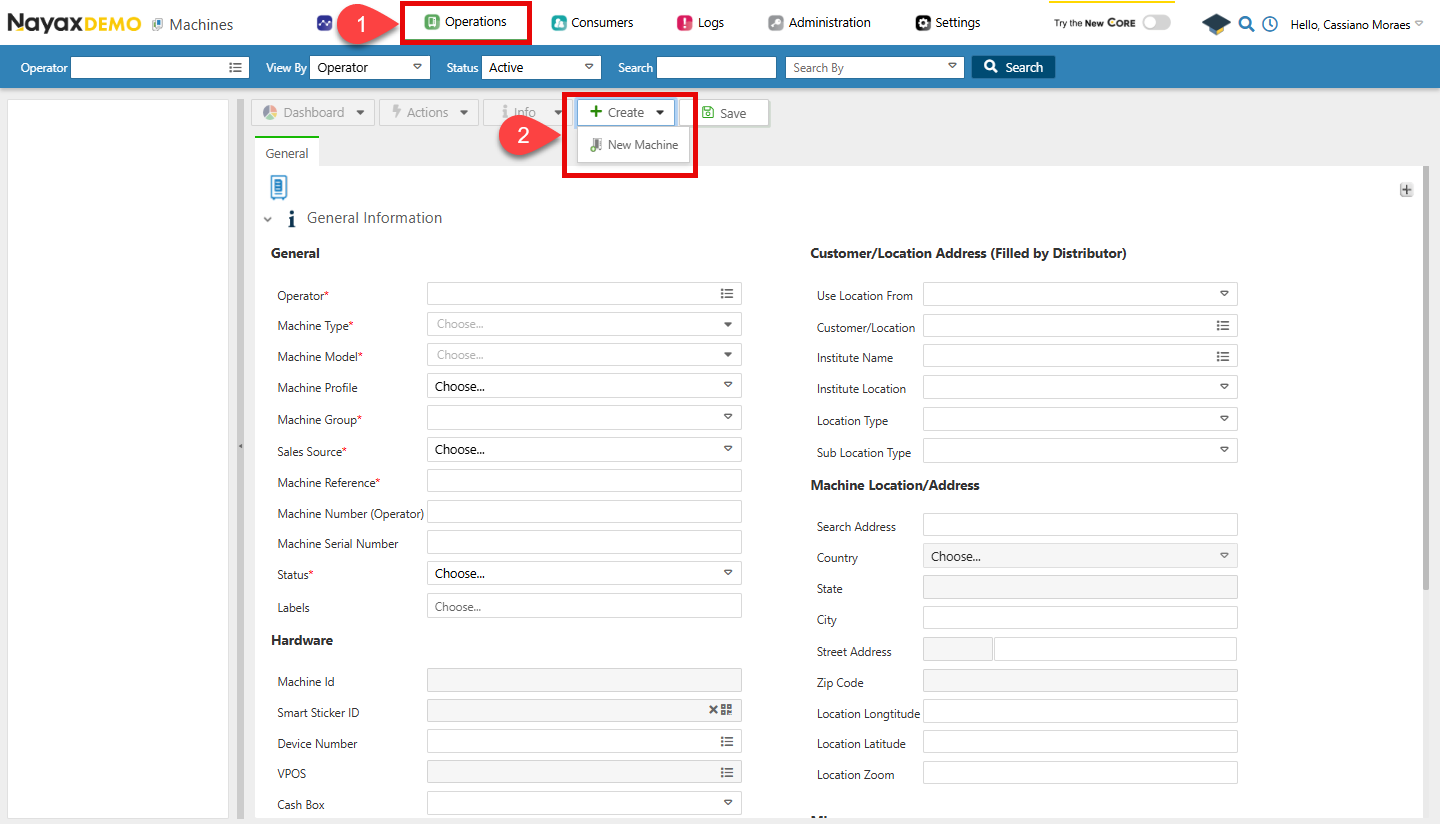
- Now you can fill all the details on the form, once you are finished click on Save.
Request to Create New Machine
Use the Create New Machine endpoint to create a new machine. The following code block exemplifies the request to create a new machine:| Field Name | Description |
|---|---|
ActorID | The operator’s ID under which the machine is being created. |
CountryID | ID representing the machine’s country. Use the Get Countries endpoint for a list of available country codes. |
CurrencyID | ID for the machine’s currency. Use the Get Currencies endpoint for a list of available currency codes. |
MachineGroupID | ID of the group to which the machine belongs. You can view existing groups with the List All Machine Groups for Actor endpoint. |
MachineModelID | ID for the machine’s model. To obtain the machine model of an existing machine, you can copy and paste the MachineModelId from the Get Specific Machine Basic Info endpoint for a specific machine. |
MachineName | The name of the virtual machine. |
MachineStatusBit | Status of the machine: 1 for active, 2 for inactive. |
LanguageID | ID represents the language used by the machine. |
SalesSourceID | ID indicating the sales source. should be 30000512, which means live transactions (other options are irrelevant) |
MachineTypeID | The type of the machine determines its icon in Nayax Core. |
GeoCountry | Country code where the machine is located. |
MachineID.
Verify Creation
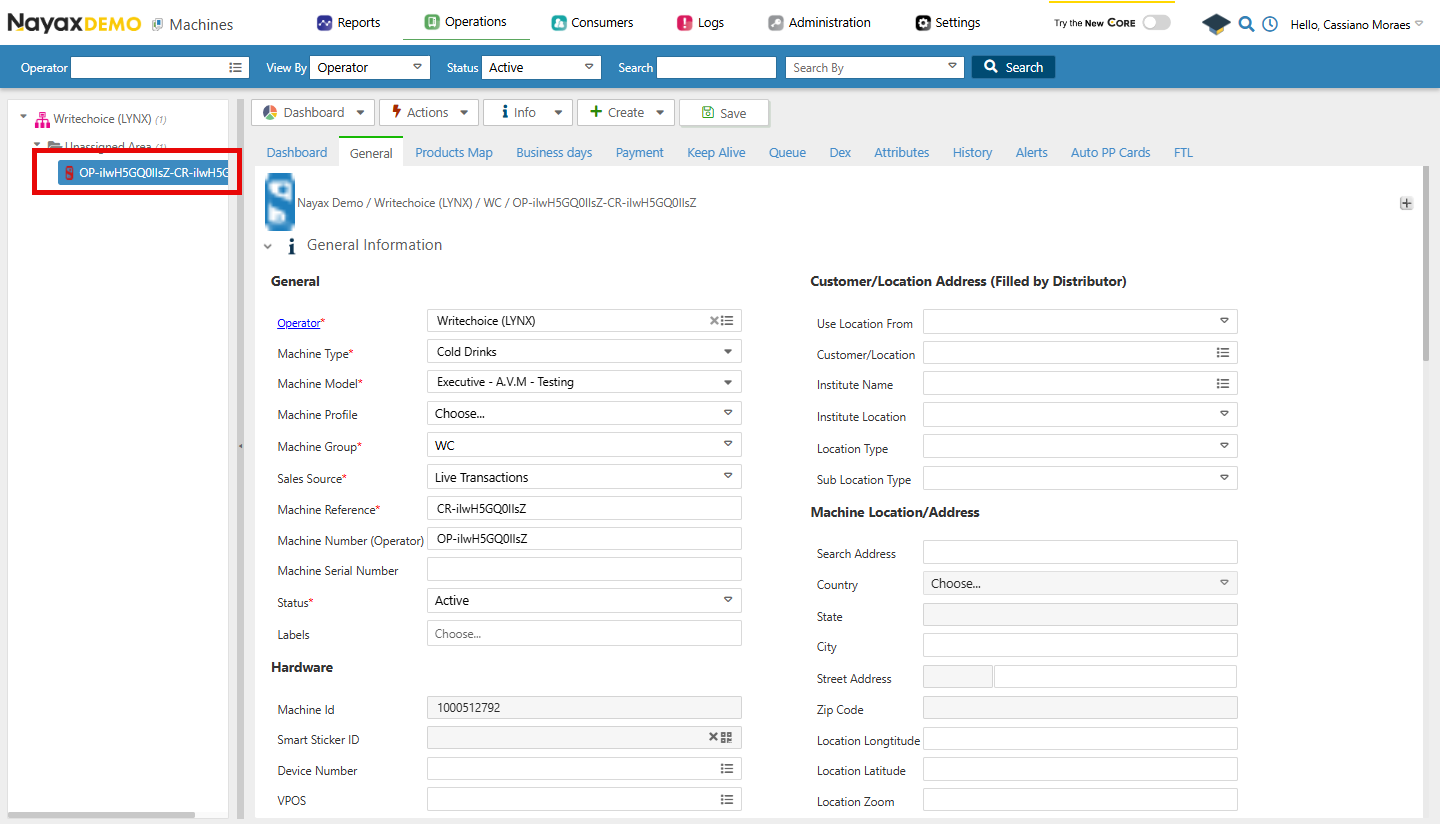
Once a new machine is created, you can verify it in Nayax Core, as in the steps below:- Go to Operations > Machines.
- Use the Search feature to filter the Machine, and select it from the list.