

Installation
The SDK includes the following files:
To install the demo application, follow the steps below:
- Install the EMV Core Service
com.nayax.emvCore-release-x.x-xxx.apkon your Android device. - Install the Test application
com.nayax.emv_core_android_test-release-x.x.x.apk.
If you experience communication issues between the EMV Core service and the application or Reader, restart the EMV Core service.
Using the demo application
To start using the test application, you can follow the steps below:-
Connect your UNO reader to your Android device. If you get a system message saying, “Allow EmvCore Service to access Saturn 8700,” press OK.
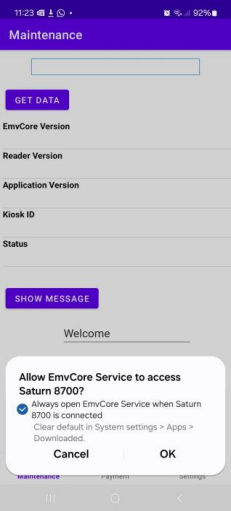
- The application will automatically attempt to connect to the EMV Core service and the UNO Reader. Once the connection is successful, the status line at the top of the screen will display Ready.
Navigating the application
The demo application includes multiple pages for performing specific actions.Maintenance page
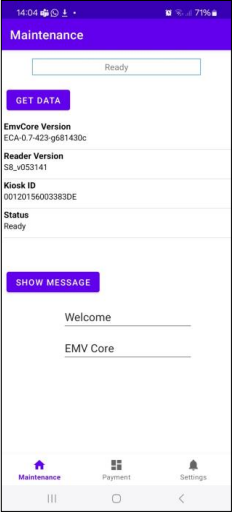
- Get Data: Retrieves the version information and status from the EMV Core service and Reader.
- Show Message (UNO-PLUS readers only): Allows you to edit and send two lines of text to the Reader’s display.
Settings page
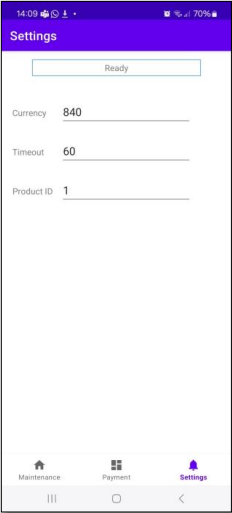
- Currency Code: Enter the currency code (e.g.,
840for USD or978for Euro). - Product ID: Optionally, assign an identifier for the product to track it in transaction logs and reports.
- Timeout: Set a timeout duration (in seconds) for transactions. The maximal time is
60seconds, for unlimited polling use ‘continuous=true’. - Continuous: Automatically renew the transaction polling when a timeout occurs, allowing unlimited polling. It can be stopped with the
CancelTransactioncommand.
Payment page
Run a payment transaction:- Select Authorize for a two-step transaction or Pay for a single-step transaction.
- Enter the transaction Amount.
-
Press START to initiate the transaction. The virtual display will show Present card, and the status line will display Payment transaction.
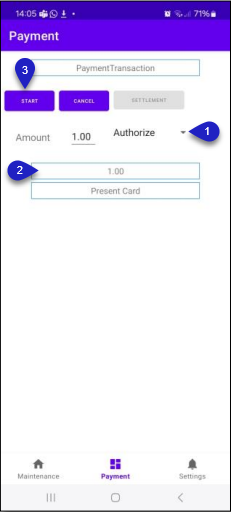
- Present the EMV card to the Reader.
-
Once the transaction response arrives, it will appear on the screen, allowing you to proceed to the settlement page.
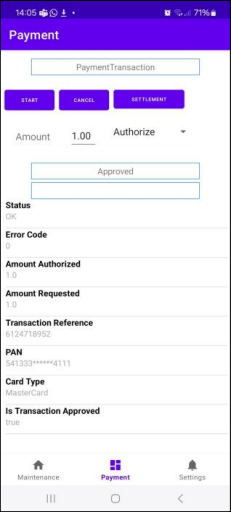
- You can also continue to run another authorization. The previous transaction may be kept open (Authorized).
Config page
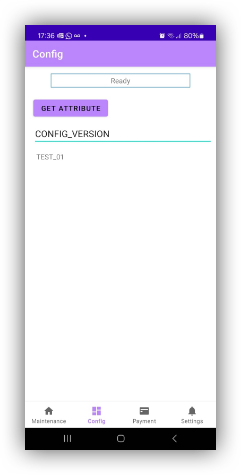
GetAttribute command:
- Insert the Attribute name, such as
CONFIG_VERSION. - Press
GET ATTRIBUTEto get the attribute value from the Config file.
External settlement example settings
To simulate External Settlement from the demo application, get the following parameters from Nayax support and set them in the sample app’ssettings.java file:
externalSettlementTokenIdexternalSettlementTokenexternalSettlementIntegratorIdexternalSettlementSignKey