

- Device ID (Reader Serial Number)
- EMV Core FW version in use
- EMV Core configuration file
- EMV Core log files
- Transaction data (if applicable): date/time, amount, transaction ID, error received
- Reader configuration (retrievable with the Saturn Management Utility)
Log files
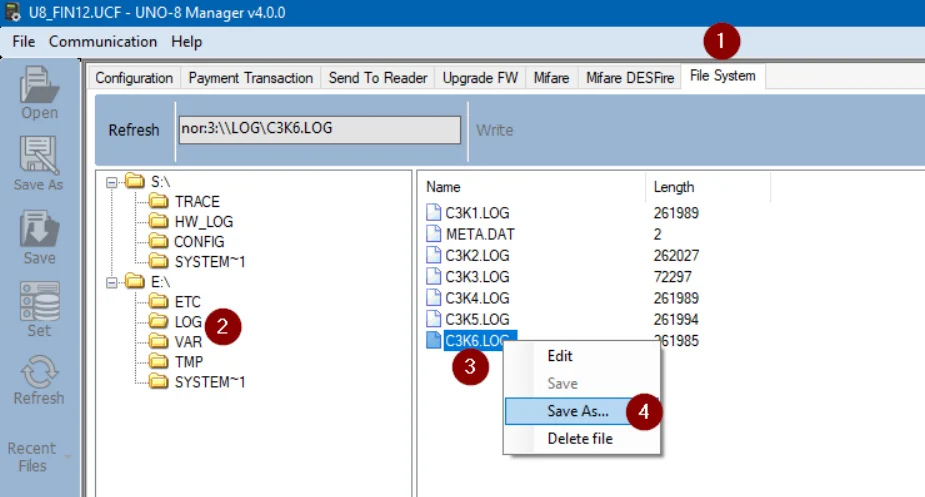
The EMV Core saves information in log files for debugging purposes. Log files can be obtained by:- Nayax Core: Use the Request Gtrace action.
- TMS: Send the
UPLOAD_LOGScommand. - Locally via UNO-8 Manager:
- Select the File System tab.
- Navigate to the
E:\LOGfolder. - Right-click the
*.logfiles and select Save As… to save to your PC.
Troubleshooting sequence
When encountering an issue, work through these steps in order:- Check SDK version: Uninstall old versions and install the latest.
- Check and update configuration:
- EMV Core configuration
- Reader configuration
- Verify correct registration:
- OTI TMS
- Nayax Core
- Note: Test terminals and live terminals require different registration.
- Try a transaction with a valid test card.
- Ensure communication is not blocked by a firewall or similar mechanism.
Common problems
Error code overview
Error codes fall into two categories depending on their source:- Positive error codes (e.g.,
99): From the PSP system. - Negative error codes (e.g.,
-997): From the OTI system.
-995 declined by reader can also indicate an online decline from the PSP.
Terminal registration issues
Symptom 1:- Status =
Not ready(visible in the test application “Get Status” button) - Error:
"Failed getting terminal operator …code: -997"
- Confirm your terminal ID appears in TMS under the correct operator; consult Nayax support if needed.
- Check the EMV Core configuration file for:
TMS_SVC_URL=tms.otiglobal.com(for management from TMS)TMS_SVC_URL=tms-c.otiglobal.com(for management from Nayax Core)
Symptom 2:
- Transaction ends with error:
- Check the kiosk configuration file. Most common settings:
- Verify the terminal ID is properly registered at Nayax backend; consult the Nayax support team.