- Remotely: via Nayax Core or OTI Terminal Management System (TMS)
- Locally: from a Windows PC using the UNO-8 Manager
Remote update from Nayax Core
Update reader (POS) firmware
1
Select the required machine
2
Select actions | update device version
3
Select the main requested FW version
Select EMV Core v1.x.
4
Select the POS requested FW version
Select the required firmware: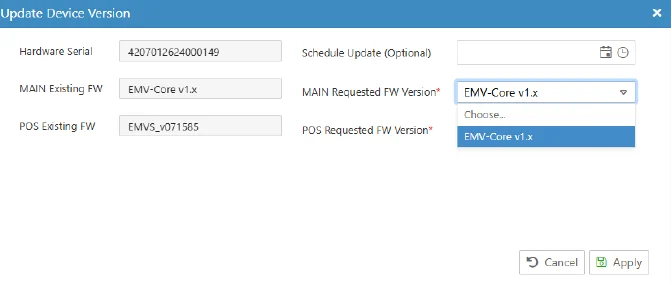
- For UNO-mini:
- RTOS SDK firmware starts with
EMVSC_(e.g.,EMVSC_v071652) - The first RTOS SDK version is named
EMVS_v071558_ec - Linux or Android SDK firmware starts with
EMVS_
- RTOS SDK firmware starts with
- If more than one firmware is available for your device, take the latest one.
5
Select apply
This adds the action to the Queue.
Reader (POS) kernel configuration
The kernel configuration is automatically selected by Nayax Core based on Country, Billing Provider, and Device type. Follow these steps to trigger the update:- Ensure the correct Country is set in the machine’s General settings.
- Ensure the correct Billing Provider is set in the machine’s Payment settings.
- Select Actions | Reboot device to initiate a device power-up.
- Wait 5 to 10 minutes for the device to receive its kernel configuration, then verify in the Embedded Advanced section under POS Configuration Version Name.
Machine configuration
To push a new configuration to the device:1
Update a machine attribute
Open the Embedded or Embedded Advanced section and update the relevant attribute.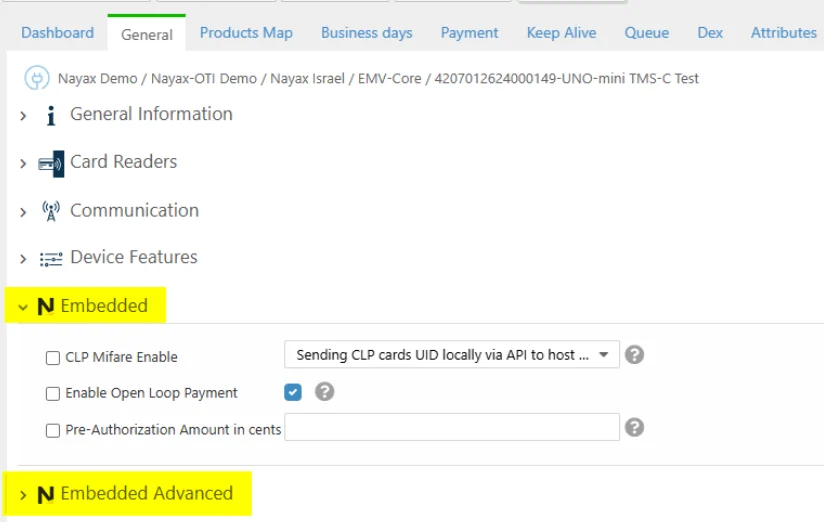
2
Press save
This adds the changed attributes to the Queue.
Any attribute change causes a complete update of all machine attributes.
Remote update from the TMS
Update reader firmware
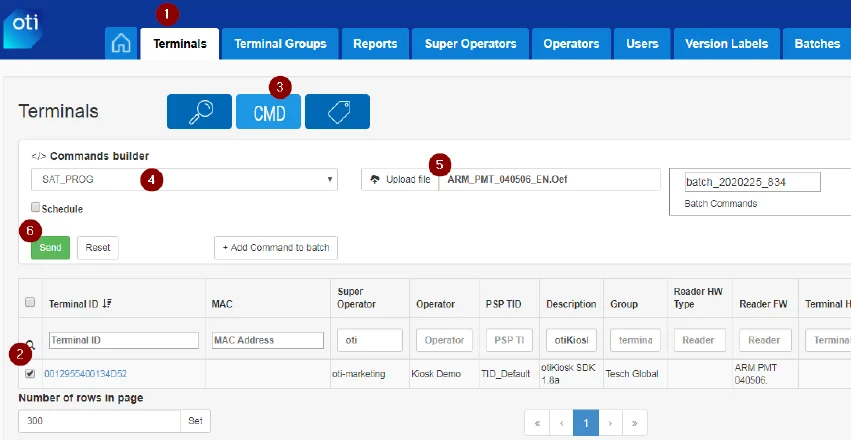
- Log in to OTI TMS and select the Terminals tab.
- Select the terminals you wish to update.
- Open the Command builder.
- Select the SAT_PROG command.
- Select the firmware file (
*.Oef), found in.\Firmware and Configuration. - Press Send and wait for the process to complete, or use Add Command to batch for additional commands.
Update reader configuration
Follow the process above, but use:- Command: SAT_CONFIG
- Configuration file: For UNO-8/PLUS, use a
*.zipconfiguration pack (e.g.,EVO_UNO8_135.zip). - SDK configuration files are in
.\Firmware and Configuration.
Local update from a Windows PC
UNO-8 and UNO-mini
- Install UNO-8 Manager v4.0 or above from the SDK:
.\Utilities\UNO-8 Managerfolder. - Connect your reader to the PC.
Update firmware
- Open UNO-8 Manager and select the Upgrade FW tab.
- Select the firmware file (
.\Firmware and Configuration). - Press Upgrade and wait for the process to complete.
Update configuration
1
Open UNO-8 manager
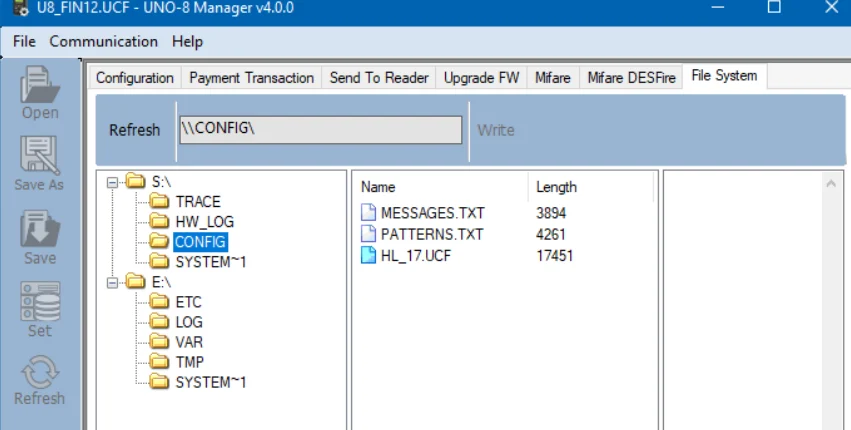
Select the File System tab.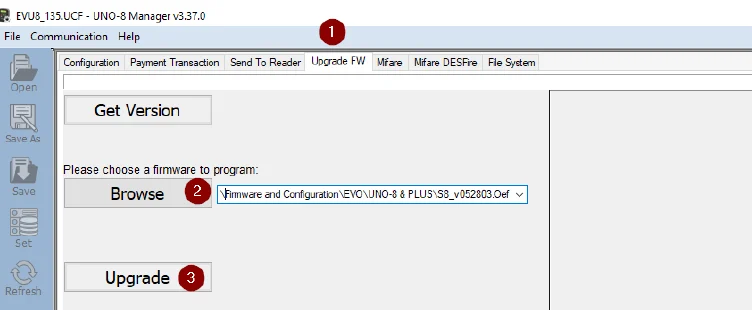
2
Navigate to the CONFIG folder
Open Windows File Explorer and navigate to the Reader
CONFIG folder (e.g., .\Firmware and Configuration\Reader Configuration\USA\CONFIG).3
Drag the configuration files
Drag the 3 configuration files from File Explorer into the 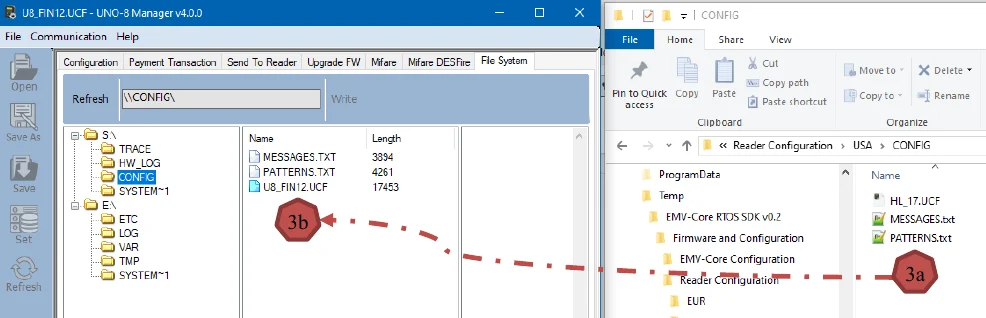
S:\CONFIG folder in UNO-8 Manager.4
Delete the previous configuration file
Right-click the old file and select Delete file.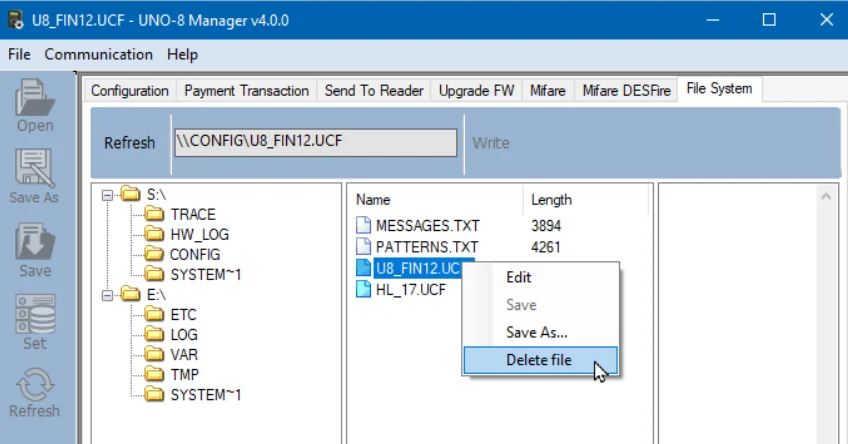
5
Reset the device