- CardTokenReceived
- IncrementalAuthorizationResponse
- ReaderMessageEvent
- SystemStatusChanged
- TransactionComplete
CardTokenReceived
This event is triggered after a card token is successfully retrieved.
- JSON
- Android
- Linux
Open loop example:Closed loop example:Parameters:
IncrementalAuthorizationResponse
The IncrementalAuthorizationResponse event triggers when an IncrementalAuthorization call completes, whether it succeeds or fails. It’s reserved for a future multi-step flow and isn’t required today: for the current single-step behavior, see Single-step incremental authorization.
Nayax doesn’t yet support the multi-step flow server-side.
IncrementalAuthorizationResponse won’t fire beyond what’s described above.Java
ReaderMessageEvent
This callback provides updates on user interface messages from the card reader.
- JSON
- Android
- Linux
SystemStatusChanged
The SystemStatusChanged event indicates changes in the SDKs or connected devices’ operational state.
Java
EmvCoreStatus is an enumeration representing the current state of the system. See the possible result values in the table below:
TransactionComplete
EMV Core calls TransactionComplete when a transaction completes, whether it succeeds or fails. It gives your application the details needed to print a receipt and link transactions to sale events (for example, in a dispute).
- JSON
- Android
- Linux
Open loop request:Closed loop request with mifare_read:To use 
JSON
mifare_read, set the Mifare Blocks to Read attribute in Nayax Core under Embedded Advanced. The following example uses KA01B10B14 to read block 1 with key A, and blocks 10 and 14.JSON
JSON
eReceipt settings in Nayax Core
To receive eReceipts, configure the operator in Nayax Core with the following settings.1
Configure VAS provider settings
In the operator settings, go to the VAS Provider tab. Under eReceipt Platform, enter the Provider Name and Business ID.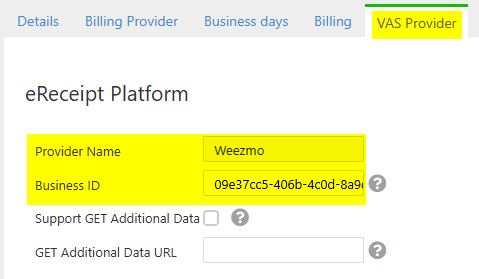
2
Update machine payment options
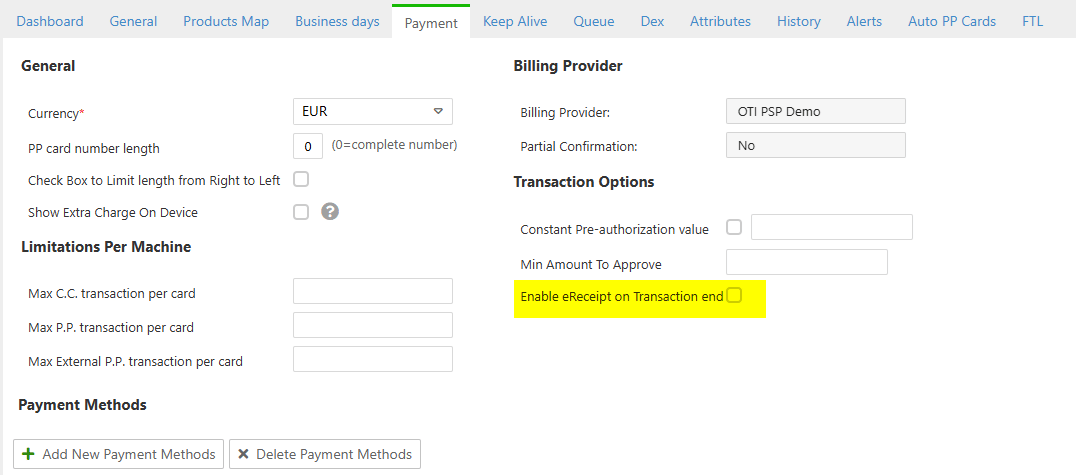
In the machine settings, go to the Payment tab. Under Transaction Options, uncheck Enable eReceipt on Transaction end.